What Size to Make a Logo: Digital, Print, Social, Email
Learn what size to make a logo for web, social media, print, email, and pocket items. Get file and resolution tips for crisp branding.
Quick answer: what size to make a logo for most uses
If you’re asking “what size should I make my logo,” start with scalable artwork. Use an SVG master and create raster exports from it for each medium. For most website needs, common starting points are 250x150 px for hero areas and smaller variants for headers. For mobile apps, plan sizes that fit each platform’s icon specs, not a single catch-all image.
The core goal is logo scalability without losing quality. That means you should not “stretch” one small PNG and hope it stays sharp. Instead, export the right dimensions for the right space, while keeping a consistent aspect ratio. When you do this, your brand stays crisp from a website header to a pocket logo on a sticker sheet.
- Use a vector master so the logo can resize cleanly.
- Create multiple raster sizes for specific places.
- Pick the right resolution for digital versus print.
- Keep the aspect ratio consistent across variants.
Understanding logo sizing basics
Logo sizing is really about two things: how big it appears and how it’s rendered. Pixel dimensions control display size for raster files like PNG. Aspect ratio controls shape, so your logo does not look squashed or stretched. When you resize, keep the same ratio and avoid non-uniform scaling.
Many teams also miss the “safe zone” around the logo. If a logo sits too close to edges, it can crop in tighter layouts. It can also lose clarity when the file is used at small sizes. Build your exports with padding so the logo stays readable even in constrained placements.
Think in variants, not one final file. A brand often needs a horizontal lockup for headers, a vertical version for sidebars, and an icon for tight areas. This is part of logo design, and it reduces last-minute resizing problems.
- Decide the use area: header, page body, email signature, or print label.
- Choose the logo variation: horizontal, vertical, stacked, or icon.
- Export at a size that matches the layout slot.
- Keep a vector master for future re-exports.
Why scalability and versatility matter
Logo scalability means the logo can grow or shrink without edges looking jagged. That usually requires vector artwork as the source. When you scale an SVG, the curves and strokes stay clean. When you scale a low-resolution PNG, those curves become pixels.
Versatility is the reason you create multiple logo variations. A horizontal logo fits wide headers, while a vertical version fits narrow sidebars. An icon version works for favicons and app icons. If you only have one format, you end up forcing it into every space, which often harms legibility.
For logo scalability, treat export size as a delivery plan. You’re planning for where the logo will live, not just how it will look in a design tool. This also supports branding consistency across different platforms, because each variant is made to fit its context.
Finally, consider how the logo behaves in dark mode or different backgrounds. The best practice is to export versions for light and dark backgrounds. This prevents unwanted artifacts and preserves logo clarity in real-world UI.
- Create light and dark variants so colors stay reliable.
- Maintain consistent margins so logos don’t feel different per placement.
- Use the icon variant for very small areas.
- Export new raster sizes when the layout changes.
Common logo size variations you should prepare
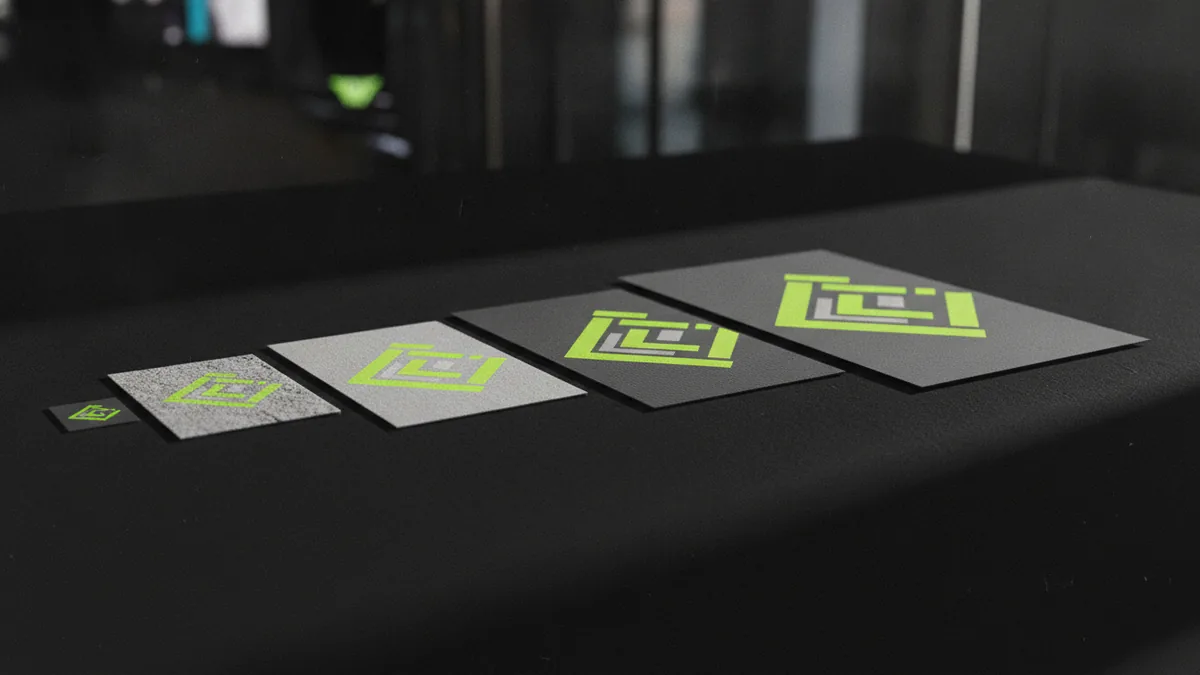
When people ask “what size to make a logo,” they often mean one number. In practice, you need a small library of sizes and shapes. Most brands use at least four lockups. These are horizontal, vertical, stacked, and an icon-only mark.
Horizontal logos are best for wide spaces like navigation bars and website hero sections. Vertical logos help when a layout is tall and narrow. Stacked logos work for certain social and email layouts where width is limited. Icon-only marks help when you need tiny graphics, like favicons and app corner badges.
To keep logo variations consistent, standardize the element proportions. The icon should reflect the same design language as the full wordmark. The spacing inside the lockup should not change between exports. This is how you protect branding consistency, even when the logo size changes.
| Logo variation | Where it fits best | Typical sizing approach |
|---|---|---|
| Horizontal lockup | Website header, landing pages | Export multiple widths for responsive layouts |
| Vertical lockup | Sidebars, tall templates | Use consistent height and padding |
| Stacked lockup | Profiles, email blocks | Keep proportions with consistent margins |
| Icon-only mark | Favicon, app icons, badges | Export small sizes for clarity |
File formats and resolution guidelines (PPI vs. DPI)
File formats for logos decide how sharp your logo stays at different sizes. For maximum versatility, use SVG for scalable web use. SVG keeps the artwork as vector paths, so the logo stays crisp at many sizes. For raster needs, PNG is the most common option because it supports transparency.
Sometimes you will need a JPG for specific tools. But JPG has no transparency, so it can look wrong on colored backgrounds. If you have a logo with a clear background, PNG exports usually save time. If your logo has fine detail, choose the highest practical resolution for PNG exports.
Resolution is where “resolution and clarity” gets confusing. PPI (pixels per inch) matters for print, because print workflows map pixels to physical size. DPI (dots per inch) is more about the printer, but many print specs still ask for DPI. A practical rule: match the output size and export pixel dimensions that support it.
For print, 300 PPI is a common target for crisp text and logos. For example, if your printed logo should be 2 inches wide, you want about 600 pixels across. If the same logo prints at 4 inches wide, you would need about 1200 pixels across for similar sharpness. For digital screens, you usually design in pixels, then export at sizes that match layouts.
- Use SVG as the master source whenever possible.
- Export PNG for transparent, web-friendly raster usage.
- Use high pixel dimensions for print logos.
- Target about 300 PPI for clean print output.
Recommended logo sizes for digital use
For websites, the best size to make a logo depends on where it appears. A logo for website header often needs a moderate width and height so it doesn’t crowd nav items. A common starting export is 250x150 px for a prominent hero placement, then smaller sizes for the header. When you implement responsive layouts, you can serve different raster sizes at different breakpoints.
Mobile icon sizes follow platform rules. Many teams prepare at least a set of square PNGs for app icons. Even if you store SVG, some mobile systems require fixed-size raster assets. Follow the platform’s icon requirements to avoid blurry results at specific densities.
Social media logo sizes vary by platform and sometimes by profile type. For example, 180x180 px is a common size for Facebook profile photos. LinkedIn, X, and Instagram also have their own requirements, and they can differ for profile versus post placements. Because these specs change, treat social exports as per-platform deliverables.
Email signature logo size is smaller than people expect. A typical guideline is about 320 px wide by 70–100 px tall, depending on the signature layout. This size works well with common email clients that scale images. It also keeps the logo readable without taking over the signature area.
| Use case | Typical guideline | Why it matters |
|---|---|---|
| Website header / hero | Start around 250x150 px | Fits common layouts and stays legible |
| Social profile (example) | 180x180 px for Facebook profiles | Matches platform crop and display rules |
| Email signature | About 320px x 70–100px | Keeps text and logo readable in email |
Logo size for print, merchandise, and pocket items
Print and merchandise bring new constraints. You cannot assume that a web PNG will print sharply. For physical items, you should base your exports on the final printed size and a target PPI. Vector sources are still best for die lines, embroidery-ready art, and large format printing.
If you’re figuring out what size to make a pocket logo, plan for small surfaces. Pocket items like cards, tags, and folded flyers often have tight dimensions. Use the icon-only or a simplified lockup so details stay readable. If the logo must be tiny, avoid thin strokes and very small text.
As a practical method, design a pocket version at a size that matches the smallest real-world placement. Then export a raster version that supports that size with extra margin. If you’re printing at 2 inches wide, export around 600 pixels across at 300 PPI. For smaller than 2 inches, go higher to protect clarity.
For merchandise like shirts and mugs, print providers may request vector files or high-res PNGs. Always ask what they prefer before finalizing production assets. A small change in required file type can prevent rework.
- Use icon-only or stacked lockup for small pocket placements.
- Base exports on printed inches and target 300 PPI.
- Export extra padding for cropping-prone production tools.
- Confirm vendor specs for shirts, stickers, or labels.
How to keep your logo consistent across platforms
Branding consistency comes from disciplined asset management. Keep one vector master and generate raster exports from that master. Store each logo variation with clear naming for its use case. That prevents teams from grabbing the wrong file and forcing it to fit a new slot.
Consistency also means matching how the logo is framed. If one platform uses a tight crop and another uses generous padding, the logo can feel mismatched. You can fix this by defining a standard safe area around the mark. Then apply it across exports so spacing stays stable.
Aspect ratio is the silent consistency killer. If someone scales a raster image using width only, the browser might preserve ratio. But if a tool or template changes it, you get distortion. Always check that the final display looks correct at normal size, not just in your design file.
Finally, build a “least common denominator” workflow. Create assets for the smallest known use cases first, like email signatures and favicons. Then create larger sizes for headers and print. This approach protects logo clarity and saves time when new platforms come up.
- Use a vector master and export per medium.
- Standardize padding and safe zones across variants.
- Check aspect ratio after every export.
- Organize assets by placement, not by file type alone.
Frequently asked questions
- What size should I make my logo for a website header?
- A common starting point is about 250x150 px for larger header areas. Then create smaller exports for compact nav bars to keep the logo readable.
- What file formats for logos are best for quality?
- Use SVG as your master for scalability. Export PNG for transparent raster use on the web and in email signatures.
- How do I choose the right resolution for print logos?
- Use a PPI target like 300 PPI and base pixel size on the final printed inches. This keeps text and lines looking sharp on physical items.
- What size should I make my logo for social media profiles?
- Social platforms often require square assets and platform-specific sizes. For instance, Facebook profile photos commonly use 180x180 px.
- What size to make a pocket logo for cards and small tags?
- Use an icon-only or simplified lockup for small surfaces. Export based on the smallest printed inches and aim for about 300 PPI quality.
- What logo size works best in an email signature?
- A practical guideline is around 320 px wide by 70 to 100 px tall. This keeps it readable without overwhelming the signature.
Related reading
How to Make a Logo Online for Free: Tools, Tips, Downloads
Make a custom logo online for free. Learn tools, template edits, and smart export tips for web and print.
How to Build a Logo: Steps, Tools, and Testing
A practical guide to how to build a logo—steps, tools, and logo testing.
How to Create a Professional Logo for Free Online
Create a professional logo free online. Use templates, customize fonts and colors, then download high-res files.