How to Create a QR Code With Logo (Step-by-Step)
Learn how to create a QR code with logo in the middle. Get tools, sizing tips, error correction, and print-safe settings.
What a logo QR code is and why it still scans
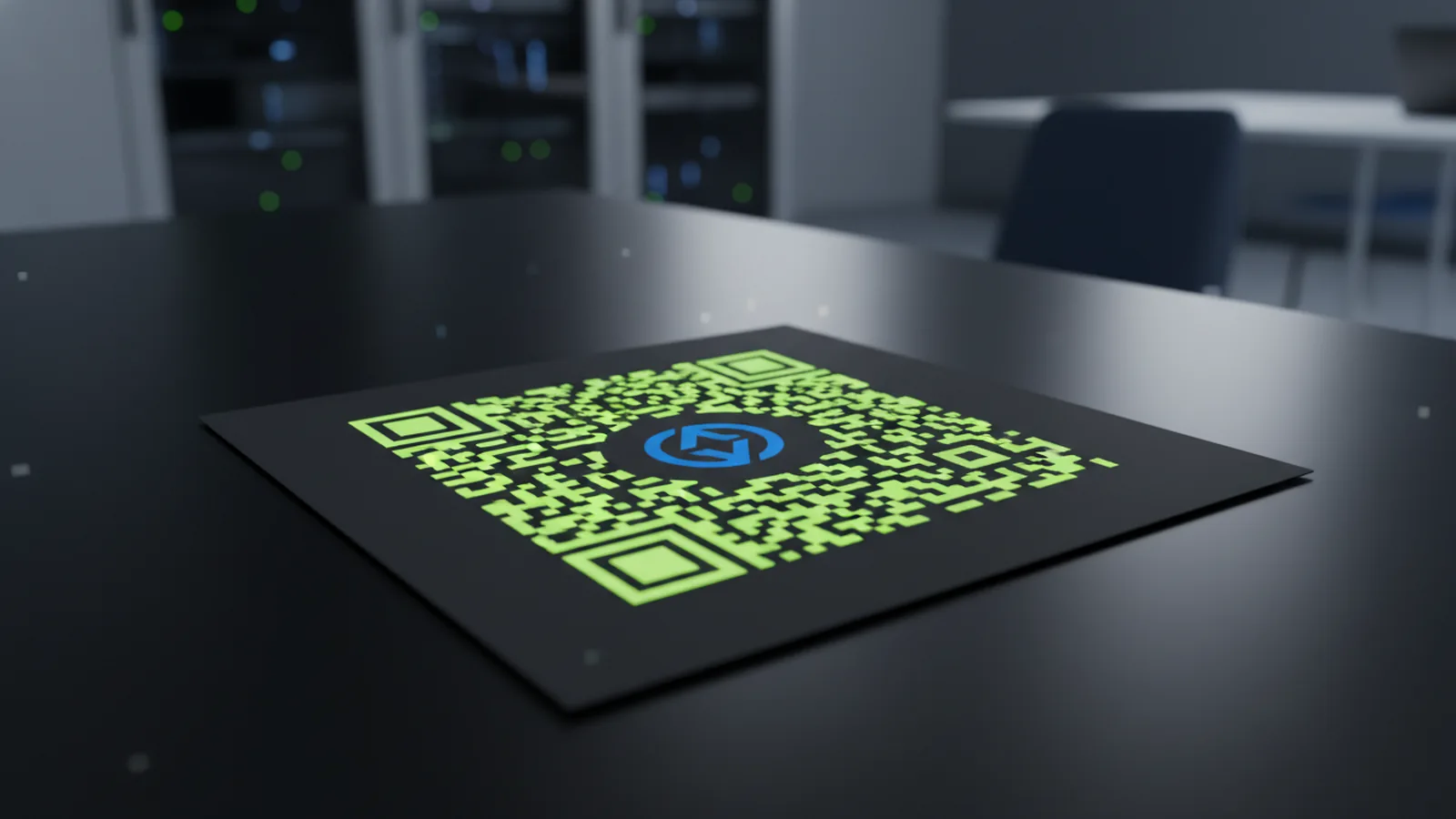
A QR code with a logo is a normal QR code that includes a mark in the center. That center mark covers some QR cells. The code can still scan if you protect enough data with the right settings.
Most QR generators let you choose error correction. That setting controls how much of the code can be damaged or blocked. A logo is one kind of “damage,” so higher error correction usually means more logo space.
The key goal is simple. Keep the logo area small enough and keep it high-contrast. Then test the result with a few real phones before you print anything.
Pick the right generator and export settings
Start with a generator that supports two features. You need error correction and logo placement. Many tools also offer “quiet zone” control, which helps scanners find the code edges.
When you generate the file, choose an output that stays sharp. Vector output like SVG is best for design workflows. If you only need PNG, use a high pixel size and avoid heavy compression.
Here are settings to look for in your tool.
- Error correction level: choose “high” or “H” when you add a logo.
- Quiet zone: keep the white border around the QR code.
- Color mode: use dark QR dots and a light background.
- Logo options: ensure you can place the logo in the middle.
If your generator has only one logo size slider, plan for trial. Small tweaks can make the difference between reliable scans and failures.
How to make a QR code with a logo in the middle (practical steps)
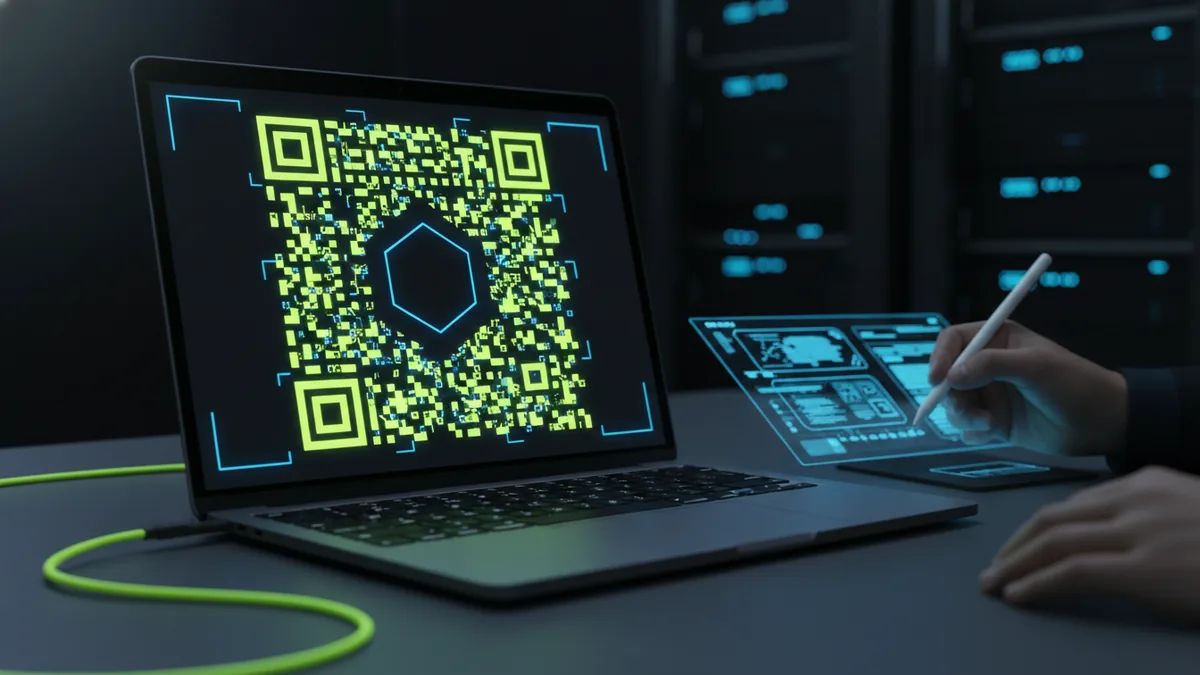
Use this workflow to generate a QR code with logo that scans on first try. It works for most “custom QR code with logo” tools. You will still need a quick phone test at the end.
Follow the steps below to generate qr code with logo, without guesswork.
- Choose your QR content: paste the full destination URL or data you want.
- Select error correction: set it to high (H) when you add a logo.
- Place the logo in the center: upload your mark and center it.
- Size the logo carefully: start smaller than you think you need.
- Keep contrast strong: use a dark QR and a light background behind the QR.
- Export at high quality: use SVG or a large PNG for print or web use.
- Test with real phones: scan from a few distances and angles.
If the first scan fails, reduce the logo size first. Then try again with the same content. Only after that, adjust error correction or quiet zone.
Logo sizing rules that prevent scan errors
Logo placement is where most projects go wrong. Many people make the logo too large, then wonder why scans fail. QR codes can lose readable modules when the logo blocks too much area.
A safe approach is incremental sizing. Pick a logo size that looks good, but keep it conservative. If the code must scan at small physical sizes, shrink the logo further.
Use these practical guidelines.
- Start small: begin with about 15–25% of QR width for many designs.
- Go smaller for print: reduce logo size when the QR will be under 1.5 inches wide.
- Avoid busy logos: simple, high-contrast marks usually scan better.
- Add padding: if your tool supports it, keep space between logo edges and QR dots.
Also watch out for transparency. A transparent logo can blend with the QR and reduce contrast. If your generator allows a “logo background,” use a clean, solid backing.
Color, contrast, and “quiet zone” best practices
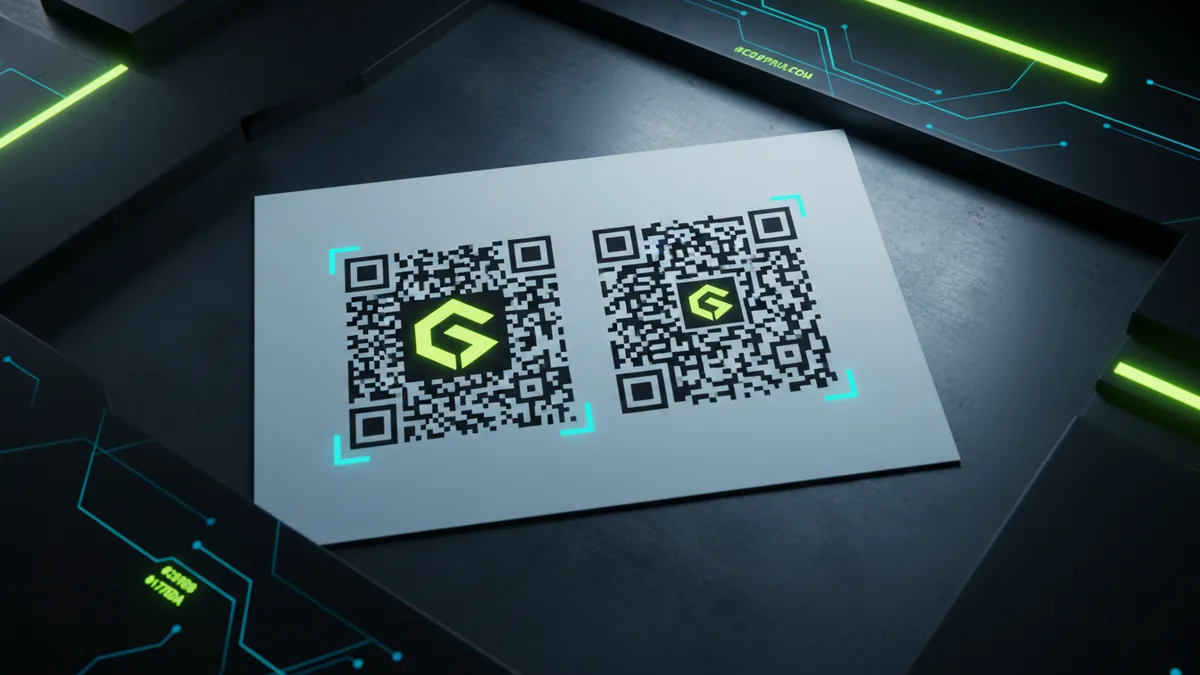
A custom qr code with logo should follow standard QR readability rules. Scanners need a clear edge and consistent contrast between dark and light parts. If you use brand colors, test them early.
Color issues usually show up as intermittent scans. The QR may work once and fail on the next attempt. That pattern often means the contrast is too low or the quiet zone is too tight.
Use this checklist before you finalize how to create a qr code with a logo.
- Dark modules: use near-black or a very dark color.
- Light background: keep it white or near-white.
- Quiet zone: preserve a wide white border around the QR code.
- No gradients in the QR: gradients can break the module detection.
- Sharp edges: avoid blurring and heavy effects.
If your design team wants a stylized look, keep style changes outside the QR modules. That means you can decorate the card background, but not the QR itself.
Test, deploy, and troubleshoot when scans fail
Before deployment, scan your code with the devices your audience uses. Test on at least two phones with different cameras. Also test in the real lighting where the QR will live.
If scanning fails, try a clear order of operations. Changing one thing at a time helps you find the cause quickly. This is faster than random edits to multiple settings.
Try these fixes in order.
- Reduce logo size: the easiest fix for “too much blocked data.”
- Increase error correction: if your tool allows more than one level.
- Increase the QR size: especially for posters and small labels.
- Restore contrast: switch to darker QR dots and a lighter background.
- Keep quiet zone wide: ensure the white border stays visible.
When you ship a logo QR for marketing, run a short pilot. Check scans over a day, then adjust if needed. That prevents reprints, wasted ad spend, and customer frustration.
Quick comparison: common tool approaches
Different generators handle logos in different ways. Some “generate qr code with logo” tools merge the logo directly into the code. Others add a logo mask that preserves more structure.
Here is a simple way to compare approaches when you choose a workflow.
| Tool feature | Why it matters | What to do |
|---|---|---|
| Error correction choices | Controls how much the logo can cover | Use high (H) for most logo designs |
| Quiet zone control | Helps scanners find the full QR shape | Keep a generous white border |
| Logo background option | Maintains contrast behind the logo | Use a solid backing if scans are weak |
| Vector or PNG export | Protects sharp edges at print sizes | Prefer SVG for layouts |
Once your QR scans reliably, you can refine the design with confidence. Then you can confidently make a qr code with logo for both web and print.
Frequently asked questions
- How do I create a QR code with logo in the middle?
- Pick a generator that supports error correction and centered logo placement. Use high error correction, place the logo in the center, then export a sharp file for testing.
- What is the best way to generate a QR code with a logo without breaking scans?
- Keep the logo size modest and preserve the quiet zone. Use high error correction and test on multiple phones before printing.
- How big should the logo be for a custom QR code with logo?
- Start smaller than your design instinct. For many cases, a logo around 15–25% of the QR width is a workable starting point.
- Why does my QR code with logo fail to scan sometimes?
- Low contrast and a too-tight quiet zone are common causes. Also check that the logo does not cover too much of the QR area.
- Should I use SVG or PNG for a QR code with a logo?
- SVG is ideal for crisp edges in design and print workflows. If you must use PNG, export at a high pixel size to avoid blur.
Related reading
How to Make the Apple Logo Glow on iPhone (13 or 12)
Make the Apple logo glow on iPhone 13 or 12 using settings or custom Photoshop glow.

How to Make a Cartoon Logo: Tools, Steps, and Design Tips
Learn how to make a cartoon logo with tools, steps, and export tips.
How to Add a Logo to a Video (and Photos, PDFs, and Email)
Learn how to add a logo to video, photos, PDFs, and more—step by step.