How to Send a Logo to a Client: Files, Formats, and Display
Learn how to send a logo to a client with the right formats, editable files, transparent backgrounds, and clear usage guidelines for correct use.
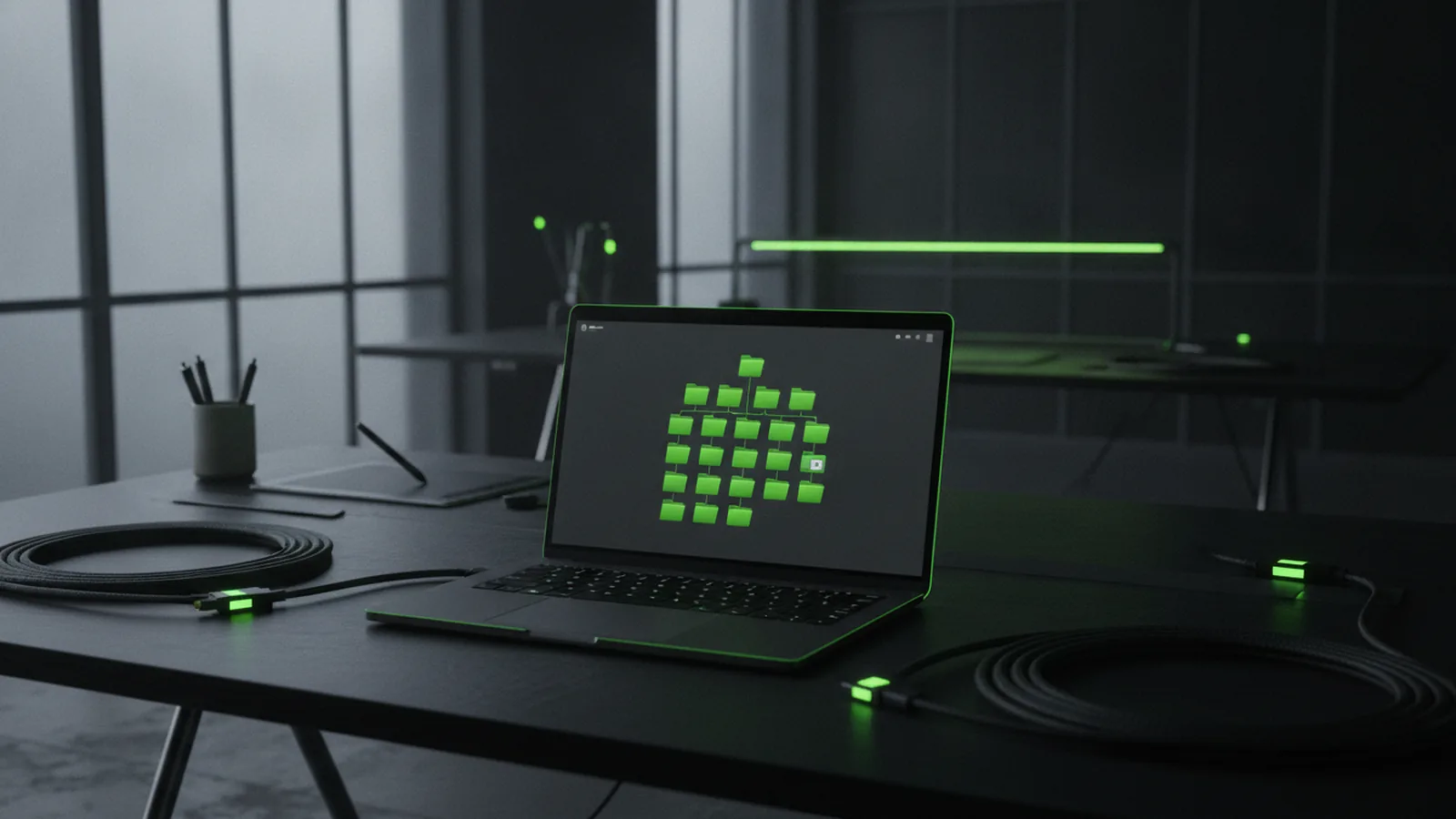
Preparing the logo files before you send anything
The fastest way to avoid logo misuse is to send a complete logo package, not just a “final” image. When clients only get one flattened JPG, they often stretch it, place it on the wrong background, or lose brand colors. A complete package gives them assets they can use across print, web, and slides.
Start by naming your files so the client can tell what each one is. Use a clear pattern like BrandName_Logo_Primary_Transparent_PNG so sorting is automatic. Also keep the original source files safe on your side so you can support future updates after feedback and revisions.
Before packaging, open each file and zoom in. If the edges look blurry or colors shift, the asset may not be export-ready. This is the moment to fix it, not after the client reports a problem.
- Export from your master logo file once, then reuse those exports consistently.
- Check readability at small sizes, like a 48px icon.
- Confirm each version is saved with the intended background handling.

Essential logo file formats to include
When people ask how to send a logo to a client, they usually mean “which files should I attach?” Include both vector and raster files so the client has options for every use case. The most common set includes .ai, .pdf, .eps, .jpg, and .png.
Vector formats are scalable, which keeps logos sharp for signs, print, and large layouts. Raster formats are pixel-based, so they’re best for fast web display and cases where the client needs a simple image file. If your client only gets raster files, quality often drops when they scale up.
Below is a practical “what to include and why” map you can follow.
| Format | Best for | Color mode notes |
|---|---|---|
| .ai | Editing in Adobe Illustrator | Usually vector; keep editable where possible |
| Sharing and proofing; easy to view | Use editable PDF guidelines when possible | |
| .eps | Print workflows and older prepress tools | Vector; often used in print |
| .jpg | Simple web use, photos, backgrounds | Commonly RGB |
| .png | Web use with transparency | Commonly RGBA in practice |
Vector vs raster images is the main decision point. Send vector files so the client can resize without blur. Send raster files for quick drop-in use when they do not need to edit shapes.
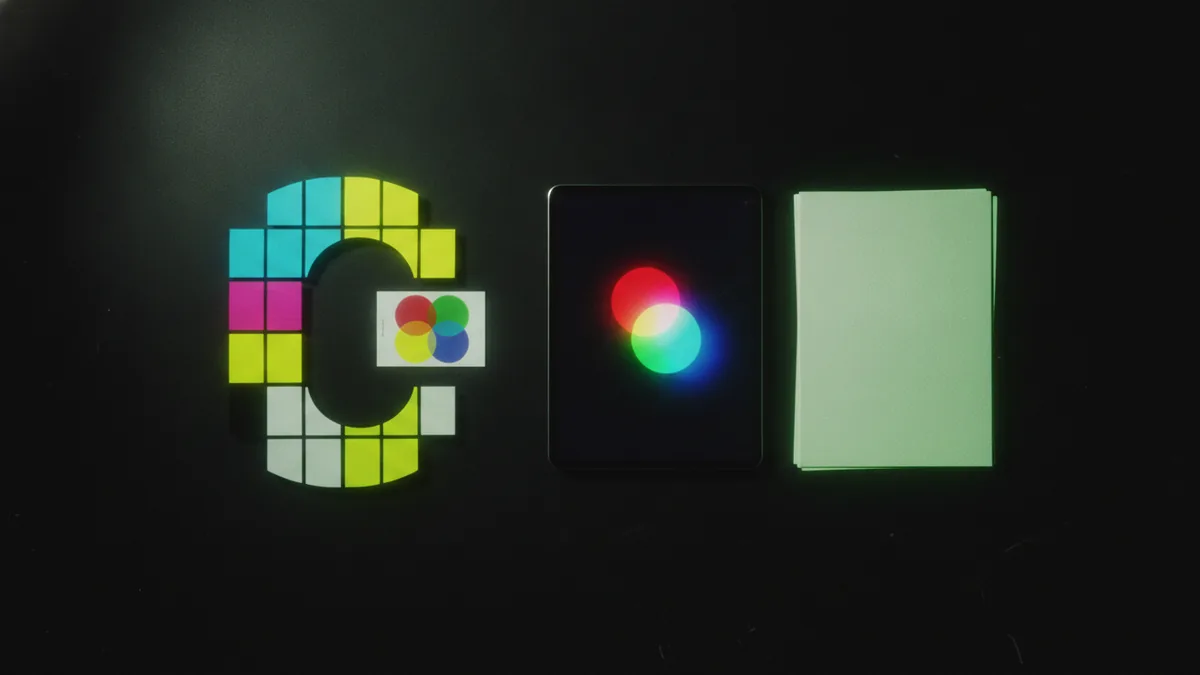
Also consider CMYK and RGB color modes. CMYK is typically for print, while RGB is for screen work. If you include both vector and a proof-ready PDF, you reduce the chance of color surprises.
How to present a logo so the client understands it
Knowing how to present a logo is as important as choosing formats. The goal is to help the client quickly see what to use, where to use it, and what each option supports. Your presentation should reduce questions, not create new steps.
Use a single “logo overview” page in your handoff, like a PDF or a short folder readme. Show the primary logo, a version for dark backgrounds, and a version for light backgrounds. If the client uses slides or marketing decks, that preview matters.
Include a short note that explains vector assets are meant for editing and resizing. Include another note that raster assets are for quick placement on screens. Keep it plain and direct, because most client confusion happens when files get mixed up.
When you share the package, you can follow this structure in your folder:
- 01_Primary: the main lockup for most uses
- 02_Secondary: alt lockups for tight spaces
- 03_Color_Variations: dark, light, and one-color options
- 04_Transparency: PNGs with transparent backgrounds
- 05_Production: AI, EPS, and print-ready PDFs
This also helps with client feedback and revisions. If they ask for “the white logo,” you can point to the exact folder.
Offering logo variations your client will actually need
Logo variations prevent the common failure mode where a client tries to “make it work” by stretching or manually inverting colors. To present logo options to client teams, include versions designed for real layouts. That includes primary, secondary, and color variations.
Plan for at least these variants:
- Primary logo for standard backgrounds
- Secondary logo for smaller sizes or different layouts
- Color variations like full color on light and dark backgrounds
- One-color versions for stamps, embossing, or simple printing
- Transparent background versions so they can place the logo anywhere
Create each variant intentionally. For example, a “white logo on dark” version should be designed for contrast, not just recolored automatically. Also export each variant in both vector and raster forms when the workflow benefits from it.
If your logo has multiple elements, keep spacing consistent across variations. Many “secondary” assets fail when clients use them as if they were fully independent icons. Make it clear which lockups belong together.
Finally, keep each variant in separate files rather than cramming multiple versions into one document. Organized folders reduce accidental misuse, especially when multiple people download assets.
Providing usage guidelines so the logo stays consistent
Providing usage guidelines is the part of how to send logo to client work that protects the brand. Even with perfect files, clients can still misapply them if they do not know the rules. Your guidelines should cover the most common mistakes you’ve seen in marketing apps and design tools.
Include notes like these, written for non-designers. Short and specific beats long theory. For example, explain that the client should not change proportions, recolor the logo arbitrarily, or apply effects.
- Clear space: keep a buffer around the logo so it never touches other elements.
- No stretching: scale the entire logo uniformly, never by width only.
- No recoloring: use the provided color variations instead of custom tinting.
- Background rules: choose the correct light or dark version for contrast.
- Do not add effects: avoid shadows, outlines, or filters unless provided.
Add quick “do this / not that” examples if you can. A screenshot of a correct placement is often more useful than a paragraph of rules. If you cannot include examples, at least include a checklist that matches what the client will see in their tools.
For color workflows, clarify when to use RGB vs CMYK. If a client is printing brochures, they should use the print-ready assets and proofs. This reduces the odds of a bright brand color turning muted on paper.
Delivering the full logo package with confidence
Delivering the package well is what makes “how to present logo design” turn into an easy handoff. The client should be able to unzip the folder, open the preview PDF, and immediately know what to use. If they cannot, they will ask for help every time they need the logo.
Send your logo package through a link or shared folder that preserves file quality. Include the folder structure, the preview, and the source files in one place. If you use a naming convention, keep it consistent across every delivery.
Also include a simple “next steps” message. Tell them which files are meant for editing, which are ready for quick web use, and which are for print. This cuts down on misuse and speeds up client approvals.
Here’s a ready-to-send delivery checklist you can follow:
- Logo preview PDF showing each variation
- Vector files: .ai and production-ready exports
- Print-ready files: .pdf and .eps
- Web-ready files: .png (transparent) and .jpg
- Usage guidelines document or section in the package
With this setup, you answer how to send a logo to a client in a way that supports both design work and day-to-day use. It also makes future logo updates easier when feedback arrives.
If you want to go one step further, keep the logo package “future friendly.” Store the source master files and document your export settings. That way, when someone requests a new variation, you can ship it fast and keep the brand consistent.
Frequently asked questions
- What does a complete logo package include for a client?
- A complete package includes vector source files, production-ready exports for print, and web-ready images. It should also include a preview and simple usage guidelines so the client knows what to use.
- Which logo file formats should I send: AI, PDF, EPS, JPG, or PNG?
- Send .ai and .eps for editable and print workflows, plus .pdf for easy sharing and proofs. Include .png for transparent web use and .jpg for simple screen placement.
- What is the difference between vector and raster logo files?
- Vector files are scalable and stay sharp at any size. Raster files are pixel-based, so they can blur when scaled up beyond their exported size.
- Should I send CMYK and RGB versions of a logo?
- Yes, when your client will print and also use the logo online. CMYK suits print workflows, while RGB suits most screen work.
- How should I present logo options to a client during handoff?
- Show a preview with the primary logo, secondary lockups, and light and dark background variants. Label each variant by use, and include a short note about what is editable versus ready for web.
- How do I prevent a client from using the wrong logo version?
- Deliver organized folders with separate files for each variant and a preview that shows correct placements. Add usage guidelines that cover contrast, no stretching, and no random recolors.
Related reading

How to Make a Clothing Brand Logo That Fits Your Brand
Learn how to make a clothing brand logo that looks sharp, fits your style, and tests well.

How to Create and Place a Logo on Letterhead
Get logo sizing and placement tips for a professional letterhead.

How to Come Up With a Good Logo Design
A step-by-step logo process: identity, inspiration, competitors, style, color, and testing.