How to Create a Visually Appealing 3D Logo (and Animate It)

Understanding 3D logo design
A visually appealing 3D logo starts with a simple goal: make a flat mark feel tangible. In practice, that means you create a clean vector shape, then add depth using extrusion, shading, highlights, and materials so the logo reads instantly at small sizes. When people search how to create a 3d logo, they’re usually looking for a workflow that balances “looks dimensional” with “stays brand-safe.”
3D logos matter because branding isn’t only about appearance - it’s about recognition. A well-designed 3D logo can feel more premium, more tactile, and more memorable than a purely flat logo, especially in motion contexts like hero videos, product intros, and social reels. However, 3D can also make designs harder to read if you overdo texture, bevels, or contrast.
To keep your 3D logo design consistent, treat it like logo branding first and like “3D art” second. Start with strong vector graphics proportions and logo design principles: clear silhouettes, limited detail, and typography that remains legible even after extrusion and lighting changes.
Benefits of a 3D logo
A good 3D logo can improve how people perceive your brand, but the real advantage is versatility across formats. For example, a 3D logo rendered with consistent lighting can be used as a static asset for your website header and as the center piece of an animated logo sequence for intros or product drops.
3D also creates a natural “depth cue,” which helps the logo stand out from busy backgrounds. With the right color theory and material choices, your brand can look cohesive whether it’s shown on a dark UI background, a light hero banner, or in a video thumbnail.
Finally, if you plan to create 3d logo animation later, you’re setting yourself up for cleaner results now. Building with vectors and predictable layers makes it easier to animate rotation, camera movement, or lighting changes without the logo looking distorted.
- Better visual hierarchy: depth and highlights help the mark pop
- Motion-ready branding: designed for animation from the start
- More “premium” perception: materials and lighting feel realistic
- Reusable assets: you can export multiple render styles (dark/light)
Tools for creating 3D logos
You don’t need a full 3D studio to make a convincing 3D logo. Most workflows use a mix of vector editing and motion/render tools, depending on whether you want a fast static result or an animated logo that can spin smoothly.
Popular options include Adobe Illustrator for vector graphics, Adobe After Effects for motion and composite rendering, and Canva for simpler 3D effects. Illustrator is useful when you want full control over paths, stroke consistency, and the typography in logo design. After Effects is strong when you want to how to create 3d logo in after effects with lighting, extrusion-like depth, and animation. Canva can get you to a “good enough” dimensional look quickly.
Here’s a practical overview of where each tool fits best:
| Tool | Best for | Typical workflow |
|---|---|---|
| Illustrator | Clean vectors, typography control | Design logo in vector → export to compatible format |
| After Effects | Animated logos, lighting + motion polish | Import vector → create 3D-like layers → animate rotation/camera |
| Canva | Quick 3D-styled logos | Use built-in effects/templates → export assets |
| Online tools | Fast previews and simple 3D treatments | Upload vector or choose templates → tweak depth/material → download |
For inspiration, start with curated 3D logo inspiration collections and 3D logo templates, then reverse-engineer what makes them work - usually it’s consistent lighting, restrained depth, and simple shapes.
Step-by-step guide to design a 3D logo
Below is a repeatable approach that works for most brands. It focuses on building from vector first, then adding depth through effects and compositing so the result looks intentional, not gimmicky. Even if your final goal is to how to create a 3d logo for a business, the steps stay the same - just adjust materials and contrast to match your brand guidelines.
1) Start with a clean vector logo
Design your mark as vector graphics with logo branding fundamentals: stable proportions, consistent stroke widths (if applicable), and readable typography. If you’re creating a 3D business logo, ensure the icon and the wordmark don’t compete - choose one hero element and keep the other supportive.
Export formats matter. If you plan to use After Effects, SVG is often ideal because it preserves curves cleanly. If you’re using online tools or Canva, you may need a PNG/SVG depending on upload options.
2) Decide on a 3D style (materials and lighting)
Before you touch depth settings, decide the “material story.” Common styles include matte plastic, polished metal, soft rubber, glassy acrylic, or flat-to-3D hybrid. This choice affects color theory: highlights should be brighter than midtones, and shadows should be cooler or darker depending on your brand palette.
Also decide your lighting direction. A single strong light (often top-left or top-right) tends to look cleaner than multiple competing lights for small logos. This is one reason many professional “how to make a 3d spinning logo” results look cohesive - consistent lighting across frames.
3) Create a 3D look in After Effects (practical workflow)
This section is the core how to create 3d logo in after effects tutorial. The exact menu names can vary slightly by version, but the logic stays the same: import your vector, build extruded depth using layers, add shading/highlights, then set up rotation and render.
Step-by-step (After Effects):
- Create a comp and import the logo: Start a new composition (e.g., 1920×1080 or your target). Import your vector (SVG/AI) and drag it into the timeline.
- Convert to workable layers: If your logo is too “flat” or complex, separate icon and wordmark layers. Ensure you’re working with paths that can be shaded and transformed cleanly.
- Enable 3D for layers: Set the relevant layers to 3D (switch “3D layer” on). Adjust the layer’s orientation so the logo faces camera correctly.
- Build depth: Use extrusion-like techniques by duplicating layers at incrementing Z positions and applying progressively darker/warmer fills to simulate side faces. This approach works even when a full 3D extrude tool isn’t available.
- Add shading and highlights: Add a light source, then create highlight and shadow passes using gradient/opacity overlays. Keep contrast controlled so the wordmark remains legible.
- Set a rotation baseline: Position the logo’s anchor point at its center. Add a rotation animation (or keep it static for now) and check readability at 10–15% scale.
- Render test frames: Render a few frames at the start and end of your animation to verify edges, banding, and aliasing.
If you’re aiming to how to make 3d spinning logo content, do this in a short test comp first - 15–25 frames can reveal problems with shading, edge crawl, or jitter from imperfect anchor points.
4) How to create a 3D logo using online tools and free resources
If you want speed, you can create 3d logo online using online editors and templates. The main limitation is control: online tools may not let you fine-tune typography shading, bevel angles, or shadow softness. Still, they’re excellent for early concepts and quick marketing assets.
Look for workflows that accept SVG upload and output transparent PNG or high-quality PNG frames. If the tool includes 3D logo templates, treat them as a starting point: swap your vector, adjust depth and color, then export. When searching how to create 3d logo online free, be sure the free plan allows high-resolution exports for your website or social usage.
For the best result with online tools, prepare your logo like you would for professional 3D: clean shapes, minimal overlapping paths, and a color palette with clear base, highlight, and shadow colors.
5) Quick option: how to create a 3D logo in Canva
Canva can help you how to create 3d logo in canva when you need a quick dimensional look. The typical approach is to start with a template or text/icon element that already has a depth effect, then customize colors and spacing to match your brand.
To keep it looking intentional, don’t just change the color - check how the highlights and shadows land relative to your brand palette. Also ensure your font choice in typography in logo design remains consistent with the brand tone (rounded fonts often feel friendly; geometric fonts feel modern and stable).
If you’re producing assets for a web header or hero section, export at the highest resolution allowed and test on both light and dark backgrounds.
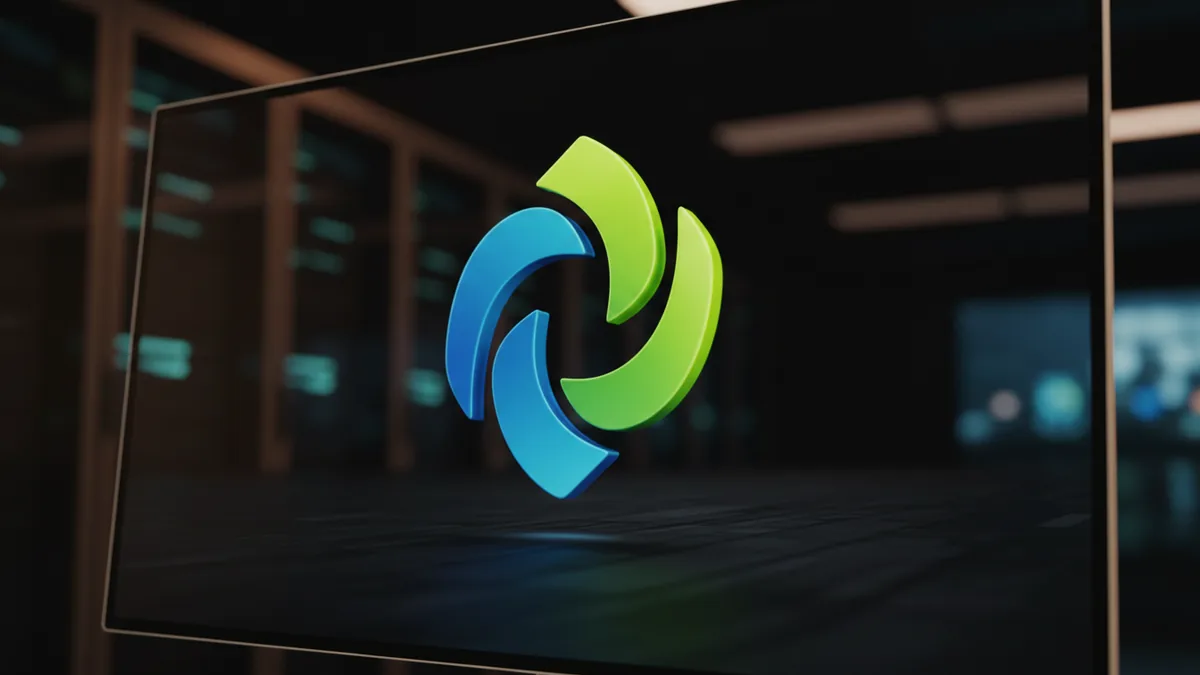
Tips for 3D logo animation
Animating a 3D logo is where it becomes more than “a logo with depth.” The key is motion that supports recognition: smooth rotation, predictable lighting behavior, and transitions that don’t distract from the brand mark.
If your goal is create 3d logo animation that looks professional, start with simple camera and rotation moves. A gentle spin combined with a subtle ease-in/ease-out typically looks better than fast, jerky motion - especially on small screens.
When people search how to create 3d animated rotating logos in after effects, they often want a reliable pattern. Here’s how to make rotation look right:
- Animate one thing at a time: rotation first, then add lighting intensity or camera movement
- Use easing: add motion easing to avoid constant-speed “robot” rotation
- Keep the logo centered: lock anchor point and verify no drift between frames
- Test at multiple scales: check readability at thumbnail size and at full-screen
For a how to create 3d logo animation that feels premium, consider a short reveal: start at 0° rotation with a soft shadow, then rotate 20–40° while the highlight moves slightly. This creates depth without requiring complex 3D scenes.
Common mistakes to avoid
Most 3D logo failures come from treating the design like a purely visual effect rather than a brand asset. The most common issue is illegibility: too much bevel, too many gradients, or low contrast between the face and the sides can make the logo mushy when scaled down.
Another frequent mistake is inconsistent lighting. If one part of the logo has a different “light direction” than another, the brain reads it as low quality. Color theory helps here - use a consistent highlight and shadow logic across the entire mark so the 3D illusion is coherent.
Finally, watch out for unnecessary textures. Realistic materials are tempting, but logos usually perform better with clean shading, smooth edges, and restrained surface detail.
| Mistake | What it looks like | Fix |
|---|---|---|
| Over-extrusion | Letters lose their shape | Reduce depth, increase contrast only where needed |
| Too many colors | Brand palette feels broken | Limit to base, highlight, shadow variants |
| Uneven bevels | Edges shimmer during rotation | Use consistent step increments and check anti-aliasing |
| Hard shadow edges | Looks pasted onto backgrounds | Soften shadows and match background blur style |
Showcasing your 3D logo
Once you’ve built your 3D logo and (optionally) your 3D logo animation, presentation determines whether people understand the value. Show at least one clean static render on both dark and light backgrounds, plus one short motion preview that demonstrates rotation or depth.
For web use, ensure exports match your use cases: transparent PNG for compositing, high-resolution PNG/JPG for hero placements, and an optimized video (or animated GIF) for social. If your site is built to highlight UI/UX and performance, keep file sizes reasonable - motion should feel crisp without turning into a heavy asset.
When publishing, include context that helps viewers recognize the brand quickly. Even simple 3D logo inspiration-style “spotlight” renders (logo centered with a soft gradient background) can make your design feel professional and consistent with logo branding expectations.
- Static: front-facing render + 1 alternate angle
- Motion: 1 short rotation loop (3–6 seconds) with smooth easing
- Variants: dark-mode and light-mode versions
Done right, your 3D logo should feel like part of the brand system - not a one-off effect. That’s the difference between “a cool render” and a reliable identity asset for a business.
Frequently asked questions
What is a 3D logo and why does it matter for branding?
A 3D logo is a brand mark designed to look dimensional using shading, highlights, and depth. It matters because it can feel more premium, stand out on busy backgrounds, and work especially well in motion.
How to create a 3D logo step by step?
Create the logo as a clean vector first, choose a material/lighting style, then build depth via layered extrusions or effects. Finally, render a test and adjust contrast so the logo stays legible at small sizes.
How to create a 3D logo in After Effects?
Import your vector, convert layers to 3D, build depth using duplicated layers or extrude-like techniques, then add lighting/shading passes. Set the anchor point to center and animate rotation with easing for a smooth loop.
How to create a 3D animated rotating logo in After Effects?
Animate only rotation (and optionally a subtle camera move) while keeping lighting direction consistent across frames. Use easing and render short test ranges to catch shimmer or edge artifacts early.
How to create a 3D logo online free or with templates?
Use online tools that accept SVG/vector uploads or provide 3D logo templates, then swap in your icon and adjust depth and palette. Export at the highest available resolution and verify legibility on both light and dark backgrounds.
How to create a 3D logo in Canva?
Choose a text or icon element with a 3D effect (or start from a 3D template), then customize colors and spacing to match your brand. Export your assets and test them on real website backgrounds.