How to Use Adobe Illustrator to Make a Logo
Learn how to use Adobe Illustrator to make a logo: set up a clean canvas, build shapes, pick type, and export files. Plus Adobe Express.
Choose your Adobe tool for logo work
You can make a logo in Adobe Illustrator or Adobe Express. The best choice depends on how custom you need the mark to be. Illustrator is best for vector logos and tight control. Express is faster for simple designs and quick variations.
If you want a true logo you can scale for print, choose Illustrator. Logos often need crisp edges at any size. If you mainly need a social icon or a draft for feedback, Express can help. You can also start in Express and rebuild in Illustrator later.
Before you open any app, decide what you are making. A wordmark uses type only. A symbol uses shapes. A combination mark mixes both. That choice guides your setup and export plan.
- Illustrator: vector shapes, precise curves, reusable components
- Express: quick templates, fast iterations, easy sharing
- Best practice: design in vector, export for web and print
How to use Adobe Illustrator to create a logo
Start with a clean artboard and a vector workflow. In Illustrator, go to File then New, and pick a custom size. A good starting point is 4000 by 4000 pixels. It keeps everything easy to scale later.
Next, create one layer for guides and one for your logo. Keep guides locked so you do not export them by accident. Turn on rulers and use grid settings if your design is geometric. Use the Pen tool for smooth outlines when you need curves.
Then build your logo with the shape tools. Use the Rectangle, Ellipse, and Polygon tools for most marks. Use the Pathfinder tools to combine or cut shapes. Keep strokes minimal and prefer filled shapes for logos.
- Set up a square artboard and safe margins.
- Create a “Logo” layer and a “Guides” layer.
- Sketch with simple shapes first, then refine.
- Use Pathfinder to merge or subtract forms.
- Check alignment and spacing at each step.
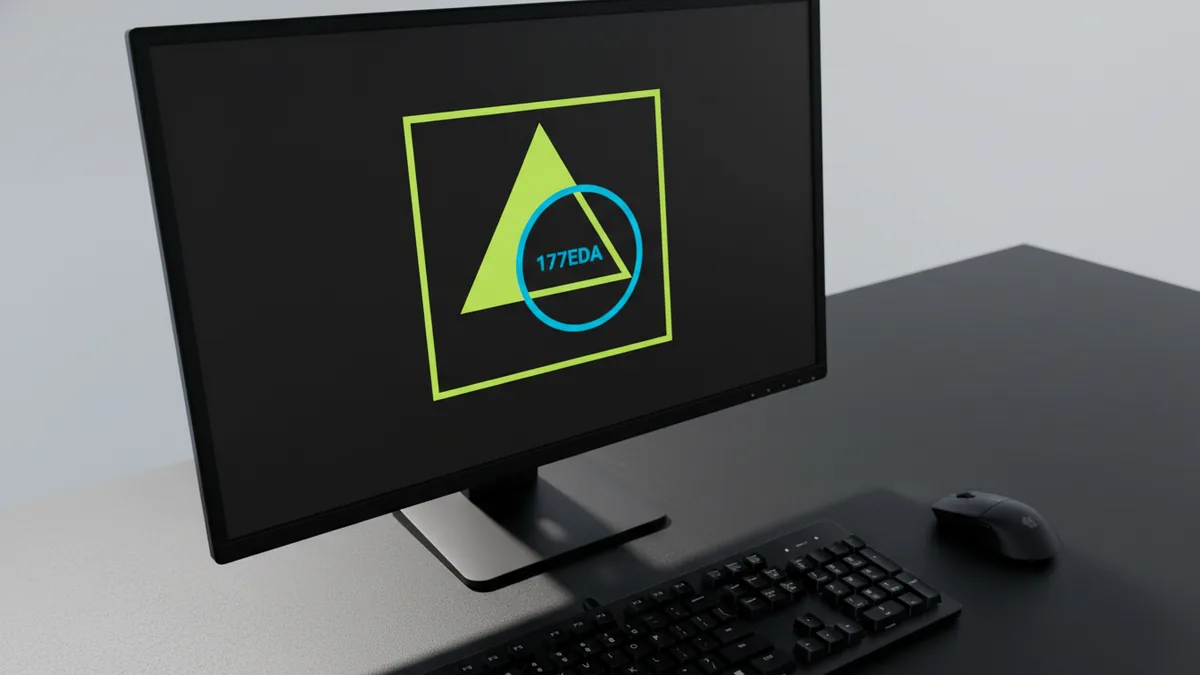
Build your logo in Illustrator: shapes, type, and spacing
Good logos rely on consistent spacing and balanced weight. Use smart guides and align tools to lock in symmetry. If you are working with multiple parts, group them by function. For example, group the icon elements together and group the text separately.
For type, start with one font family and a clear hierarchy. Pick a main weight for the brand name. Use a lighter weight only if the mark stays readable at small sizes. In Illustrator, convert text to outlines only when the layout is final.
When you use illustrator to make a logo, spacing matters as much as design. Use even optical spacing, not just exact numeric gaps. Zoom in and check the counters in letters like “A,” “R,” and “O.” If forms look crowded, adjust with small nudges.
To keep shapes clean, use fewer anchor points on curves. Fewer points can look smoother. After you draw curves, use the Smooth tool carefully. Aim for curves that feel balanced, not wobbling.
- Alignment: use Align panel and smart guides
- Consistency: keep stroke widths uniform if you use strokes
- Readability: test at 32px to catch thin parts
- Editing: use fewer points for smoother curves
How to use Adobe Express to make a logo fast
Adobe Express is a quick route when you want options today. Sign in and choose a design size. Look for branding or logo templates that match your style. You can replace text, swap colors, and adjust layouts without much setup.
Express works well for simple marks. You can build icons from shapes and change the look with style controls. Keep your palette small, usually two main colors plus one neutral. This keeps the logo usable in one-color versions later.
When you use Adobe Express to make a logo, treat it like a draft system. Get the concept right first. Then export and recreate in Illustrator for sharper control. This workflow is especially helpful when you are exploring several directions.
If the Express design includes complex effects, simplify them. Stick to flat fills for a reliable brand look. Flat shapes export better across web and print. They also reduce surprises when you later convert styles.
- Pick a logo or brand template that fits your concept.
- Swap text and set a clear name and tag line hierarchy.
- Select two to three colors and test contrast.
- Simplify effects into flat shapes when possible.
- Export, then rebuild in Illustrator for final files.
Export files you can actually use for branding
Logo delivery should include multiple formats. You need a vector file for editing and scaling. You also need raster files for quick use in apps and emails. With Illustrator, export an SVG for web and a PDF for sharing. For print, a PDF is often the safest choice.
In Illustrator, keep your logo in a single group. It helps when you export and when others place the mark. Check the artboard and make sure the logo sits inside it. Turn off the background layer if you added one for mockups.
For one-color versions, create duplicates. Use them for embroidery, stamps, and simple layouts. When you export, test each version on a dark and light background. This catches low contrast before it hits production.
| Use case | Best file | Why it matters |
|---|---|---|
| Web and app icons | SVG and PNG | Sharp edges at small sizes |
| Editing later | AI or editable PDF | You can adjust shapes and type |
| Print and signage | Predictable output for vendors | |
| Dark mode layouts | One-color variants | Consistent visibility everywhere |
Finally, keep a simple naming system for your exports. Include “primary,” “one-color,” and “negative” variants. Add a date only if you have multiple rounds. This saves time when you update assets later.
Common mistakes when you use Adobe to make a logo
One mistake is relying on thin strokes and tiny details. Small details can break when the logo is resized. Another mistake is exporting only one format. If you only export a PNG, you limit future edits and scaling.
Another common issue is inconsistent spacing between letters and shapes. Even if it looks fine at large size, it can feel off at smaller sizes. Always test at multiple sizes, including very small ones. Also watch for colors that look good on a screen but fail in print.
Lastly, avoid effects that do not translate well. Gradients and heavy shadows can complicate real-world use. Many brands use flat logos for the core mark. You can still add effects for marketing, but keep the identity version clean.
- Too many colors: reduces one-color usability
- Only raster exports: slows down future updates
- Unreadable at small size: thin lines and details break
- Heavy effects: cause messy print and embroidery results
If you are planning a full brand site later, your logo files matter. Your web team needs clean SVG and PDF sources. That helps keep your UI consistent across pages and components.
Frequently asked questions
- How do I use Adobe Illustrator to make a logo from scratch?
- Set up a square artboard, create a Logo layer, then build your mark with shape tools and the Pen tool. Finish by checking spacing and exporting SVG and PDF files.
- How do I use Adobe to create a logo if I need it quickly?
- Start with Adobe Express to explore layouts and colors fast. Then move the best concept into Illustrator to finalize the vector files.
- How do I use Adobe Illustrator for logo design when working with text?
- Set your type hierarchy first, then align it with smart guides. Convert text to outlines only when the layout is final to avoid rework.
- What export files should I create when I use illustrator to make a logo?
- Export an SVG for web, a PDF for print and sharing, and PNGs for quick previews. Also create one-color and negative versions for usability.
- Why does my logo look different at small sizes?
- Thin strokes and tiny details often fail when scaled down. Test your logo at small sizes and simplify shapes if needed.
Related reading

Can You Use a Company Logo Without Permission? Legal Implications
Fair use is narrow. Learn logo risks, legal limits, and safer alternatives.
How to Get a Nike Logo for Cricut (SVG + Illustrator)
Get Nike logo SVGs for Cricut or make one in Illustrator, then cut clean with smart settings.

Logo vs Symbol: Definitions, Similarities, and Design Differences
Logo vs symbol: definitions, similarities, and real branding examples.