How to Create a Letter Logo in Illustrator (2-Letter Style)

Start with a clear letter logo goal
A letter logo is simpler than a full wordmark, but it still needs a plan. First, pick the exact letters you want to use, like two initials or a monogram. Then decide the feel you want: bold, friendly, techy, or classic.
Next, define how the mark will be used. It may show up on a website header, social icons, or a favicon. Those uses matter for thickness, spacing, and how small the logo still reads.
Write down two constraints before you open Illustrator. Keep them short and practical. For example, “works at 24px” and “two colors max.”
- Choose the letters and the tone
- Decide the main use cases and size limits
- Set color and style constraints early
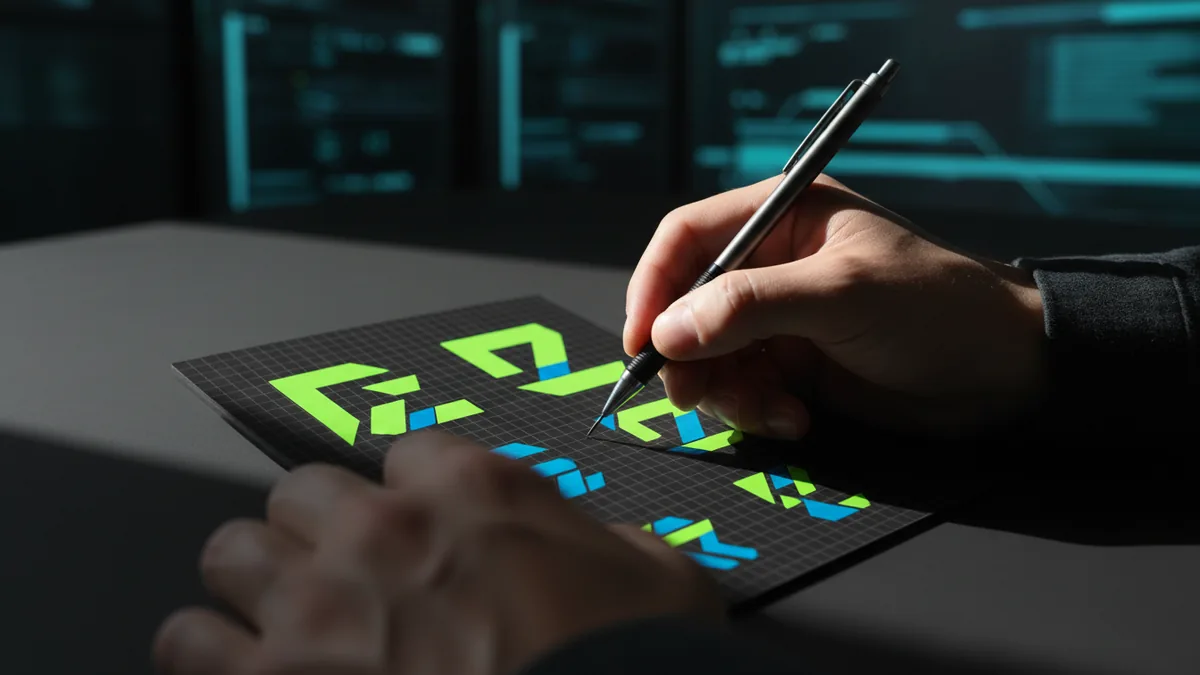
Sketch letter shapes before you build vectors
Vector tools can be precise, but they do not replace good first shapes. Start on paper or in a quick canvas. Try multiple versions of the same letters in 1 to 2 minutes each.
Focus on silhouettes, not details. A strong letter logo reads as one shape even when you blur it. Look for overlap points where the letters can share space.
Then pick the sketch that has the cleanest contrast. “Clean” usually means fewer crossings and consistent stroke weight. If your letters fight each other, the logo will look messy at small sizes.
- Draw 5 to 8 quick thumbnail marks
- Circle overlaps and shared stems
- Select the best silhouette and redraw it larger
Set up Illustrator for a clean 2-letter logo
Now you can build. Create a new document and turn on a grid if it helps you align. Make an artboard that fits your final use, then plan for extra space around the mark.
Turn on “View > Smart Guides” for snapping. Also use layers to separate background, main shape, and accent shapes. A simple layer setup keeps edits fast when you revise letter geometry.
Finally, choose your approach: build from type or draw with shapes. For a custom letter logo, building from type can save time. You will still need to break the letters apart and reshape them.
| Step | What to do | Why it matters |
|---|---|---|
| Artboard | Pick a square size | Helps for icons and favicons |
| Guides | Use grid and smart snapping | Improves alignment speed |
| Layers | Main shape on one layer | Easy color swaps later |
How to make a letter logo in Illustrator (vector build)
Use one clear workflow. It will keep your letter logo consistent and editable. The most reliable method is: place a font, outline, then reshape with path tools.
First, place a type on your artboard using the two letters. Set it large, then convert the text to outlines. After that, remove any unwanted internal holes if your design needs a stronger silhouette.
Next, use the Shape Builder tool or Pathfinder for merges. The key is to create one main form that still looks like two letters. You want clean overlaps, not a cluttered mess of strokes.
Reshape letters to look like a logo
Reshaping is where design happens. Make stroke-like forms using consistent widths. Then simplify curves and remove tiny bumps that will disappear when scaled down.
Check your negative space often. Letter logos rely on counters, like the inside gaps in “A” or “O.” If the gaps look random, adjust the overlap until the shape feels intentional.
Use direct selection to refine corners and align stems. Keep one style rule throughout, like rounded corners everywhere or sharp corners everywhere. That consistency helps the logo look designed, not just traced.
Create a 2-letter logo balance
A 2 letter logo must feel balanced. Make sure one letter does not visually overpower the other. Compare heights, stem thickness, and the width each letter occupies.
Then decide how they interact. They can overlap, interlock, or sit side by side with shared geometry. Interlock works well for compact marks. Side-by-side works well when letters are already distinct.
- Unify stem thickness across both letters
- Align key points to the same grid lines
- Keep overlaps clean and readable at small sizes
Style and color: make it ready for brand use
After the letter design looks right, choose the color plan. Many letter logo designs work best with one solid color plus a secondary variant. If you use gradients, keep them subtle and avoid banding at small sizes.
Test contrast against light and dark backgrounds. A good letter logo survives both, because clients often place it on different pages. If it only works on one background, redesign the thickness or fill coverage.
Also decide on a clear “logo mode” and “icon mode.” Icon mode may need slightly thicker strokes. You can create it by scaling and then adjusting key anchor points.
- Pick main color and one optional accent
- Check the mark on light and dark backgrounds
- Create a thicker icon variant if needed
Export letter logo files that stay sharp
Export quality is part of “how to design letter logo” success. Your master should be vector first. Keep the main form as editable paths so you can update it later.
For web, export SVG when possible. For print and wider compatibility, export PDF or EPS. If you need PNG, use a transparent background and test it at common sizes.
Before delivery, run a quick checklist. Zoom out until it becomes tiny. Then zoom in until you see jagged edges or inconsistent corners. Fix those issues now, not after the client approves.
| Use | Best format | Tip |
|---|---|---|
| Web and icons | SVG | Keep shapes as simple paths |
| PDF or EPS | Preserve vector outlines | |
| App previews | PNG | Use multiple sizes |
Common mistakes when you make letter logo in illustrator
Most problems come from over-complication. If you add too many shapes, the logo becomes hard to scale. If you rely on font spacing, the letters may look accidental instead of crafted.
Another common issue is inconsistent geometry. One stroke might be thinner in one area. Another might have a different corner style. Even small differences can make a logo feel off.
Finally, avoid tiny details that vanish. If a gap is narrower than a pixel at small sizes, simplify it. Your letter logo should still read clearly as a single mark.
- Too many overlaps and stray shapes
- Inconsistent stem thickness and corner style
- Details that disappear at small sizes
Wrap-up: your repeatable letter logo workflow
When you follow a repeatable workflow, you stop guessing. The process becomes simple: set a goal, sketch silhouettes, build clean vectors, then test on real backgrounds.
This is how to create a letter logo in Illustrator without getting stuck. You can repeat it for new initials in an afternoon. Each time, you get faster because your rules stay the same.
If you want help pairing the finished logo with a high-performance site, start with a free consultation. Clear design on the page makes the mark feel even stronger.
Frequently asked questions
How to make a 2 letter logo in Illustrator?
Place both letters as type, convert to outlines, then merge overlaps with Pathfinder or Shape Builder. Reshape stems for consistent weight and simplify tiny details.
How to create a letter logo in Illustrator without it looking like a font?
Start from a font, but redesign geometry. Unify thickness, refine curves, and fix negative space so it reads as one intended silhouette.
What is the best way to make letter logo in illustrator for small sizes?
Build a single bold main form, then test at icon scale. If thin areas vanish, thicken key stems and reduce micro gaps.
Should I use gradients in a letter logo design?
Use them only if the effect stays subtle at small sizes. Many letter logos look strongest as one solid color with a second variant.
What files should I export for a letter logo?
Export SVG for web, PDF or EPS for print, and transparent PNGs for previews. Keep an editable vector master so you can update the logo later.