How to Create a Logo Mockup (Photoshop & Illustrator)
Learn how to create logo mockup files in Photoshop or Illustrator. Get clean, realistic mockups for websites, decks, and pitches.
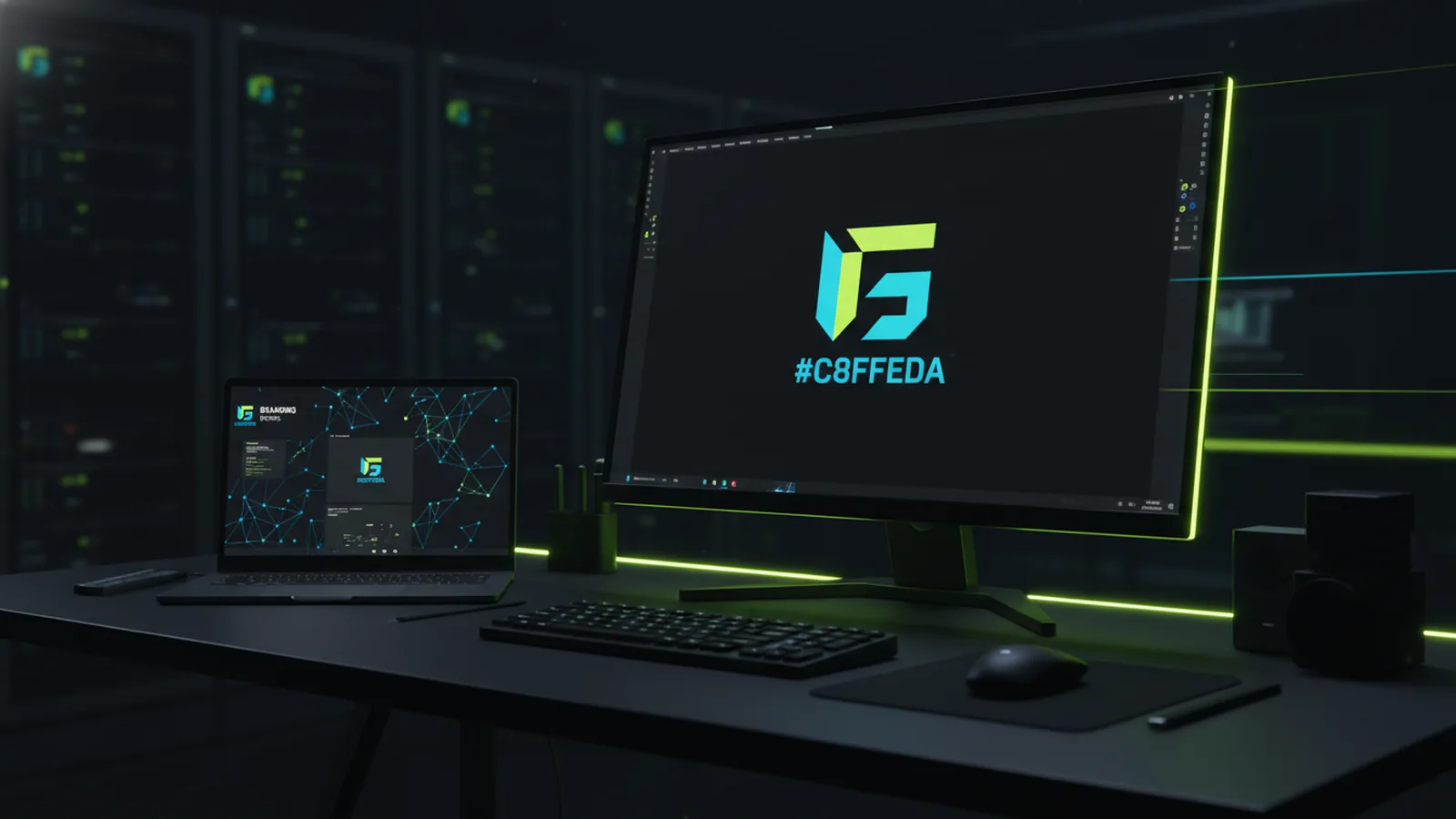
What a logo mockup is and when you need one
A logo mockup shows your logo in a real-world context. It helps people see how the mark looks on items like a web hero, a business card, or a product label. Mockups also help you spot spacing issues, low-contrast problems, and awkward scaling. They turn a flat logo into something that feels believable.
You usually need a mockup when you pitch a brand concept. You may also need it for a portfolio, a client review, or an internal design review. If your logo is new, a mockup makes feedback easier. People react to what they can imagine using.
There are two common types. A realistic mockup uses shadows and smart perspective. A simple presentation mockup uses clean, flat placement. Both are useful, depending on your goal and timeline.
- Pitch mockups: focus on clarity and brand feel.
- Portfolio mockups: focus on realism and polish.
- Client reviews: focus on quick iteration.
Prepare your logo file before you start
Start with a logo that has the right formats. If you only have a raster version, you will struggle with crisp edges. Use SVG or a layered vector export when possible. Then, decide how many colors you need in the mockup.
Before you open any tool, clean up your artwork. Check the logo spacing and stroke alignment. Remove stray pixels around the edges. Keep a transparent background where the logo should float.
Also, plan the export sizes you will need. For screen mockups, you want sharp output at common widths. For print-style mockups, you want higher resolution to avoid blur. This prep step saves time later.
- Use a vector logo if you have one.
- Verify transparency and edge quality.
- Export a PNG for quick placement when needed.
- Pick the right color version for the background.

How to create a logo mockup in Photoshop
To make logo mockup in photoshop, you want control over layers. A good workflow uses smart objects and non-destructive edits. It also helps to keep separate layers for the logo, background, and effects. Then you can swap logos without rebuilding the scene.
First, create a new document for your output size. Place your background image or open a device template. Next, add your logo as a new layer and convert it to a smart object. This step keeps the logo editable while you transform it.
Then match the perspective and scale. Use Free Transform with perspective when the logo sits on a curved or angled surface. After that, add blending. Try Multiply or Screen based on how the logo should sit on the material.
Finally, add realism with shadows and lighting. A simple drop shadow often looks artificial. Instead, use a soft shadow on a separate layer, then adjust its blur and opacity. Also check the logo contrast under the scene lighting.
- Convert the logo layer to a smart object.
- Use Transform with perspective for angled surfaces.
- Pick blend mode based on the logo and material.
- Build soft shadows on separate layers.
Common Photoshop fixes that improve realism
Even great logos can look fake if the edges are too clean. If the surface texture is strong, add a slight blur or noise. Keep it subtle. Overdoing it will hide the logo shape.
Next, fix color mismatch. If the background is warm, the logo may need a warmer tint. You can adjust the logo using a clipping adjustment layer. This keeps the edits tied to the logo only.
Also, watch the scale across elements. If a mockup shows a phone and a screen, the logo must feel sized for the device. If you only guess, your mockup will read as a collage. Measure relative sizes in the template.
How to create a logo mockup in Illustrator
If you prefer vector workflows, how to make logo mockup in illustrator can be fast. Illustrator is ideal when your mockup is mostly flat. It is also great for mockups that need crisp edges, like posters or packaging labels. You can keep everything editable, which helps during client iterations.
Start by setting up an artboard that matches your target size. Then place your background template image. Next, paste your logo artwork on top. If your logo is placed as a graphic, expand or convert it so you can adjust it easily.
Then use shape tools and masks for better integration. For example, use clipping masks to keep the logo inside a label area. You can also draw an overlay shape to control how the logo sits on a color field. This gives you a clean result without heavy pixel effects.
When you need perspective, Illustrator offers tools like Free Transform and Free Distort. Use those to warp the logo into the plane of the mockup. After that, adjust opacity or blend modes for better fit. Keep it minimal so the logo remains readable.
- Place a template image under the logo.
- Clip the logo to the label or surface area.
- Warp the logo using transform or distort.
- Use opacity changes to match scene intensity.
Export settings for sharp mockups
For website use, export at a size that matches your layout. Do not export a tiny image and upscale it later. If your mockup includes fine edges, use a higher resolution export. It keeps the logo crisp on high-density screens.
For decks and print previews, export PNG with transparency when needed. For slides, PNG usually looks clean and predictable. For clients who want layered files, keep the Illustrator source so you can edit quickly.
Tips for creating logo mockups that clients trust
A mockup should feel like it belongs in the brand story. Use consistent margins, realistic placement, and believable lighting. If you mix multiple lighting directions, the scene looks broken. Keep the shadow direction consistent across all mockups in a set.
Also, show the logo in at least two contexts. Include a dark and a light version if the brand uses both. This helps you validate contrast before the final brand system. People judge readability faster when both cases are visible.
Finally, build a reusable setup. Save a template PSD or an Illustrator file with placeholder layers. When you get a new logo variation, you swap the artwork only. That way you spend time on design, not rework.
| Mockup goal | Best tool | What to focus on |
|---|---|---|
| Fast client review | Photoshop | Smart object swaps and quick shadow tests |
| Crisp vector presentation | Illustrator | Clipping masks and clean warp transforms |
| Portfolio polish | Photoshop | Blending modes and realistic soft shadow layers |
Quick checklist: how to make logo mockup look real
Use this checklist before you export. It catches most issues that reduce trust. You should see consistent edges, correct scale, and matching contrast. You should also see shadows that fit the scene.
- Logo edges are crisp and not clipped.
- Colors match the background lighting temperature.
- Perspective fits the surface angle.
- Shadow blur and opacity look natural.
- Export size matches the page or slide layout.
If you want help turning mockups into a real brand experience, a strong site presentation matters too. A full-service web team can carry your logo work into UI and web visuals. Start with a free consultation and align the mockups with your actual site design.
For a deeper understanding of exporting web-ready images, see Mozilla’s guidance on WebP basics.
Frequently asked questions
- How to create logo mockup for a client pitch fast?
- Start with a layered template and swap only the logo layer. Use consistent lighting and a soft shadow that matches the surface.
- How to create logo mockup in Photoshop without losing editability?
- Convert the logo layer to a smart object. Keep effects on separate layers so you can tweak blending later.
- How to make logo mockup in illustrator while keeping it vector?
- Place the template, then use clipping masks to fit the logo into the label area. Export a high-resolution PNG for screen use.
- What export format should I use for logo mockups on websites?
- Use PNG for transparency needs and WebP for smaller file sizes. Match the export size to your layout to avoid blur.
- Why does my logo mockup look fake even with a shadow?
- Most issues come from mismatched perspective or contrast. Make sure the logo lighting matches the background and shadows stay soft.
Related reading
How to Add a Logo to Your Outlook Email Signature
Step-by-step: create an Outlook signature, insert a logo, resize it, and troubleshoot display issues.
How to Register a Logo as a Trademark (USA Steps)
Learn how to register a logo as a trademark in the USA—search, file, then maintain.
How to Make an Image Transparent in Canva for Logo Design
Learn how to make image transparency in Canva and use it for logo design.