How to Create Intro Logo Animation: A Practical Guide
Learn what logo animation is and how to create an intro logo animation. Follow a step-by-step workflow for clean motion and transparent 360 output.
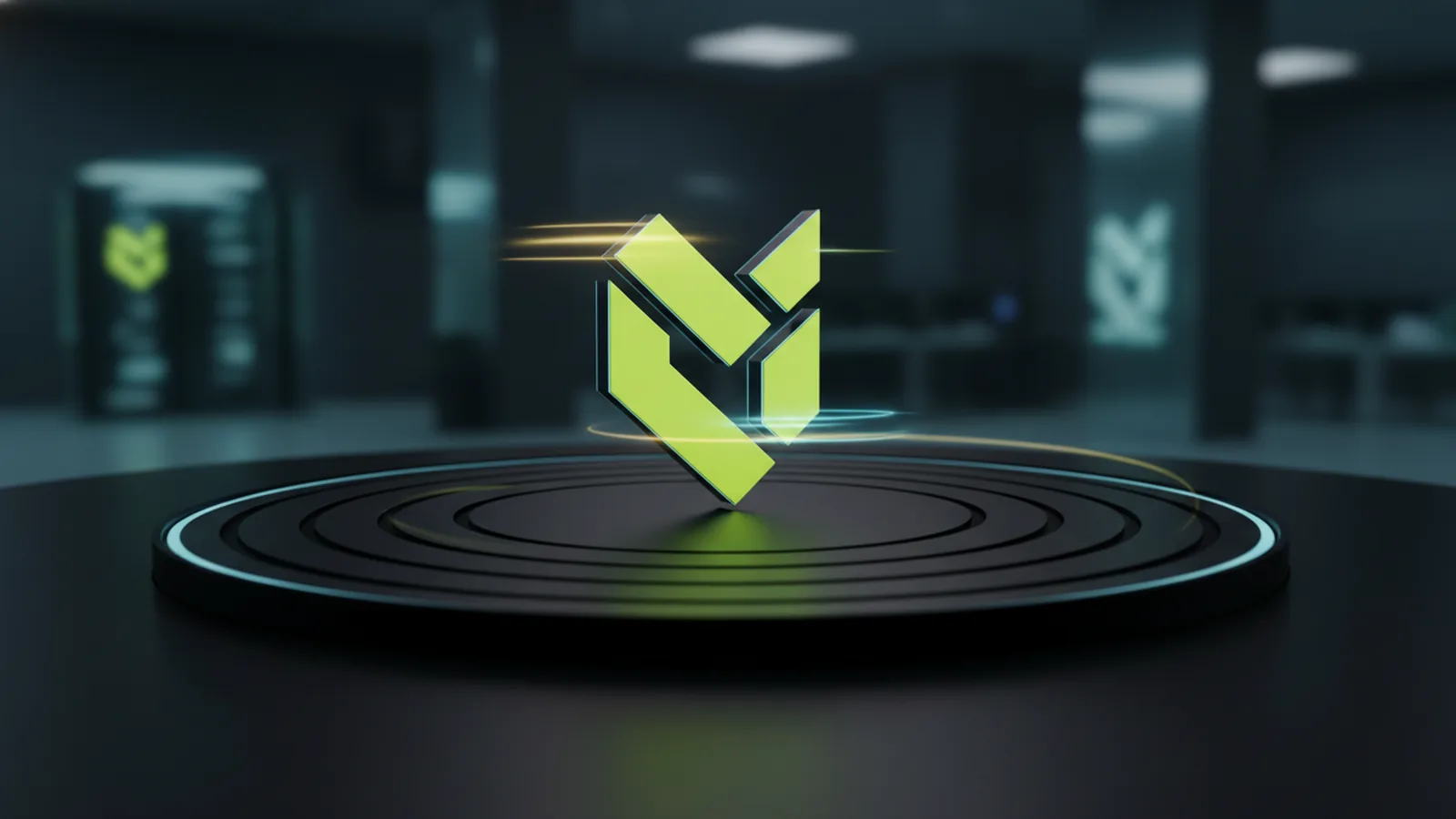
What is logo animation?
Logo animation is motion design that brings a brand mark to life. It can be subtle, like a gentle fade-in, or bold, like a full shape reveal. Most intro logo animations aim to help viewers recognize your brand fast.
A good logo animation works even when sound is off. It also keeps the logo readable across sizes. That means you should plan the animation around the final formats you will ship.
Common goals include higher recall, cleaner onboarding, and a more polished product feel. In web and app UI, logo animation often replaces static splash screens. It also helps launch screens feel less abrupt.
- Short duration, usually 1–5 seconds
- Brand shapes remain clear at small sizes
- Motion supports meaning, not distractions
- Exports match where the logo will play
Plan your intro logo animation before you animate
Start by deciding what the animation should communicate. Is it “reveal,” “confidence,” “speed,” or “playfulness”? Pick one primary idea and design the motion to match it.
Next, define the timing. Most logo intros use an ease-in for the start and ease-out for the end. This makes the logo feel controlled rather than mechanical.
Then pick your animation style: wipe, morph, draw, spin, or parallax. If you are unsure, use a reveal or draw effect. These approaches stay legible and need fewer complex assets.
- Write a one-sentence goal for the motion.
- Choose a style that keeps your logo readable.
- Set a duration target and loop rules.
- List required export formats for your channels.
How to create logo animation: a clean production workflow
To create logo animation you need three inputs: a vector logo, a motion plan, and export settings. A vector logo keeps edges crisp and avoids jagged artifacts. If your source is only a low-res PNG, try to rebuild it as SVG.
Work in layers. Separate fills, strokes, and key parts so you can animate them independently. If your logo is one flat shape, you can still animate scale, position, and opacity safely.
Now build the animation in stages. First create a rough blockout with simple transforms. Then add fine timing, like micro-pauses and subtle overshoot, only after the motion reads well.
| Stage | What to do | What you should check |
|---|---|---|
| Blockout | Scale, fade, and position changes | Logo stays readable at small size |
| Shape motion | Reveals, wipes, or morphs | Edges do not flicker between frames |
| Polish | Easing, timing, and small accents | Motion feels intentional, not rushed |
| Export | Format and background strategy | Alpha and color look correct |
Make your intro feel professional with timing and easing
Even simple motion can look premium when timing is right. Use consistent easing so the logo accelerates and decelerates smoothly. A common pattern is fast initial entry, then a slow settle.
Avoid moving every element at once. Stagger the layers so the viewer’s eye follows a clear path. When you do this, the animation feels more “designed” and less like a template.
Also consider loop behavior. If you plan to loop the intro logo animation, make the end match the start. Otherwise, the loop will “jump” and reduce perceived quality.
How to create logo animation that works on web and video
When you create an intro logo animation, decide where it will play first. Web players often support different formats than social video apps. Your export choice affects file size, playback smoothness, and transparency.
For websites, animation formats that keep alpha are usually best for overlays. Transparent backgrounds let your logo sit on hero images, video banners, or gradients. For video exports, you may render on a chosen background if alpha is not needed.
Test your logo on real surfaces. Try it on a dark background, a light background, and a busy background. This is where many logo animations fail because contrast changes.
- Web: keep file size small to avoid slow loads
- Video: match frame rate to your platform
- UI: keep it under a few seconds for quick recognition
- Contrast: test on multiple background colors
How to make transparent 360 logo animation
How to make transparent 360 logo animation usually means creating a rotation that preserves alpha. This lets you place the spinning logo over any background. The key is exporting with transparency, not just “removing” a background afterward.
First, plan your “360” meaning. It can be a full spin around the center, or it can be a turntable with angles. Choose one, because a true 3D spin needs a different asset setup than a fake rotation.
Next, create your frames or your rotation animation. If your logo is 2D, you can fake 3D by scaling and skewing parts. For a more real look, use a 3D workflow and render with an alpha channel.
- Prepare the logo as clean vectors or textured layers.
- Set up a rotation path from 0 to 360 degrees.
- Render or export frames with alpha enabled.
- Assemble into a video or animation file with transparency kept.
- Preview on dark and light backgrounds to confirm edges.
Common mistakes with transparent 360 exports
One frequent issue is “halo” edges. This happens when the renderer blends against a background color. To fix it, ensure your export uses a true alpha pipeline and test with multiple backgrounds.
Another mistake is mismatched frame rate. If your sequence uses one frame rate but plays at another, the motion can stutter. Keep your export settings consistent with your target player.
Finally, watch the logo center alignment. If the pivot shifts across frames, the rotation will look unstable. Lock the pivot point and validate it with a quick preview.
Deliverables checklist for your next logo animation project
Before you ship your intro logo animation, verify the deliverables match the use cases. If you will post it online, you may need multiple sizes. If you will embed it in a product, you may need different runtimes.
Create a simple handoff list so your animations stay consistent. This reduces back-and-forth when teams integrate the motion. It also helps when you reuse the same logo style across new pages.
- Source files for the logo and animation layers
- Final animation exports with transparency when needed
- Short intro version and optional longer brand version
- Specs for frame rate, size, and loop behavior
- Background test notes for contrast and readability
If you want help planning, building, or integrating animations into a high-performance site, you can start with a free consultation from the team at logomentary.com. They can align the motion with your UI, your loading budgets, and your brand guidelines.
Frequently asked questions
- What is logo animation?
- Logo animation is motion design that brings a brand mark to life. It is usually made for intros, onboarding screens, and product UI.
- How to create intro logo animation for a website?
- Start with a short reveal or draw effect, then export with a format that supports alpha if needed. Test on dark, light, and busy backgrounds so contrast stays clear.
- How to create a logo animation that loops smoothly?
- Make the end state match the start state. Use easing that mirrors the return motion, so the loop has no visible jump.
- How to make transparent 360 logo animation?
- Create a rotation from 0 to 360 degrees and export with alpha enabled. Preview on multiple backgrounds to confirm edges do not halo.
- What files do I need to deliver for a logo animation project?
- Include source layers or editable files, plus final exports for the target channels. Also share settings like frame rate, size, and loop behavior.
Related reading
How to Create Animated Logo Videos for Free (No Skills Needed)
Create a polished animated logo video for free with online tools.
How to Create a Unique Fantasy Football Logo
Follow a clear process to design a fantasy football logo that feels like your team.
How to Make a Unique YouTube Logo for Your Channel
Follow steps and free tools to design a memorable, unique YouTube logo.