How to Design a Sticker Logo (Tips + Print-Ready Steps)
Learn how to design a sticker logo with clear steps, smart tool choices, color and type guidance, export formats, and printing tips.
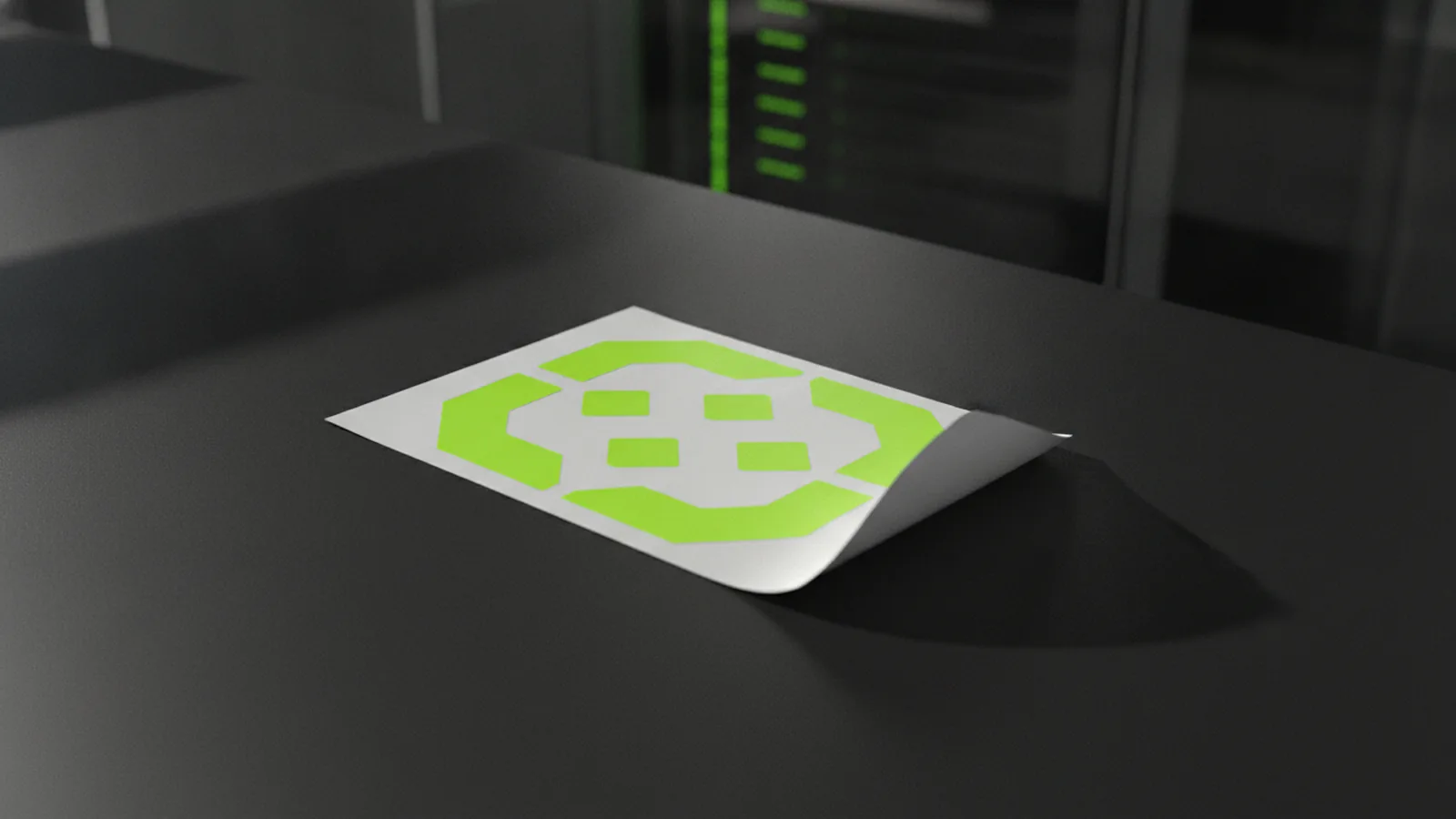
Introduction to sticker logos (what makes one work)
If you want a sticker logo that looks sharp in hand and on screen, start with purpose and audience. A sticker is viewed at close range, often in poor lighting. So legibility and bold shapes matter more than tiny details.
Ask one question first: where will people see it? For product stickers, you may need a compact mark. For event stickers, you might need a playful look that reads fast from across a table.
Most sticker logos also need to survive cutting, peeling, and weather. That means you should design for clean edges, limited colors, and strong contrast. It is still branding, just in a smaller, more practical form.
Tools needed for designing a sticker logo
You can make your own sticker logo with either full design software or simpler vector tools. The key is to use vector graphics when possible. Vectors keep edges crisp and support logo scalability.
For design software, look for features like layers, vector shapes, and export controls. If you prefer free tools, choose an app that supports SVG and transparent PNG output.
If you draw by hand first, you will still need a way to trace or digitize. A tablet helps, but you can also scan sketches and refine them digitally.
- Vector editor: for scalable shapes and clean outlines
- Color picker: to keep brand colors consistent
- Font library: for bold, readable type choices
- Export support: SVG, PDF, and transparent PNG
Steps to create a sticker logo (from sketch to vector)
Here is a practical flow for how to create a sticker logo that prints cleanly. First, sketch rough ideas on paper or in a simple sketch app. Keep it fast and messy at this stage.
Next, pick one direction. You want a design that works as a single icon or as a compact logo lockup. Then redraw it as vector graphics so it stays sharp when scaled.
If you are asking how to design a sticker logo for home use, focus on constraints. Stickers often get small, so simplify. Fewer shapes, bold lines, and clear silhouettes usually win.
- Define the sticker format: circle, die-cut, or rectangle with bleed
- Sketch 3–5 concepts: try different shapes, not just colors
- Choose one concept: select the one with the clearest silhouette
- Build the vector: start with the outer shape, then add internal details
- Set up a safe margin: leave space so nothing gets cut off
- Test at small size: zoom out until it looks like a finished sticker
Using templates vs. creating from scratch
Templates can speed up how to make sticker logos at home. They are helpful for sticker size layouts, bleed guides, and cut lines. But do not rely on a template for the design itself.
When you use a template, treat it like scaffolding. You still need a unique mark, good spacing, and a design that fits the sticker shape. If your final logo looks like a generic template, it will not feel like branding.
If you create from scratch, you gain control over lines and spacing. Start from simple geometry. Circles, rounded rectangles, and bold paths make it easier to keep clarity after printing.
Design tips and best practices for clarity
Start with a strong silhouette. Most sticker logos look best when the icon reads in one glance. If it only works when zoomed in, it will blur on a finished sticker.
Use color theory to reduce confusion. Stick to two to four main colors for a first draft. If you want more colors, plan them as layers with clear separation and contrast.
Pick fonts that stay readable at small sizes. A sticker logo often needs bold letterforms, rounded corners, and simple shapes. If you are unsure, test your type at the smallest expected print size.
Choosing colors, fonts, and graphics
Your sticker logo should match the context of use. A food product sticker may need a warm palette. A tech event sticker can handle cooler accents, as long as contrast stays strong.
For fonts, avoid hairline strokes and long, thin serifs. Those details vanish after die-cutting and low-res viewing. Use a font weight that looks like it still exists when reduced.
For graphics, prefer bold shapes over fine textures. Vector shapes let you create clean edges that print consistently. If you use gradients, keep them subtle to avoid banding.
Ensuring scalability and edge clarity
Scalability is where vector work pays off. Keep your logo in vector until the final export stage. Then you can adjust size without losing sharpness.
Design for die-cut realities. Very small gaps can fill in with ink or peel edges. A good rule is to avoid thin lines and tiny counters. If a detail disappears at thumbnail size, remove it.
Also consider outline thickness. If you add a border, make it bold enough to survive cutting. Thin outlines can look great on screen and then vanish on paper.
- Minimum stroke thinking: thicken lines for small stickers
- Simple internal shapes: fewer details improve readability
- Clear background: test against both light and dark surfaces

Finalizing and printing your sticker logo
Finalization is where how to make your own sticker logo becomes print production. First, confirm the sticker shape. Die-cut stickers need a cut path, while contour-cut or rectangular stickers need guides and bleed.
Export settings decide whether your print looks crisp. For most workflows, SVG is best for the master file. Then export a transparent PNG for preview and a PDF or SVG for the printer.
Also check the color mode expected by your print partner. Many shops handle color correctly when you use standard exports, but you should confirm. If you are printing at home, use the printer’s paper profile and test one sheet first.
Export formats that printing teams can use
| Need | Best export | Why it matters |
|---|---|---|
| Master artwork | SVG | Keeps vector edges crisp for any size |
| Preview on a page | Transparent PNG | Shows how it looks without a background box |
| Printer-ready files | PDF or SVG | Most print production pipelines accept both well |
Practical checklist before you print
Before you pay for a run, do a quick proof. Print one small test sticker on the same material if you can. Then check edge sharpness and whether fine text stays readable.
Make sure your artwork includes the right margins. If your sticker die-cut is close to the edge, your design needs safe space. Plan for bleed if the sticker background color reaches the edge.
Finally, verify contrast. A logo that looks great on a white canvas can fail on a colored sticker stock. Test your logo against the actual sticker background you plan to use.
Common mistakes to avoid (and how to fix them)
Sticker logos fail for predictable reasons. The most common one is over-detail. If you packed your logo with tiny icons, it will likely blur or disappear after printing.
Another common issue is weak contrast. A subtle color pair can look good in design software and still wash out in real life. Fix it by increasing contrast or simplifying the palette.
Finally, people often forget cutting rules. If your lines sit too close to the edge, the cut can crop parts of the logo. Fix it by adding margins and testing at final size.
- Too many colors: simplify to two to four main colors
- Thin lines: thicken strokes for small sizes
- Small text: switch to bold type or shorten wording
- Busy backgrounds: add a clean sticker shape or strong outline
Additional resources for logo design
If you want to level up your logo skills, focus on fundamentals first. Study how designers build simple marks, then practice by recreating your favorites as exercises. This builds instincts for shape, spacing, and balance.
For making improvements, keep a small library of reusable elements. Store your sticker-ready shapes, border styles, and font pairings. Over time, you will speed up how to design a sticker logo for new projects.
If you are curious about real-world use, check what people stick to in daily life. Then design for those surfaces. That is how to make your logo feel useful, not just pretty.
Other practical sticker logo uses
Sticker logos are great for marketing because they travel. People see them on laptops, bottles, and packaging. They also create quick recognition for your branding when someone walks past.
Sticker logos work for personal branding too. Use them on notebooks, water bottles, or homemade product labels. Just keep the logo readable and the design consistent across sizes.
One more thing: removing a sticker from clothes can be tricky. If you plan to use stickers on fabric, test first. Many stickers leave residue, and you may need a fabric-safe method.
For help with a web presence that matches your new branding, you can start a project with a free consultation at logomentary.com. A clean site can reinforce the look of your sticker logo and make recognition easier.
Frequently asked questions
- What is the purpose of a sticker logo?
- A sticker logo is a compact mark that people recognize quickly in real life. It works on products, packaging, and personal items where viewing distance is short.
- What software should I use to make a sticker logo?
- Use a vector-capable design tool so your edges stay sharp. SVG support is especially useful for later resizing and print production.
- How do I sketch ideas before I create the logo digitally?
- Draw 3–5 rough concepts focusing on silhouette and layout. Then pick one direction and redraw it with simple shapes in a vector editor.
- How do I make my sticker logo scalable and easy to read?
- Avoid tiny details and thin lines. Test the design at small size so text and icons still read clearly.
- What file formats should I export for printing a sticker logo?
- Export an SVG master for the artwork. Also generate transparent PNG previews and a printer-ready PDF or SVG, based on your print partner’s needs.
- How can I remove sticker logo residue from clothes?
- Test a small hidden spot first. Use a fabric-safe method and avoid harsh solvents that can damage the material.
Related reading

How to Make a Business Logo: Tools, Tips, and Final Files
Step-by-step logo design: free tools, phone workflows, and final export tips.
How to Make T Shirt Logos: From Idea to Print-Ready Art
Learn how to make t shirt logos, from idea to print-ready design.
How to Create Animated Logo Videos for Free (No Skills Needed)
Create a polished animated logo video for free with online tools.