How to Turn a Logo Transparent (PNG, SVG, Vector)
Learn how to turn a logo transparent. Follow methods for removing backgrounds, refining edges, and saving as PNG or SVG.

What is a Transparent Logo?
A transparent logo has no background. Only the logo artwork remains, so it can sit on top of any design or color scheme.
That “see-through” look usually means the logo pixels include transparency data. In practice, you’ll see it in file exports like PNG and SVG.
If your logo still sits on a colored rectangle, you do not yet have transparency. You have a background layer or baked-in pixels.
When you learn how to turn a logo transparent, you gain a digital asset that works in more places. It becomes easier to ship the same logo across web headers, slides, and print layouts.
- No background clash on light and dark pages
- Clean integration with brand colors and UI blocks
- Better reuse across multiple templates

Benefits of a Transparent Logo
Transparent logos are more versatile. You can place them on photos, gradients, and solid fills without redesigning the asset each time.
They also support professional branding. Your mark looks consistent in web, presentations, and marketing materials, even when backgrounds change.
Another benefit is adaptability. With the right logo formats, you can swap colors, scale up for print, and adjust for different layouts later.
You may also want variants for common use cases. For example, teams often prepare sticker files, watermark versions, and simplified logo marks.
- Use the same logo asset across projects
- Keep edges crisp using PNG or SVG exports
- Reduce redesign work when backgrounds change
- Prepare variants like watermark and sticker-ready files
How to Create a Transparent Logo
The easiest way to create transparent logo files is to build the logo without a background from the start. Use design tools that treat shapes as separate layers.
Start by checking what you already have. If your logo is made from vector shapes, you can remove any background rectangle or fill quickly.
If your logo is a raster image, you will often need background removal tools. The results can be excellent, but fine edges may need extra cleanup.
When you make logo background transparent, aim for clean edges first. Then choose the right export format for your next step.
Choose the right format: PNG vs SVG
PNG is a common choice for web assets. It preserves transparency and looks sharp for many logo types.
SVG is ideal for logo formats you want to scale cleanly. If you plan to turn logo into vector, SVG is a strong target.
Use SVG when you want better control over shapes and future edits. Use PNG when you need a quick transparent logo for web delivery.
| Logo need | Best format | Why it helps |
|---|---|---|
| Transparent logo on web | PNG | Good transparency support and quick use |
| Scalable logo files | SVG | Vector shapes stay crisp at any size |
| Clean edits later | SVG or layered source | Better control than baked pixels |
If your workflow includes extra outputs, plan early. Transparent sources are easier to reuse when you turn a logo into an animation, or when you adapt text and initials into a logo style.
You can also use transparent logo artwork for special placements. Many teams create sticker-ready versions, watermark versions, and simplified marks from the same clean source.

Tools for Making a Logo Transparent
To remove logo background from an existing asset, you’ll rely on background removal tools. These tools separate the logo from its background using selections, masks, or automated cutouts.
Your best option depends on your source. Simple logos on flat backgrounds are usually quick with selection-based edits.
Complex logos on photos usually need masking. That is where automated cutouts can speed things up, but you still review edges.
Many designers use a mix of tools. You might remove background in one app, then refine edges in another.
Common tool categories
- Design tools with layer workflows for rebuilding clean artwork
- Background removal tools for quick separation from a photo
- Vector tools when you want to turn logo into vector
In quick edits, tools like Adobe Express can help you create transparent logo results fast. For automated cutouts, tools like Removal.AI are often useful when the logo has clear contrast.
After any automatic removal, inspect thin strokes. Look for halos, jagged edges, and missing parts near corners.
Methods to Remove the Background
When people ask how to turn a logo transparent, they usually mean two workflows. You either remove the background directly by selecting it, or you mask it using a cutout.
Selection-based removal works best for solid backgrounds. Masking works best for photo backgrounds with complex detail.
Both methods can yield great results. The deciding factor is edge quality and how much manual cleanup you can do.
Selection-based workflow (best for simple backgrounds)
- Open the logo in a design tool that supports layers.
- Select the background area and delete it or hide that layer.
- Zoom in on edges and fix leftover pixels.
- Export with transparency so you preserve the clean cut.
If you want to make logo background transparent from a clean source, this is often the fastest path. It keeps your logo edges controlled, especially for bold marks.
Masking workflow (best for photos and busy scenes)
- Use a cutout or background removal tool to separate the logo.
- Refine the mask around thin strokes and curved corners.
- Check for halos on both light and dark backgrounds.
- Remove stray fragments so the logo reads clearly at small sizes.
If you turn a photo into a logo using masking, plan for cleanup. Hairline details and soft edges can require manual adjustment.
Once it looks right, save as png to preserve transparency for web use. For scalable results, you can also convert the artwork toward vector.
That is where terms like how to turn logo into vector and how to turn an image into a logo become relevant. The goal is the same: clean shapes, transparent background, and reliable exports.
After you master transparent backgrounds, you can branch into other outputs. For example, sticker designs often need a transparent logo plus a clear cut outline.
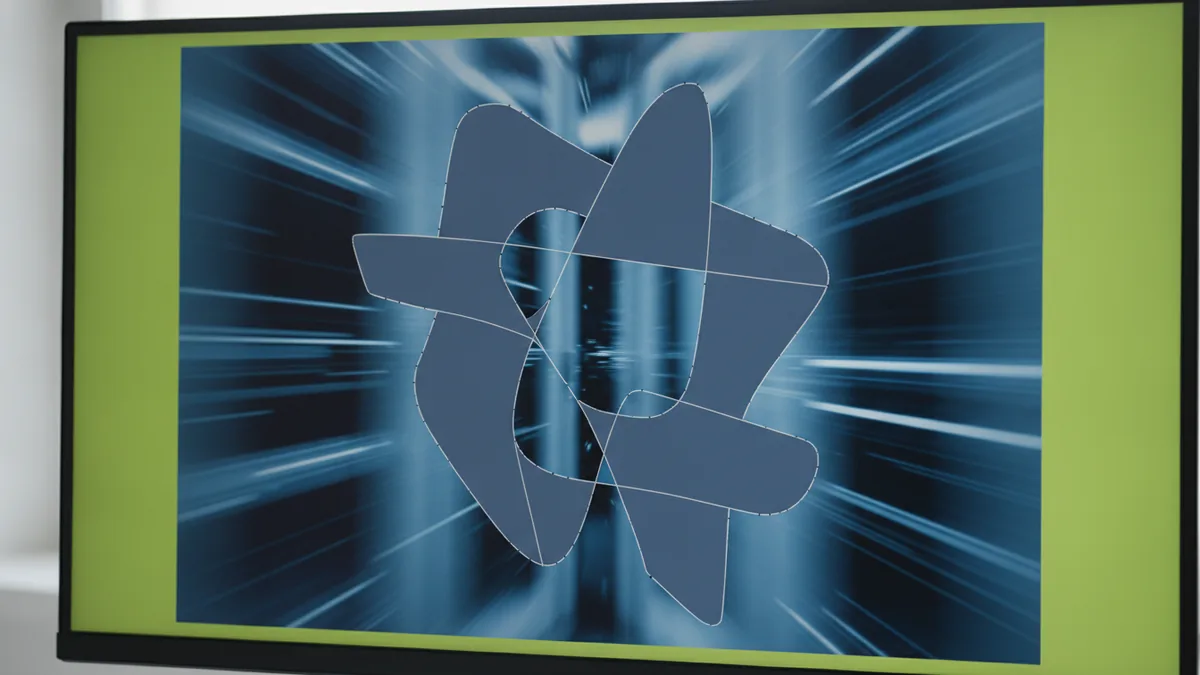
Saving Your Transparent Logo
Saving correctly is the last step in how to turn a logo transparent. If you export without transparency support, your file may come back with a solid fill.
When you save logo as png, confirm that transparency is preserved. Test it by placing the PNG over a dark background and a bright background.
If your end goal is scaling, use SVG where it fits. That makes it easier to turn logo into watermark layouts and keep edges sharp.
Finally, consider future edits. A transparent source helps when you change colors, produce sticker variants, or prepare motion-ready assets.
- Save as PNG for web placement and quick reuse
- Use SVG for scaling and vector-friendly workflows
- Verify on multiple backgrounds to catch edge artifacts
- Keep a clean source file for future logo variants
If you plan advanced uses, start with the transparent artwork. It is the foundation for many follow-on tasks, like how to turn a logo into an animation or how to turn your name into a logo.
You can also derive sticker-ready and watermark-ready assets from the same source. That is often easier than rebuilding from scratch.
Some people also ask how to turn text into a logo or how to turn your initials into a logo. The transparent workflow stays similar, because you still need clean shapes and a background-free export.
Others may want how to turn my logo into a sticker or how to turn a photo into a logo. In those cases, the transparent logo is step one, then you add your sticker cut logic or style treatment.
Color variants can also matter. If you need how to turn logo white, apply the color change after transparency is in place.
Once your transparent logo is stable, you can iterate safely. That makes it simpler to create versions for stickers, watermarks, and vector exports.
And if you are aiming to create motion, transparency helps too. Transparent layers make it easier to compose, animate, and blend your logo in video or UI experiences.
Related Quick Scenarios
This section helps you connect transparent logos to common deliverables. You do not need a new workflow for each output, but you do need the right export choices.
When you turn a logo into a sticker, you usually want a transparent file plus a clear edge outline. When you turn a logo into a watermark, you often need a smaller version with consistent opacity.
When you want how to turn a logo into a watermark, start from a transparent export. Then set size and opacity in your layout tool so it stays readable.
- Sticker use: transparent PNG plus outline or cut logic
- Watermark use: transparent logo plus reduced opacity
- Animation use: transparent layers for easier motion
- Vector use: clean shapes toward SVG export
These are also the moments people ask for how to turn your name into a logo or how to turn text into a logo. If you start with transparent artwork, the final look stays consistent across backgrounds and placements.
Similarly, if you want how to turn your logo into a sticker, keep the source transparent. Then you can test different backgrounds without rebuilding.
If you are converting assets, you can connect this work to how to turn logo into vector. Vector steps come next, after transparency is correct.
That same principle applies for how to turn an image into a logo. Get the background removed first, then rebuild or trace toward vector if needed.
Step-by-step
- 01 Check your logo source
Identify whether your logo is vector shapes or a raster image. This determines whether you can remove a background quickly or need background removal tools.
- 02 Remove or mask the background
Use selection-based removal for solid backgrounds. Use masking for busy photos, then refine the edges around thin lines.
- 03 Fix edge artifacts
Zoom in and remove halos, jagged pixels, and stray fragments. Keep the logo crisp at small sizes.
- 04 Export with transparency
Save as png to preserve the transparent background for web use. Choose SVG if you want a scalable, vector-friendly output.
- 05 Test on multiple backgrounds
Place the transparent logo over dark and light colors. Confirm the edges look clean everywhere you plan to use it.
Frequently asked questions
- How do I turn a logo transparent in practice?
- Remove the background layer, or create a mask around the logo. Then export a transparent file and test it over dark and light backgrounds.
- What file format should I use for a transparent logo?
- Use PNG for most web placements. Use SVG if you need vector-ready logo formats and scaling.
- How can I remove a logo background from a photo without ugly edges?
- Use background removal tools to cut out the logo. Then refine the mask around thin strokes and remove halos manually.
- How do I save a transparent logo as png correctly?
- Export with transparency enabled, not with a solid fill. After exporting, place the PNG on a contrasting background to confirm the result.
- Can I turn logo into vector after making it transparent?
- Yes. Once the background is removed, you can rebuild shapes or trace toward vector artwork, then export SVG.
- How do I turn a logo into a watermark or a sticker?
- Start from a transparent logo asset, then adjust size and opacity for watermarks. For stickers, pair the transparent logo with an outline or cut-ready treatment.
Related reading

Apple Logo Stuck: How to Fix iPhone, MacBook, and Watch Boot Loops
Stuck on the Apple logo? Learn quick fixes, recovery steps, and when to contact Apple Support.

How to Copyright a Logo (and When to Trademark It)
Steps to copyright a logo, costs, and how trademark changes protection.

Logo Sizes Guide: Optimal Dimensions for Web, Print, and More
Use the right logo size for every place it appears—web, print, and social—without losing brand consistency.