Apple Logo Stuck: Fix iPhone, MacBook, iWatch Boot Issues
Learn why your Apple device stays on the logo and follow steps to force restart, use recovery mode, and restore via Finder or iTunes.
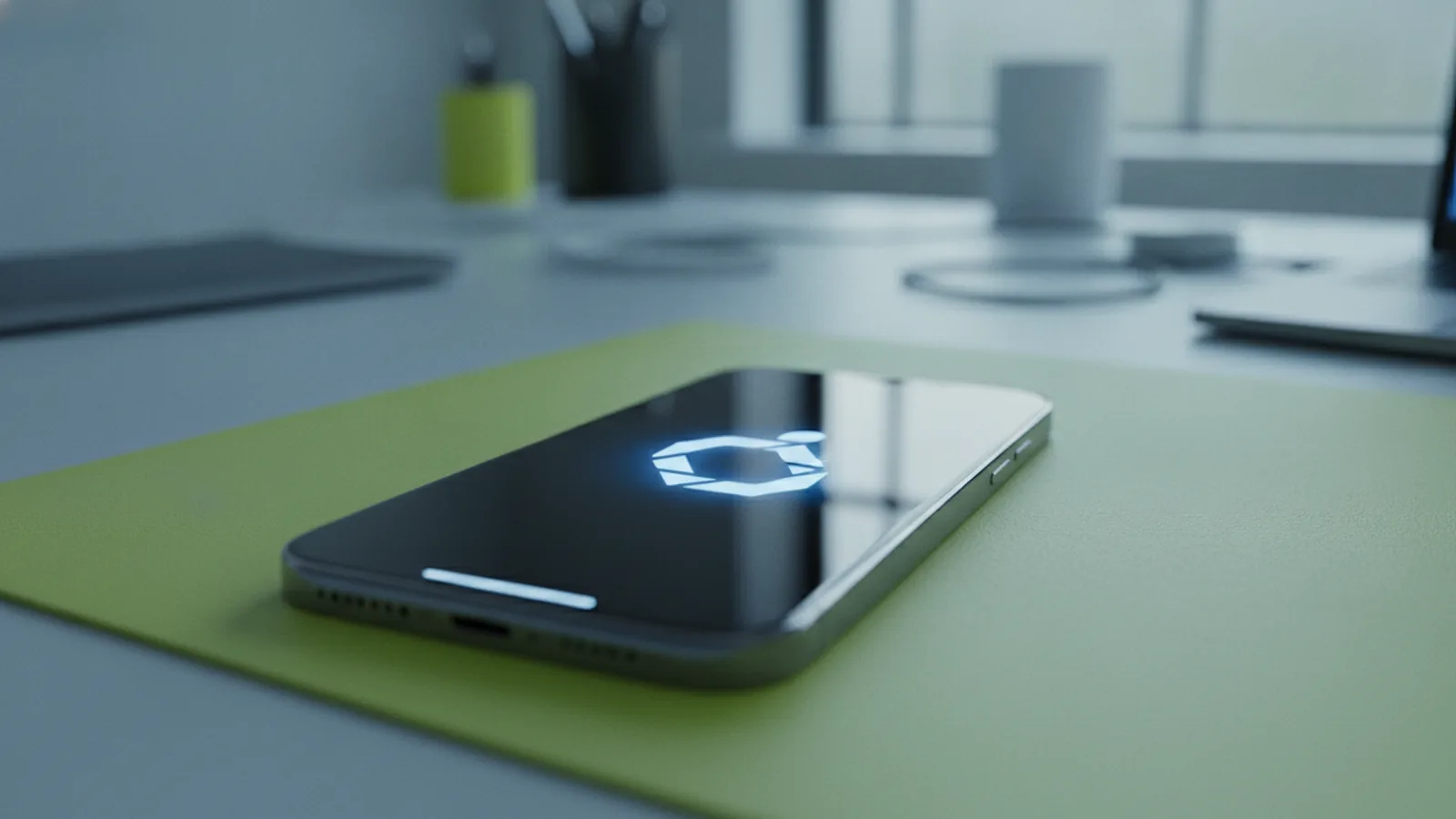
Why the Apple logo won’t finish loading (and what it usually means)
If your device won’t get past the Apple logo, the fastest next step is to force restart it, then move to recovery mode if it keeps looping. This helps when the issue comes from a temporary glitch during a system update or a crash. Many people search “why is my phone stuck on the apple logo” because it happens right after an update or after the phone became stuck during boot.
The same pattern can show up on Macs and watches. If you’re seeing “why is my macbook stuck on the apple logo,” or “why is my watch stuck on the apple logo,” think in terms of a boot process that can’t complete. When a device keeps restarting and never reaches the home screen, that’s often a boot loop.
There are also times when the cause is deeper, like failing storage or a damaged system install. In those cases, you need restore steps that reinstall the operating system. The rest of this guide walks you through the least risky options first.
Common reasons Apple logo gets stuck
Most logo-stuck cases are tied to the last thing your device tried to do before the problem started. A system update can leave a partially installed system if power is lost or files can’t be verified. A system crash can also corrupt a small piece needed to finish booting.
Hardware issues can do this too, especially on devices with age, heat exposure, or drops. If the device restarts repeatedly at the same stage, that pattern can point to storage problems. If it only fails when the battery is low, power delivery can also be a factor.
Here are the typical triggers people report:
- System update stopped midway, or the device lost power during install
- A crash during boot, apps launching, or after iOS or watchOS changes
- Inconsistent storage reads or write errors, often seen in boot loops
- Accessories or charging cables that don’t provide stable power
- Rarely, a damaged file system that needs a restore
When you see “how to fix apple logo loop,” you’re usually trying to break the boot loop first. Force restart is often enough to clear a temporary state and let the device boot normally.
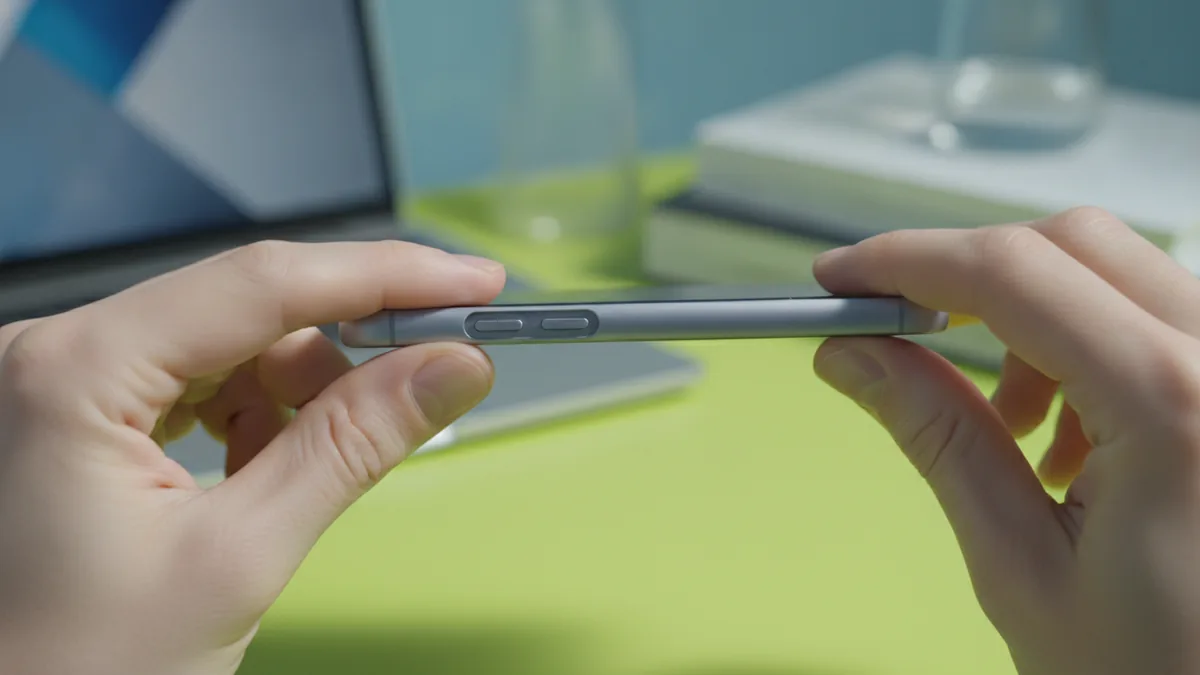
How to force restart your device (quick fix for many cases)
A force restart is the first action because it does not require a computer. It helps when a temp glitch blocks the boot process. If you’re dealing with “how to fix flashing apple logo” or a repeating logo screen, this step is the right starting point.
Exact key presses vary by model, so follow the method that matches your device. If you press and hold the wrong buttons, you may trigger recovery mode instead. When in doubt, use the model-specific steps below and keep holding until the screen responds.
iPhone 8 and later (including iPhone SE 2nd gen and iPhone 11 and up)
- Press and release Volume Up
- Press and release Volume Down
- Press and hold Side button
- Keep holding until you see the Apple logo, then release
iPhone 7 and iPhone 7 Plus
- Press and hold Volume Down and the Side button
- Hold for about 10 seconds or until the Apple logo appears
iPhone 6s and earlier, and iPod touch (7th gen or earlier)
- Press and hold Home and the Top/Side button
- Hold for about 10 seconds until the Apple logo appears
Apple Watch
- Press and hold the Side button
- Keep holding until you see the power off screen
- Tap and hold Power Off, then release when you see the Apple logo
MacBook (Intel) and MacBook (Apple silicon) note
MacBooks use different commands based on hardware generation. For Apple silicon, force restart is done by holding the power button until the device restarts. For Intel models, it’s typically a long press of the power button. If your exact model isn’t obvious, look up the force restart method for your Mac type before repeating attempts.
After the force restart, wait a full few minutes. Some devices take longer than expected to rebuild caches and finish boot. If the Apple logo returns, or you notice “why is my phone blinking the apple logo,” move on to recovery mode.
Enter recovery mode (so you can restore the system)
Recovery mode is designed for cases where the system won’t boot reliably. It lets you restore the device, which can fix corrupted system files. If you care about data, be aware that restoration may erase what’s on the device unless you have a backup.
Use recovery mode when a force restart fails, when the device keeps looping, or when you see repeated “flashing” behavior. This is common with interrupted system update installs. It’s also relevant if your device turns on, shows the logo, then restarts again and again.
iPhone and iPad recovery mode overview
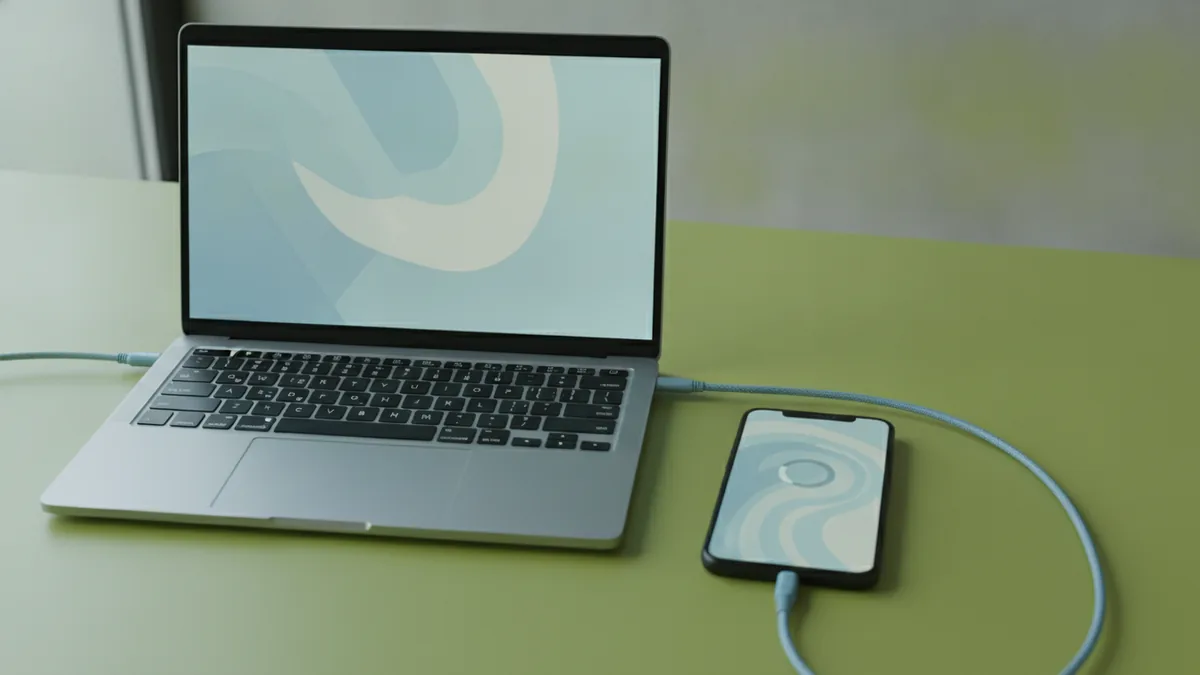
- Connect the device to a Mac or PC using a cable
- Open Finder (on Mac) or iTunes (on Windows and older macOS)
- Enter recovery mode using the correct button timing for your model
- Choose Restore when prompted
The button timing matters, so follow model-specific steps precisely. Apple’s recovery mode flow differs between iPhone with Face ID, iPhone with a Home button, and newer iPhone generations. If you don’t see the “connect to computer” style prompt, you likely need to try the button sequence again.
Apple Watch recovery
For an Apple Watch, recovery steps typically involve the watch and its paired iPhone. If the watch can’t complete boot, you may be guided to restore through the Watch app. The process is still aimed at reinstalling watchOS and returning the device to a usable state.
Once you reach recovery mode, don’t rush the next step. Make sure the computer connection is stable. If the cable is flaky, it can interrupt the restore and prolong the problem.
Restore with iTunes or Finder (reinstall the latest iOS version)
When you restore from recovery mode, your computer downloads a fresh system image. Finder on newer macOS versions handles this on Macs. iTunes on Windows and older macOS versions does the same job.
If the prompt offers Restore and Update, prefer Update when available and your device supports it. Update can take you to a newer version without fully erasing as much as Restore in some cases. If your device can’t boot at all, Restore is usually the reliable option.
During restore, your device stays in recovery mode until completion. This can take 15 to 60 minutes depending on the connection speed and Apple’s download servers. Keep the computer awake and avoid sleeping or disconnecting the cable.
What to expect during restore
| Step | What you’ll see | Why it matters |
|---|---|---|
| Restore starts | A progress bar in Finder or iTunes | Your device is being re-flashed with a fresh system |
| Download occurs | Estimated time changes | A stable internet connection speeds things up |
| Reboot happens | Apple logo may appear again | That is normal while it finishes booting |
| Setup screen returns | Initial setup prompts | You can restore from backup if available |
If you have a recent data backup, you can restore your settings and content after the system reinstall. If you don’t, you may be forced to set up the device as new. That’s why data backup planning matters, especially for devices that you rely on daily.
If you’re troubleshooting “how to fix apple logo loop” on a phone, the restore step is often the turning point. It replaces the broken parts that keep the boot process from completing.
Preventing the same issue later
You can reduce the odds of a logo boot loop by being careful around updates and power stability. The biggest avoidable cause is an interrupted system update. Keep your device charged and avoid updating over unreliable power or weak Wi‑Fi.
Also, make sure you have a recent data backup before major changes. If your device supports it, turn on automatic backups so you don’t have to remember right before an update. That way, if you ever need a restore, you can bring your information back quickly.
For cables and accessories, use reliable charging hardware. A borderline cable can cause short power drops during install. If your device shows repeated charging hiccups, fix that issue before the next update.
Finally, watch for patterns. If the device gets stuck after storage-heavy activity, you may need to check for low storage. Low free space can make updates fail or take longer, which increases exposure to interruptions.
- Back up before system updates
- Update while on stable power and Wi‑Fi
- Use a known-good charging cable and adapter
- Leave enough free storage for system installs
When to contact Apple Support
If force restart and recovery restore fail, you may be facing a hardware problem. Examples include repeated restore failures, unusual heat, or the device never reaching the setup screen after multiple attempts. At that point, it’s better to get professional help.
Also contact Apple Support if the device shows signs of physical damage or if you suspect the battery or storage. Boot loops that return right after restore can point to deeper components that the software reinstall can’t fix. If you tried the steps above and the problem persists, don’t keep repeating the same restore process.
If you’re deciding who to contact, Apple Support is the right route for “why is my phone flashing the apple logo” that doesn’t stop. They can run diagnostics and advise on the safest repair path. Use your model details, what happened right before the issue, and the troubleshooting steps you already tried.
For many users, the flow is clear: restart first, then recovery, then restore. When those steps don’t work, the next step is support.
Tip: Before contacting support, write down your device model and what screen behavior you saw. Note if it was a steady logo, a flashing logo, or a boot loop. This saves time during troubleshooting.
Frequently asked questions
- Why is my phone stuck on the Apple logo after an update?
- It often happens when a system update is interrupted or the boot files get corrupted. A force restart can clear the temporary state.
- How do I fix a flashing Apple logo or blinking Apple logo on iPhone?
- Start with a force restart using your iPhone model’s key sequence. If it keeps repeating, enter recovery mode and restore via Finder or iTunes.
- Why is my MacBook stuck on the Apple logo and restarting?
- A crash or corrupted system install can cause the boot process to loop. Try a force restart, then use recovery mode if needed.
- Why is my watch stuck on the Apple logo?
- watchOS can fail to boot after a crash or update interruption. A recovery flow through the paired iPhone may be required.
- Will recovery mode erase my data?
- Restoring can erase device data depending on what you choose and your backup state. If you have a data backup, you can restore after the reinstall.
- When should I contact Apple Support for an Apple logo boot loop?
- Contact support when force restart and restore repeatedly fail. That can indicate a hardware issue like battery or storage problems.
Related reading

How to Turn a Logo Transparent (PNG, SVG, and Clean Edges)
Learn how to turn a logo transparent with clean edges, PNG/SVG tips, and background removal workflows.

How to Copyright a Logo (and When to Trademark It)
Steps to copyright a logo, costs, and how trademark changes protection.

Logo Sizes Guide: Optimal Dimensions for Web, Print, and More
Use the right logo size for every place it appears—web, print, and social—without losing brand consistency.