How to Make the Apple Logo Glow on iPhone 13
Learn how to make the Apple logo glow on iPhone 13 and iPhone 12. Use iPhone settings or create custom glow art in Photoshop.
Apple logo glow: what it is and why people want it
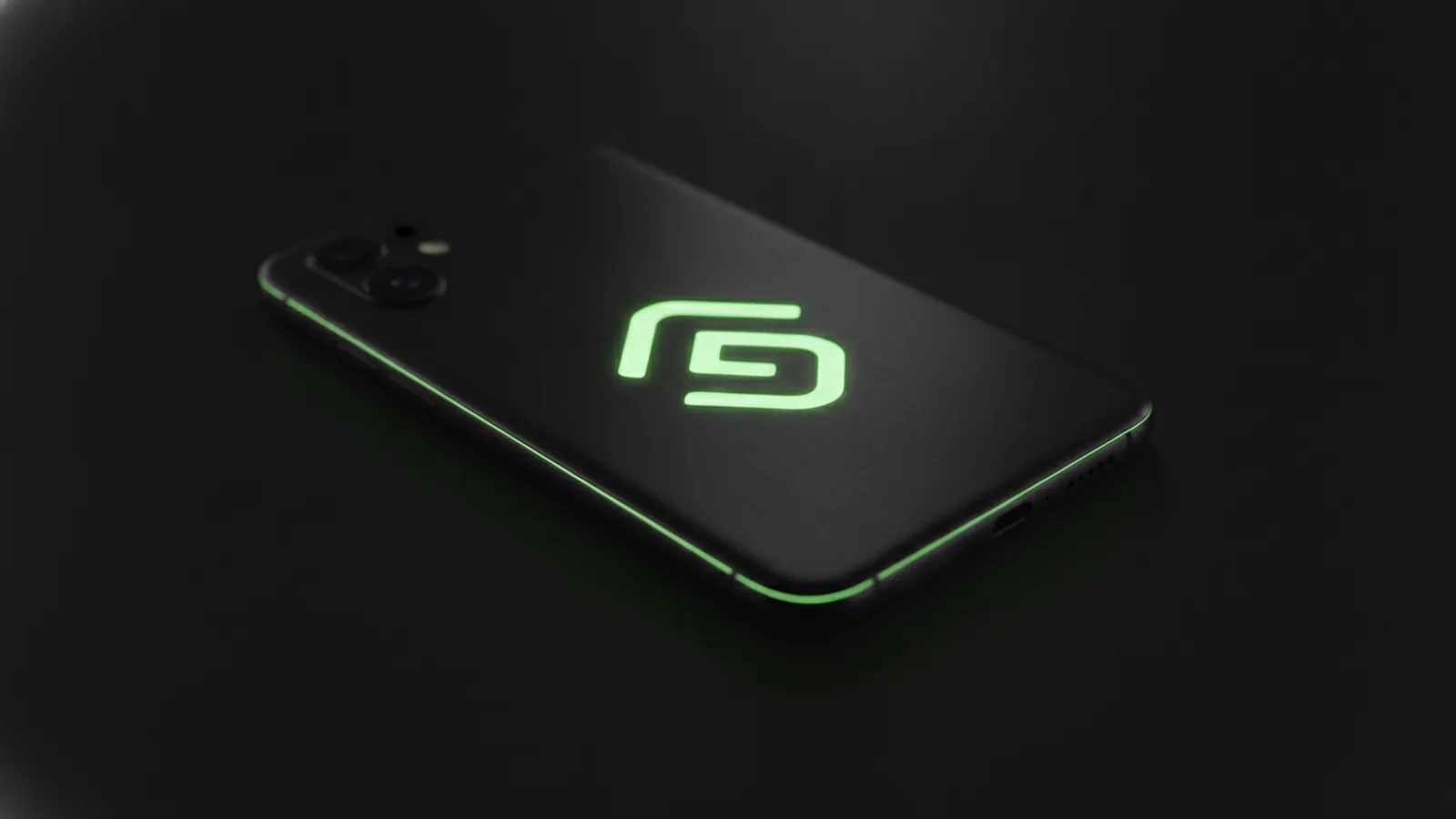
If you’re asking how to make apple logo glow iphone 13, here’s the direct answer: you can’t turn the built-in Apple logo into a true hardware LED. On iPhone 13 and iPhone 12, the logo is not individually addressable. What you can do instead is create a glowing logo effect on the device screen, or use LED-style cases and accessories that add light around the Apple aesthetic.
This is popular because it blends personalization with a recognizable brand look. Many people want iPhone customization that feels “premium” without needing complex apps. The result can also look like LED effects on smartphones, especially in dark rooms or low-light settings.
In this guide you’ll see two practical paths. First, you’ll check what the iPhone can do inside iPhone settings. Then you’ll learn how to make apple logo in photoshop so you can build a glowing logo design for a lock screen, wallpaper, or matching UI visuals.

Requirements and compatibility (iPhone 13 and iPhone 12)
Before you start, confirm what you’re trying to glow. If you mean the physical Apple logo on the back, iPhone models do not let users control it as a light source. So compatibility is about what you can display on screen, and what accessories can add light.
For the models you asked about, this approach works similarly for the effect you want to see on the phone. You can aim for iPhone 13 first, then apply the same concepts to iPhone 12.
- iPhone 13: screen-based glow via wallpaper or UI graphics is fully doable.
- iPhone 13 mini: same screen-based method, same limitations.
- iPhone 12: screen-based glow is also doable.
- iPhone 12 Pro: same approach, plus you can match the “finish” with darker glow colors.
If you use cases, you may find that only specific styles can simulate a real “logo glow.” Some cases add an illuminated ring or a lit window. Those options vary by brand, so focus on what light placement they support rather than expecting a true Apple-logo light.

Try iPhone settings first: how to maximize the glow look
The fastest route is to make the glow effect look stronger on your display. Start by picking a dark wallpaper or a dark UI scene. Then tune brightness and color so the glow doesn’t wash out.
Use these checks in iPhone settings. Some items can make the glow feel more “neon” instead of gray.
- Open Settings → Display & Brightness.
- Lower Brightness to a comfortable level.
- Turn on Dark Mode if you’re using a glow wallpaper or matching theme.
- Check Reduce White Point and try a mild adjustment if your glow looks too faint.
- Ensure True Tone is either on or off, then compare. Your glow may look better in one mode.
This is how to make apple logo glow iphone 13 look more intense in real life. It won’t light the logo physically, but it will make screen glow effects pop. For the same reason, the same settings help when you work on how to make apple logo glow on iphone 12.
Also watch your environment. In bright sunlight, any glow effect will compress and look less dramatic. In a dim room, the same wallpaper can look “lit,” especially with a warm center and cool outer ring.
Create a glowing Apple-style logo in Photoshop (layer-by-layer)
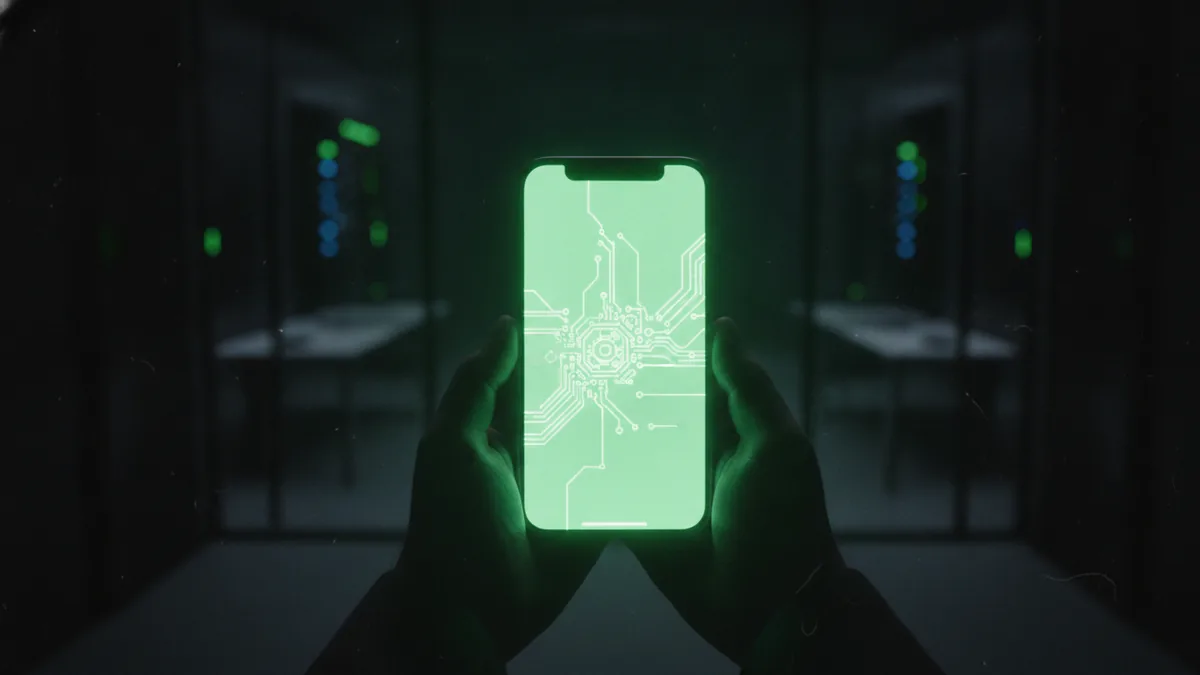
If you want a more custom look, Photoshop is the cleanest way. You’ll build a logo with a bright core glow, a softer outer glow, and optional color variants. This is also the practical answer to how to make apple logo in photoshop.
Because you’re creating a design for a wallpaper, treat the shape like a vector-like form. Then layer effects on top. Avoid using the official Apple logo file unless you have permission for your use case. Instead, you can design a similar geometric leaf silhouette for personal visuals, or use a licensed asset.
Here’s a solid layer plan you can follow.
| Layer | Purpose | Common settings to start |
|---|---|---|
| Base logo | The solid center shape | Fill color, then duplicate for glow work |
| Glow core | Bright inner light | Screen blend, strong blur |
| Glow outer | Soft halo around the logo | Add Gaussian Blur, lower opacity |
| Ambient haze | Subtle fog for depth | Very large blur, gentle opacity |
| Accent ring (optional) | Extra “LED” feel | Stroke or gradient overlay |
Step-by-step Photoshop build
- Open Photoshop and create a new canvas sized for your wallpaper target. A common safe size is 1170 × 2532 for iPhone-style full screens.
- Add your logo silhouette as a shape layer or vector-like shape. Keep it crisp so edges stay clean after blur.
- Duplicate the logo layer twice. Rename the copies “Glow core” and “Glow outer.”
- Select “Glow core.” Set its blend mode to Screen. Apply Gaussian Blur until the center reads as a bright spot.
- Select “Glow outer.” Set blend mode to Screen again. Use a larger blur radius than the core. Reduce opacity so it feels airy.
- For “Ambient haze,” duplicate “Glow outer” once more, then blur it heavily. Lower opacity to make the haze barely visible.
Pick colors that look like real glow
Glow color matters more than people think. A good neon look usually uses three related colors. One for the center, one for the outer ring, and one for the background contrast.
- Classic “Apple aesthetic” glow: warm white center (#FFFFFF to #FFE7C7), cool teal outer (#00E5FF to #00B8D4).
- Premium purple: violet center (#B388FF), magenta outer (#FF4FD8).
- Ice blue: near-white cyan center (#E6FBFF), pale blue outer (#7AD7FF).
- Soft gold: golden center (#FFD27A), amber outer (#FF8A2A).
If you’re making iPhone 13 or iPhone 12 wallpapers, choose a dark background. Use near-black (#0B0B10) instead of pure black. It keeps the glow from looking like a cutout.
Tips for best results on iPhone screens
After you build the glow art, the phone display can change the final look. Even two iPhones with different brightness levels can make the same image look different. So test your design with the same settings you plan to use.
Start with a simple rule: keep the logo core smaller than you think. If the core glow is too large, it becomes a blob at phone distances. Make the outer glow broad, but fade it aggressively with lower opacity.
- Test in Dark Mode first. Glow looks weaker in light UI.
- Use subtle background gradients. Flat backgrounds can band and kill depth.
- Export with good quality. Prefer PNG for crisp edges, or high-quality JPG if the file is huge.
- Preview at actual phone size. Zoomed-in exports can look fine on your laptop.
Also consider the “Mobile UI design” angle. If your lock screen has widgets, the glow should sit behind them, not clash with them. For best readability, keep the brightest glow near the logo shape and away from key text areas.
Finally, match the glow to your case finish. Glossy cases can reflect light and make the effect feel stronger. Matte cases keep the glow calmer and more “cinematic.”
Troubleshooting common issues
You’ll likely hit a few common problems. The good news is that they’re easy to fix once you know what’s happening. Here are the most frequent ones when people search how to make apple logo glow iphone 13 and try the screen-based approach.
Glow looks washed out
Try turning down screen brightness and compare True Tone on and off. Also check your wallpaper background. Pure white or gray backgrounds reduce glow contrast. Switch to a darker base color.
Edges look fuzzy or blocky
Reduce excessive blur. Your core should stay sharp enough to read as a symbol. If you exported at the wrong size, re-export at the right canvas resolution for iPhone wallpapers.
Glow looks too blue or too hot
Balance your color trio. If the outer glow dominates, reduce outer opacity. If the center looks harsh, blend the core slightly into the outer ring by lowering core opacity.
Wallpaper looks fine on desktop, different on iPhone
Displays differ. Your laptop may be wider gamut than the phone. Export at high quality and re-check using the exact brightness settings you plan to keep.
“I expected the back logo to light up”
That expectation is the biggest mismatch. iPhone 12 and iPhone 13 do not support turning the physical Apple logo into a user-controlled LED. For a true back-lit look, rely on a compatible illuminated case or accessory.
If you want to keep it purely software-based, focus on screen glow art and consistent iPhone settings. That’s the most reliable way to get a glowing Apple logo aesthetic without surprises.
Frequently asked questions
- Can I make the physical Apple logo on iPhone 13 glow?
- No. iPhone 13 does not let you control the physical back logo as a light source. You can only simulate glow on the screen or use illuminated cases.
- How do I make the Apple logo glow on iPhone 12?
- Create a glowing logo wallpaper and use Dark Mode for stronger contrast. You can also tune brightness and True Tone for the best look.
- What’s the best way to create a glowing Apple-style logo in Photoshop?
- Use layered effects: a solid base, a bright core glow, and a softer outer glow. Set glow layers to Screen blend mode and blur each layer differently.
- How do I pick glow colors that look premium on iPhone screens?
- Use a three-color approach: bright warm center, cooler outer halo, and a near-black background. Then reduce outer opacity until it looks airy, not harsh.
- Why does my glow look washed out on my iPhone?
- Your screen brightness may be too high, or your wallpaper background may be too light. Try lower brightness and a darker background to restore contrast.
Related reading
How to Add a Logo to Your Outlook Email Signature
Step-by-step: create an Outlook signature, insert a logo, resize it, and troubleshoot display issues.
How to Register a Logo as a Trademark (USA Steps)
Learn how to register a logo as a trademark in the USA—search, file, then maintain.
How to Make an Image Transparent in Canva for Logo Design
Learn how to make image transparency in Canva and use it for logo design.