How to Make a Rotating Logo (2D or 3D)
Learn how to make a rotating logo, including steps for After Effects, 3D rotation tips, and best practices to keep branding sharp.
Understanding rotating logos (what they do and why they help)
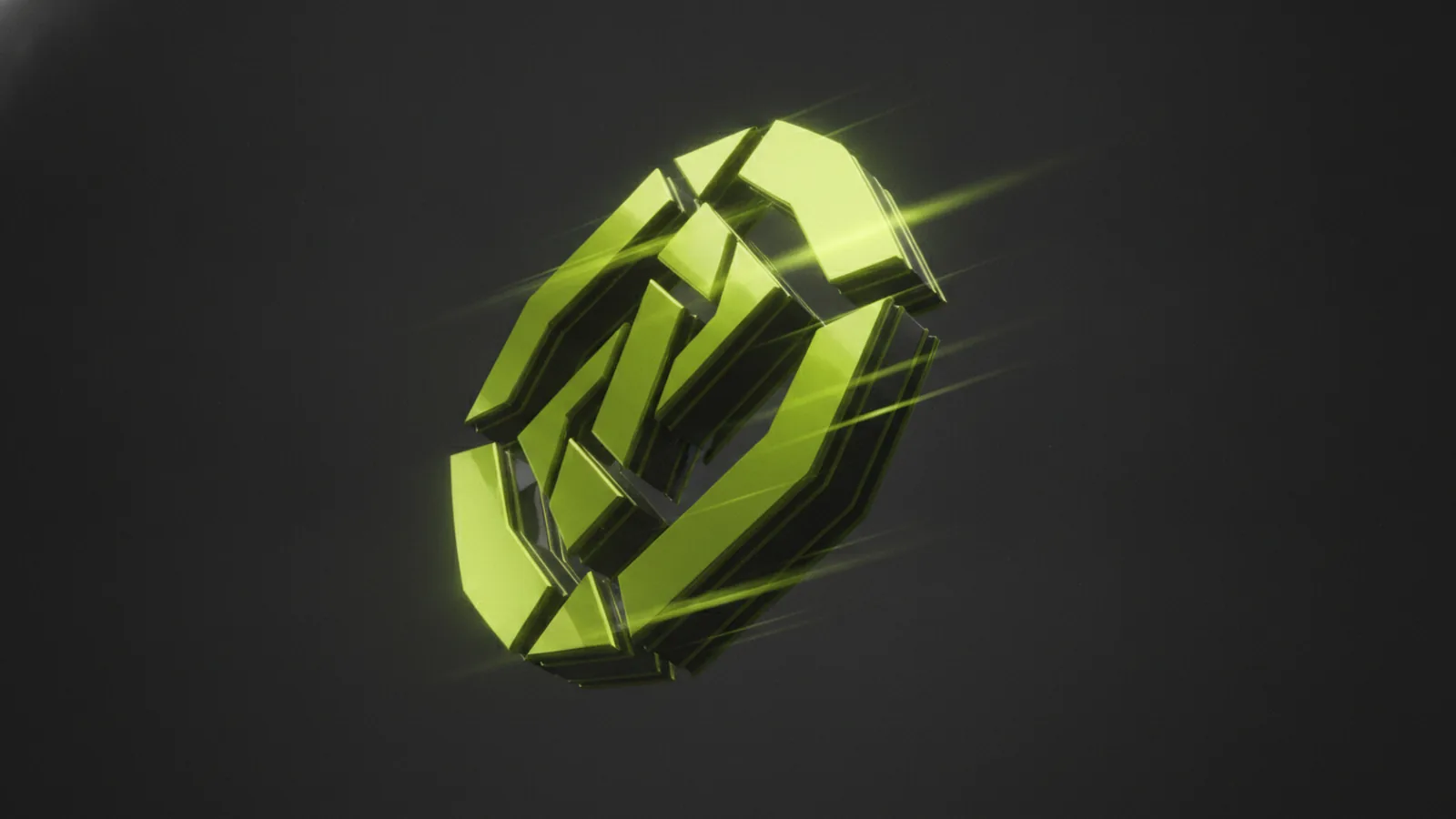
A rotating logo is a logo animation where the mark spins or turns along an axis while staying readable. It can be a flat 2D spin, or a deeper 3D effect that adds depth cues. Done well, it adds energy without changing your brand identity.
Rotating logos work because they create motion with a stable visual anchor. Viewers often notice the brand first, then the movement. That makes rotating logos useful for intros, app splash screens, social posts, and hero headers.
Animation also gives you a controlled way to highlight different aspects of a design. For example, a subtle turn can show a product shape, while a faster spin can signal an event or launch. The key is to keep the logo legible at small sizes.
- 2D rotation: Spin or orbit while the artwork stays flat
- 3D rotation: Depth, lighting, and camera angles create a dimensional feel
- Brand-safe motion: The mark remains identifiable at every frame
Tools for creating rotating logos (software and online options)
You can make a rotating logo with both dedicated motion software and simpler tools. The “best” choice depends on whether you want 2D motion graphics or a 3D rotating logo look. If your goal is polish for marketing assets, motion tools are usually the fastest path.
After Effects is a common pick for logo animation. You can animate with keyframes, use shape layers, and add effects like motion blur. You can also build a 3D scene using layers, cameras, and lighting.
If you need a quick result, online tools can help. They often let you upload a vector file and choose a rotation or spin preset. These options are great for simple 2D loops, but they can limit fine control over timing, easing, and 3D depth.
| Tool type | Best for | What you get |
|---|---|---|
| After Effects | Motion graphics, brand polish, 3D-like depth | Precise keyframes, timing control, visual effects |
| Online logo animators | Fast 2D spins for social posts | Simple loops, fewer setup steps |
| 3D tools | Real 3D rotation and lighting | True depth, materials, stronger realism |
Step-by-step guide: how to make a rotating logo in After Effects
If you’re asking how to make a rotating logo in after effects, start with clean artwork. Use a vector source (SVG or layered AI/PDF) and keep each logo part on its own layer if possible. That setup makes it easier to animate the right element.
Below is a practical approach for a smooth 2D rotation loop. It works for most wordmarks and emblem marks as long as the logo is symmetrical or readable during motion.
- Import and prep your logo: Bring in the logo as vector layers. If it imports as one layer, you can still rotate it, but separate layers give better control.
- Create a composition: Set your size and frame rate first. Many teams use 1920×1080 at 30 fps, then export at the end for each platform.
- Animate rotation: Select the logo layer. Add a keyframe for the rotation property, then set an end keyframe with the full turn.
- Use easing for a natural spin: Apply easy ease on the keyframes. For a “hero” look, try a slow-in and slow-out rather than a perfectly constant speed.
- Add motion blur (optional): Turn on motion blur for the comp. This reduces the “digital stutter” effect during fast turns.
- Export a loop: Export as an animation format you need. For web, GIF or MP4 loops are common. Keep the loop seamless by matching the start and end frame.
Now let’s get more specific with animation techniques that make logos look intentional. Simple rotation can look mechanical if the logo’s shape has visual weight. Your goal is to match the motion to the brand’s personality.
Better rotation with timing and pivot control
First, set the rotation anchor (the pivot point). In After Effects, the anchor controls the axis around which the logo turns. Place it at the logo’s center of mass so the mark spins cleanly.
Next, choose your turn amount. A full 360° turn is typical, but a 180° flip can feel more “designed” when combined with a gentle easing curve. For looping, make sure the orientation at frame 0 matches the orientation at the final frame.
Adding subtle brand motion without losing clarity
Instead of only spinning, consider slight scale or opacity changes. A 2–5% scale push can make the logo feel like it breathes. Keep the change small so the brand stays consistent.
Use short timing offsets to create depth cues. For example, if you have multiple parts, rotate them together with tiny delays. This can help complex marks without turning into a separate animation.
Creating a 3D rotating logo (2D assets, 3D feel, real depth)
When you search how to make rotating 3d logo, you’re usually looking for depth, lighting, and believable camera movement. The easiest path is to start with 2D logo art and build a 3D illusion. For true results, you can also model or extrude the logo in a 3D tool.
2D vs 3D matters. A 2D logo spins without perspective changes. A 3D setup adds perspective so the edges stretch as the camera moves. That one difference makes a rotation feel higher-end.
- 2D vs 3D logos: 2D reads as flat even during rotation
- 3D rotating logo: Lighting and shading sell the turn
- Motion graphics workflow: You can combine both for strong branding
Practical tips for a 3D rotation look
Start by separating your logo elements. If your emblem has multiple colors, keep each piece on its own layer so you can map it to a 3D plane later. Clean edges also reduce artifacts when you add blur and depth of field.
Use lighting even if it is basic. Without a light direction, a rotating mark can look like a sticker. A simple highlight that shifts as the logo turns often does more than extra camera motion.
Then pick a camera path. A gentle orbit around the Y axis is usually enough. Avoid fast random camera movement because it competes with branding recognition.
Export choices for 3D rotation
For 3D-like animated logos, consider higher bit-rate exports. Compression can smear edges when the logo rotates. If you plan to reuse the animation across channels, export a master file first, then downscale for each platform.
Also confirm the background. Transparent backgrounds are great for web and overlays. For presentation slides, a solid background can mask compression and make motion feel crisp.
Best practices for logo animation (so it looks premium)
Good animated logos keep a clear brand silhouette. Motion should support the identity, not replace it. That means you should test the animation at real viewing sizes, not just on your desktop monitor.
Use timing that matches your message. For a calm brand vibe, rotate slower and include easing. For product launches, faster motion can work, but readability must stay intact.
Finally, plan for loop behavior. A rotating logo often runs as a loop in headers or dashboards. Seamless loops avoid visible “jumps” that break trust.
Design principles to keep your branding consistent
- Maintain contrast: Make sure the logo stays visible through the full turn
- Respect symmetry: Asymmetrical logos need more care with pivot and angle
- Choose a safe rotation axis: The axis should preserve the mark’s most recognizable view
- Keep motion short: Many logos look best in 2–4 seconds for looping
Common mistakes to avoid
- Rotating a low-res logo: Blurry edges look unprofessional immediately
- Forgetting the pivot: Off-center rotation can feel like the logo is “wobbling”
- Overdoing effects: Heavy blur or shake can hide the brand
- Non-matching loop frames: The start and end orientation must match for seamless repeats
- Ignoring easing: Perfect linear motion often feels cheap
Test on actual surfaces. Check it on a phone, in a browser, and inside a layout mock. That is where tiny readability issues show up.
Examples of effective rotating logos (what to copy in your own version)
Effective rotating logos tend to share a few traits. The motion is smooth, the logo stays readable, and the animation supports a clear purpose. You do not need complicated effects to get a premium look.
Here are common patterns that work well. Use them as starting points, then adapt the motion to your brand.
| Example style | How it looks | Why it works |
|---|---|---|
| Calm orbit | Slow 360° turn with subtle easing | Brand-safe motion that never overpowers the mark |
| Half-turn reveal | 180° turn paired with a gentle scale change | Creates a designed moment for hero sections |
| 3D spin with lighting | Turn plus highlight sweep and soft depth blur | Depth cues make the logo feel dimensional |
| Multi-layer rotation | Parts rotate together with tiny offsets | Adds craft without turning into clutter |
If you are building your own pipeline, keep one version simple. Store a 2D rotating loop and a 3D rotating version separately. That way you can match the asset to the platform and bandwidth needs.
FAQ: rotating logos and motion graphics setup
How to make a rotating logo for social media?
Make a 2–3 second loop and export at platform-friendly sizes. Keep the pivot centered and test at small thumbnails. Use easing so the motion feels smooth.
How to create a rotating logo without After Effects?
Use an online logo animator or a simpler motion tool that supports vector uploads. Choose a rotation preset, then adjust speed and loop timing. If you need brand-safe control, motion software usually wins.
How to make a rotating logo in After Effects for a seamless loop?
Keyframe the rotation at frame 0 and at the final frame with matching orientation. Add easy ease and preview the playback at loop boundaries. Export only after you confirm there is no jump.
How to make rotating 3D logo with a simple workflow?
Start from vector layers and build a 3D illusion using perspective and lighting cues. Keep the camera movement slow and predictable. Use a soft shadow or highlight to sell depth.
What format should I export for animated logos?
For web and embeds, MP4 with H.264 is widely supported. For transparency needs, use formats that preserve alpha if your pipeline supports them. Always verify playback in the target platform.
Frequently asked questions
- How to make a rotating logo for social media?
- Create a short loop (often 2–3 seconds) and export in platform-friendly sizes. Keep the logo centered so it stays readable during the turn.
- How to create a rotating logo without After Effects?
- Use an online logo animator or a simpler motion tool that supports vector uploads. Then adjust speed and loop timing to keep it seamless.
- How to make a rotating logo in After Effects for a seamless loop?
- Keyframe rotation at frame 0 and at the final frame so the orientation matches. Preview the loop boundary and add easing for smooth motion.
- How to make rotating 3d logo?
- Start with clean vector layers and build depth with perspective and lighting cues. Keep the camera orbit slow and avoid shaky movement that hurts recognition.
- What are common mistakes when making rotating logos?
- Common issues are low-res artwork, an off-center pivot, heavy blur, and mismatched loop frames. All of these break the “premium, readable” goal.
Related reading
How to Copyright a Logo (and When to Trademark It)
Steps to copyright a logo, costs, and how trademark changes protection.
Logo Sizes Guide: Optimal Dimensions for Web, Print, and More
Use the right logo size for every place it appears—web, print, and social—without losing brand consistency.
How to Make a Spinning Logo: Tools, Tips, and Exports
Make a spinning logo with After Effects or online tools, then export MP4 or GIF.