How to Create Logo Mockups in 3D (Photoshop + Tools)
Learn how to create mockup logo designs in Photoshop and online tools, plus tips for 3D mockups that look real and help marketing.
Introduction to logo mockups
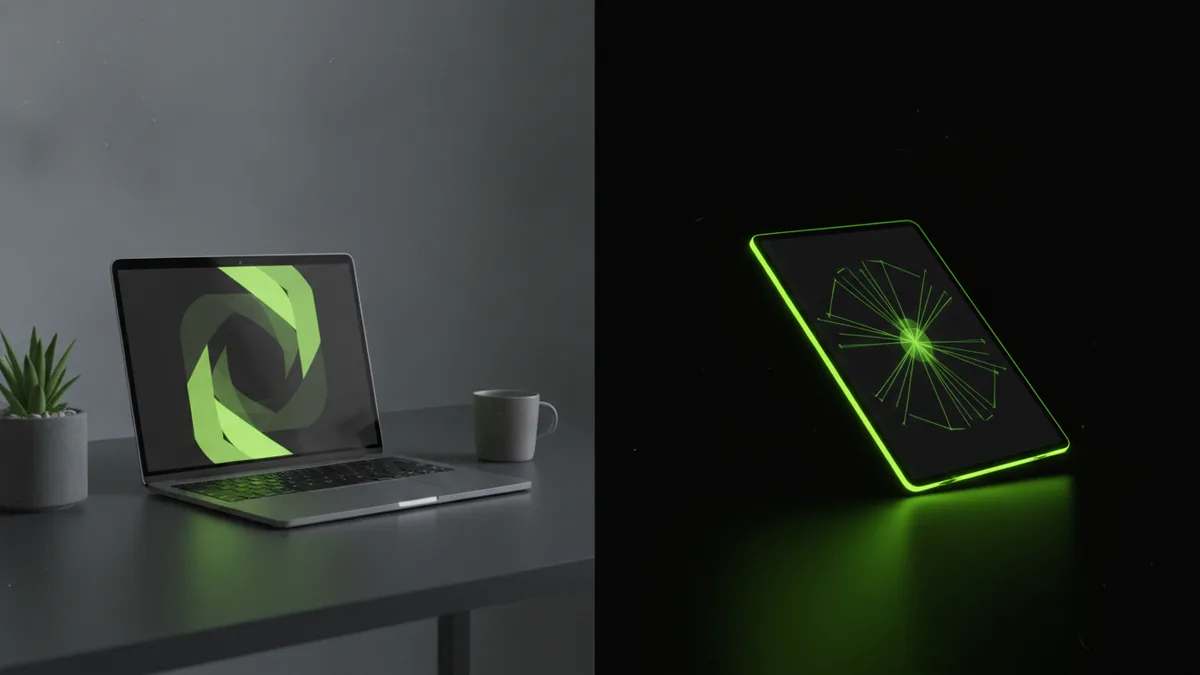
A logo mockup is a realistic preview of how your logo will look in real places. Think of it as a branded “wearing” test for your design. You place the logo onto items like websites, signs, packaging, or product screens. Then you adjust angle, lighting, and perspective so the result feels believable.
Mockups matter because branding rarely lands on a blank canvas. In a marketing deck, a logo sits next to photos and UI elements. In e-commerce, it rides on product cards and images. A good mockup helps you catch issues before you spend time printing or building pages.
This guide focuses on how to make mockup logo files that support both presentation and decision-making. You will also learn how to design 3d mockup logo variants that still stay readable at a glance.
Why use logo mockups for branding?
Mockups turn a finished graphic design into a real brand experience. Instead of guessing how spacing looks on a badge, you can test it. Instead of imagining scale on a website header, you can see it in context. That “visualization” reduces back-and-forth with clients and teammates.
They also help with marketing. When you can show a logo on packaging and landing pages, you explain the brand story faster. You can compare variations in color and weight under the same lighting conditions. That makes brand selection feel grounded, not subjective.
For teams doing user experience (UX) work, mockups help too. You can see how a wordmark performs at header sizes. You can check whether icon shapes hold up at small breakpoints. The outcome is clearer decisions for digital design mockups.
- Faster feedback on logo presentation
- Better proof for clients and stakeholders
- More consistent branding across channels
- Earlier detection of readability and spacing issues
Step-by-step guide: create a logo mockup in Photoshop
If you want control, Photoshop is the most practical starting point. The core idea is simple. You need a base scene, then you place your logo as a smart layer and match perspective and lighting.
Here is a reliable workflow for how to create mockup logo designs in Photoshop. It works whether you use a premade mockup PSD or build one from scratch. The key is using non-destructive edits so you can swap logo files quickly.
1) Prepare your logo file
Start with a clean vector version of the logo. Export SVG or keep the original AI/EPS if you have it. For raster logos, use the highest resolution you can.
Before you place anything, check that your logo has transparent background. Also check that stroke weights and corner shapes look sharp at small sizes. That avoids blurry edges when you scale the logo into a scene.
2) Choose or build a mockup background
Use a photo with clear perspective cues. Examples include a laptop lid shot, a wall sign, or a product box top view. If you build from scratch, create a neutral background and perspective guides.
For realistic results, pick a scene where the light direction is obvious. Shadows and highlights should follow a consistent angle. This makes later blending much easier.
3) Place the logo as a smart object
In Photoshop, place your logo layer and convert it to a smart object. This keeps the artwork editable. Then transform it to match the screen or surface angle.
Use the Warp or Perspective transform tools. A good rule is to align the logo’s edges with the surface edges in the photo. That alignment alone can boost realism dramatically.
4) Match size, spacing, and perspective
Scale the logo so it matches how it would appear in real life. If the logo is meant for a header, ensure it is not too dominant compared to surrounding UI. If it is for a sign, check that it does not look cramped in the available space.
Now fine-tune spacing. Adjust tracking or scale the icon and text separately if needed. Many logo mockup mistakes come from scaling a single element too far.
5) Blend lighting and add subtle shadows
Make your logo “react” to the scene. Add a shadow only if the surface suggests it. Use low opacity and blur for softness.
Next, match color tone. Try a Curves or Hue/Saturation adjustment clipped to the logo layer. Then test under different blending modes like Multiply or Screen. Stop when it looks like the logo belongs in the photo.
6) Export for presentation
Export multiple sizes so you can use them in marketing. A 1600px wide PNG works well for decks. A JPG version is often enough for fast website previews.
Also keep a layered PSD master file. That way you can update the logo later without rebuilding the mockup.
- Prep a clean logo (vector preferred)
- Pick a realistic background scene
- Place logo as a smart object
- Transform to match perspective
- Blend lighting and add subtle shadow
- Export multiple presentation sizes
Designing realistic 3D logo mockups
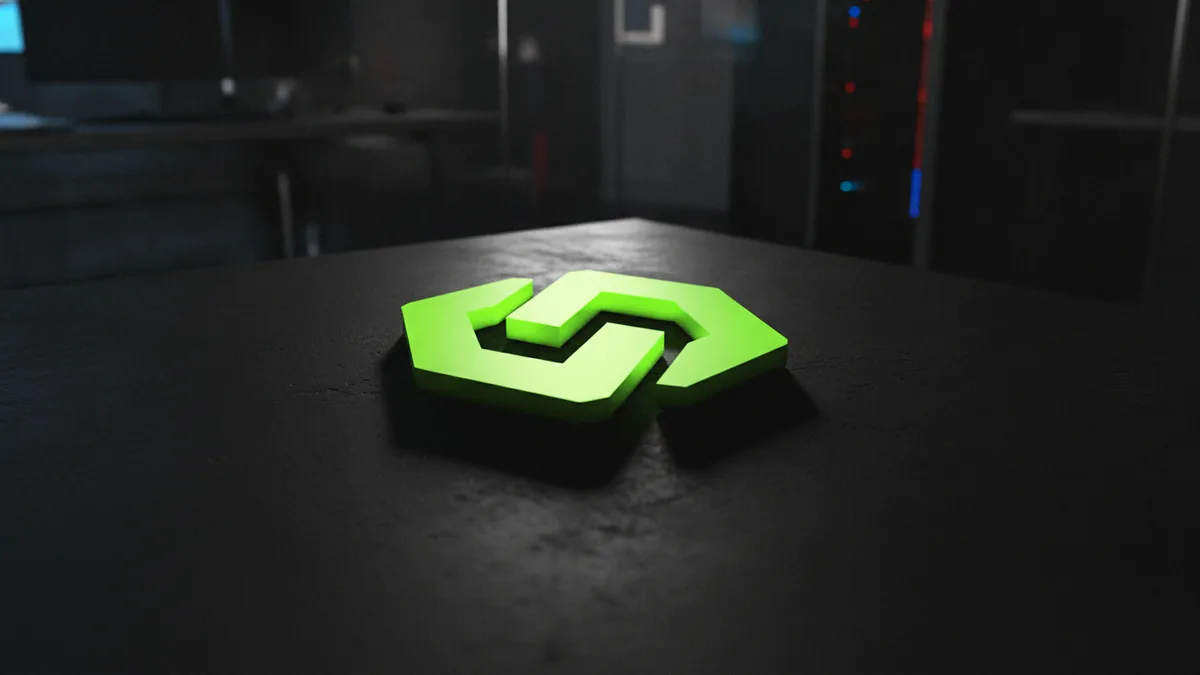
Designing 3D logo mockup logo scenes is about depth, material, and realism. You can do this in two ways. You can render a true 3D model, or you can fake it with shading and highlights. Both can look great if the lighting is consistent.
For most marketing needs, the “faked 3D” approach is faster. It uses extrusion-like effects, gradients, and layer styles. If you need physical accuracy, use a 3D workflow. The right choice depends on your deadline and how detailed the mockup must be.
Key considerations for 3D mockups
First, keep your logo legible. 3D effects should not thicken strokes so much that details disappear. Use moderate extrusion depth, especially for small icons.
Second, match material type. A polished metal logo needs crisp specular highlights. A matte plastic logo needs softer gradients. When the material matches the scene lighting, the viewer trusts the design.
How to do 3D effects in Photoshop
You can create depth using layer styles and transforms. Duplicate the logo, offset it slightly, and blend it as the “extruded” layer. Add a gradient overlay to simulate the side surface.
Then create highlights. Use a soft brush with low opacity or a gradient mask. Place highlights where the light direction suggests. If your scene light comes from the top left, highlights must follow that.
How to make 3D logo presentation look professional
To keep it realistic, add contact shadows where the logo meets the surface. Also blur shadows based on depth. Sharper shadow edges can look fake when the logo is meant to sit slightly farther back.
Finally, check readability at two zoom levels. Zoom out to thumbnail scale first. Then zoom in to verify edges and bevel transitions are clean.
- Limit extrusion depth for readability
- Use scene-consistent highlight direction
- Add contact shadows for realism
- Test at both thumbnail and full-size
Best tools for logo mockups (Photoshop and online generators)
There is no single best tool for all mockup needs. Photoshop gives you maximum control over customization. Online mockup generators trade depth for speed. If your goal is quick logo presentation for marketing, a generator can be enough.
Pick tools based on your workflow. If you need consistent brand presentation across many deliverables, invest in a reusable Photoshop template. If you need one-off previews for proposals, an online generator can save hours. You can also mix them.
Photoshop for custom and 3D-focused mockups
Photoshop is strong when you want exact positioning. It also works well when you want to keep editable layers. You can build a reusable PSD with smart objects for logo swaps.
If you are aiming for how to make 3d mockup logo designs, Photoshop can handle shading and depth cues. For true geometry, pair it with a 3D tool later. But many clients only need convincing 3D presentation, not CAD-grade models.
Mockup generator for fast variations
Mockup generators speed up logo presentation by handling perspective and lighting basics. Many let you upload your logo and instantly preview it on scenes. That makes testing faster, especially for early branding experiments.
When using a mockup generator, still verify text fit and legibility. Some tools warp logos in a way that changes letter spacing. You may also need to recolor the logo to match the scene tone.
Where 3D design fits
For how to design 3d mockup logo files, you may decide between two paths. You can simulate 3D with layer effects and masks. Or you can use a 3D design workflow and render a final image.
Either way, keep your source files organized. Maintain versions for color, background, and material style. That makes it easier to deliver a set, not just a single preview.
| Tool type | Best for | Typical output |
|---|---|---|
| Photoshop | Custom placement, repeatable templates | Layered PSD + high-res exports |
| Mockup generator | Quick proposals and logo presentation drafts | Ready images for decks and posts |
| 3D design workflow | More physical depth and material accuracy | Renders for hero visuals |
Tips for effective mockups that match your brand
Great mockups feel consistent with your branding system. That means your logo colors, spacing rules, and typography scale should stay intact. Even if the scene changes, the logo should look like it belongs to the same brand.
Use customization to reduce surprises. When you test multiple backgrounds, keep exposure and contrast stable. When you change colors, ensure the logo still meets readability expectations. This helps your stakeholders make decisions faster.
Also consider your audience and channel. A hero mockup for a landing page needs strong contrast and a clear focal point. A mockup for social media needs a safe crop area. Think about how people will view your logo presentation before you export.
Customize mockups for branding needs
- Use brand colors and check contrast against the scene
- Maintain the logo’s clear space and proportions
- Swap materials consistently across the whole set
- Create versions for light and dark backgrounds
Showcase mockups effectively
- Start with one hero mockup for the main message
- Add 2 to 4 supporting mockups for context
- Include at least one digital mockup and one physical scene
- Label versions internally, not in the exported image
When you present, avoid overwhelming viewers. If you show too many angles, people stop noticing details. Instead, curate the set around your key brand story and placement goals.
Conclusion and best practices
Learning how to create mockup logo designs is a practical step toward better branding. You move from “logo exists” to “logo performs.” Mockups improve clarity, speed feedback, and help you choose the right look for real-world use.
If you want how to design 3d mockup logo files, focus on lighting consistency and readability. Keep the depth subtle until the logo still reads well. Then add believable shadows and highlights for the scene you are using.
Finally, build a repeatable workflow. Save PSD templates with smart objects. Keep your source logos organized by version and format. With that setup, how to make mockup logo outputs becomes a fast, reliable part of your graphic design process.
If you are working on both brand assets and a website, mockups can also guide UI decisions. They show how the logo behaves across headers, buttons, and layouts. That makes your final brand presentation feel cohesive from first click to final render.
Frequently asked questions
- What is a logo mockup and why does it matter for branding?
- A logo mockup is a realistic preview of your logo on real surfaces or screens. It helps you judge spacing, color, and readability in context before you print or publish.
- How to create mockup logo files in Photoshop?
- Place your logo on a scene, convert it to a smart object, then match perspective and lighting. Add subtle shadows and export layered and final versions for reuse.
- How to design 3D mockup logo without losing readability?
- Use moderate extrusion depth and keep stroke thickness visually consistent. Match highlights and shadows to the scene light, then test the result at small sizes.
- How to do 3d mockup logo work with an online mockup generator?
- Upload your logo, position it, and preview variations quickly. After that, check text fit, warping, and contrast against the background.
- What should I customize in a logo mockup for my brand?
- Customize brand colors, material style, and contrast targets. Also confirm clear space and proportions stay consistent across every mockup.
- How should I showcase logo mockups in a presentation?
- Lead with one hero mockup and add a few supporting scenes. Keep the set focused on the channels you care about most, like web and packaging.
Related reading
Can You Use a Company Logo Without Permission? Legal Implications
Fair use is narrow. Learn logo risks, legal limits, and safer alternatives.
How to Get a Nike Logo for Cricut (SVG + Illustrator)
Get Nike logo SVGs for Cricut or make one in Illustrator, then cut clean with smart settings.

Logo vs Symbol: Definitions, Similarities, and Design Differences
Logo vs symbol: definitions, similarities, and real branding examples.