How to Make a Transparent Background in Canva (PNG)
Learn how to make, export, and use transparent backgrounds in Canva. Adjust opacity, remove backgrounds, and download a Pro PNG.

Introduction to Transparent Backgrounds
A transparent background means the area behind your design is not colored. Those pixels are empty, so the artwork blends with any other surface color. In graphic design, this is the difference between a clean cutout and a visible box.
In Canva, people often look for how to make a transparent background on canva for logos, stickers, and product images. They usually want a PNG file that keeps the cutout edges crisp. Canva can do that, but it depends on the right tools and the right export.
This guide shows both parts. First, you create transparency by adjusting the image or removing its background. Then, you export as a PNG that preserves transparency.
- Transparency is about empty pixels in the final file.
- Export is what keeps those pixels when you download.
- Canva tools help you remove or soften the background.
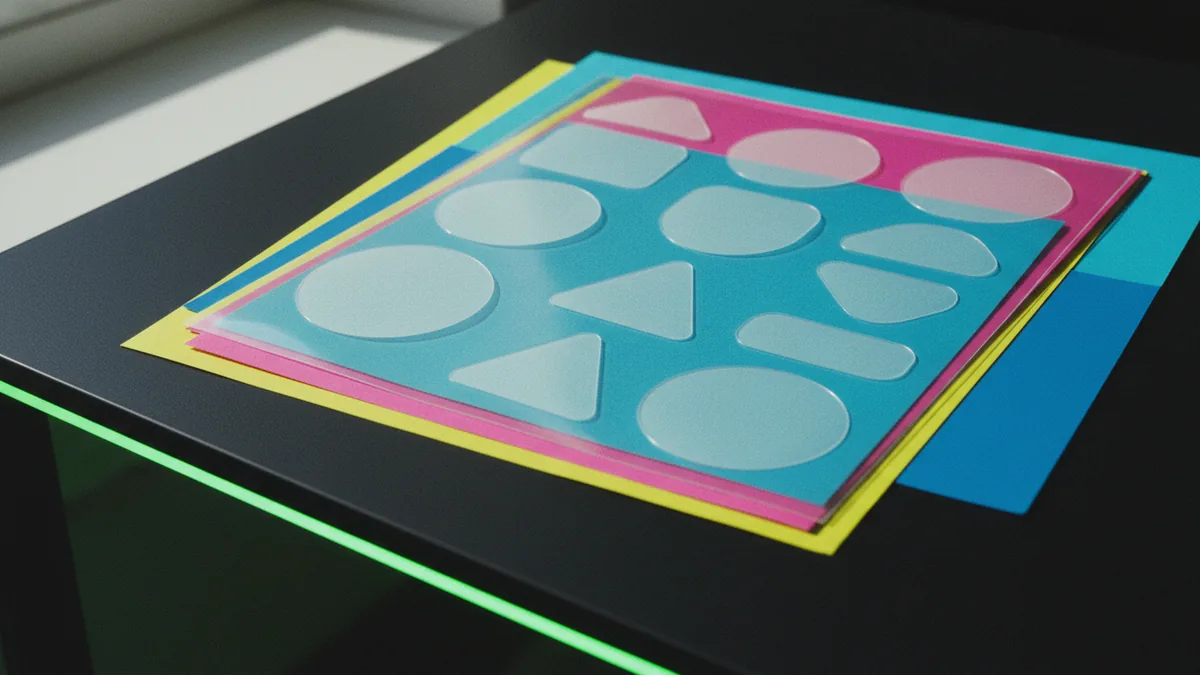
Image Transparency vs Background Transparency
These two ideas get mixed up. Image transparency means you make an element see-through. It is useful for fades, overlays, and soft looks.
Background transparency means the background pixels are removed from the exported PNG. When you place that PNG over another color, the artwork “floats” with no box behind it. This is what most people mean when they search how to create transparent background in canva or how to get transparent background on canva.
There is also a workflow trap. A design can look clean on the Canva canvas. It can still export with a background color if you do not use the correct download setting.
| What you want | What to do in Canva | What you get |
|---|---|---|
| Fade an image | Use opacity controls | Semi-transparent artwork |
| Remove a background box | Use background removal tools | Transparent background in PNG |
| Remove a backdrop from a photo | Use background removal and refine edges | Transparent cutout |

Why Use Transparent Backgrounds?
Transparent backgrounds reduce clutter. Instead of fighting a white rectangle, your logo sits naturally on any layout color. That makes your design clarity higher across slides, web pages, and print mockups.
Transparency also improves readability. If you place an image overlay behind text, you can keep contrast while still showing the image. This is common in branding design, ads, and product cards.
Finally, PNG files with transparency are reusable. You can reuse the same asset across different backgrounds. You do not need to remake the cutout every time you change a color theme.
- Cleaner layouts with fewer “boxes”
- Better text readability using overlays
- Reusable assets for branding design
How to Make an Image Background Transparent
If your goal is how to make a transparent background on canva, start by creating transparency in the elements you use. Canva offers two main paths. One is fading through opacity. The other is removing the background so the unwanted part becomes empty.
First, decide what you need. If you want a soft overlay, opacity is enough. If you need a “no background” logo, you need background removal and then export correctly as a transparent PNG.
Here is a clear way to handle both, plus the mistake to avoid. Do not place a rectangle behind your image and forget to remove it later. That shape can show up in the download and break the transparent effect.
- Open your design and select the image you want to edit.
- Adjust opacity if you only need a fade effect.
- Use background removal if you need a cutout with no background.
- Check edges by zooming in and cleaning up the outline if Canva offers refinements.
If you are asking how do i make a transparent background in canva or how do you make a transparent background in canva, the short answer is this. Make the image background transparent using Canva tools. Then download the design as the right PNG export.
- Opacity helps with image overlay effects.
- Background removal helps with true PNG transparency.
- Edge checks prevent halos around cutouts.

How to Export a Design with a Transparent Background
Export is where how to get transparent background on canva becomes real. A clean preview does not guarantee a transparent PNG. You must download using the setting that preserves empty pixels.
In Canva, transparent background export for PNG typically requires Canva Pro. If you do not have Pro, you may still download PNG files. However, you might not get the transparent background option you need for a true cutout.
Use this workflow when your logo or cutout is ready. Keep your transparent element on the canvas and remove any extra background shapes. Then export with PNG so Canva can keep transparency.
- Click Share in the top-right corner.
- Select Download.
- Choose PNG as the format.
- Enable the transparent background option if it appears.
- Download and test the PNG by placing it over a solid color.
If you are searching how to have a transparent background in canva, this is the final step most people miss. You can create transparency in Canva tools. But only the right PNG export keeps it when you use the file elsewhere.
Tips for Using Transparent Backgrounds Effectively
Transparent backgrounds work best when your asset has clean edges. If the cutout looks fuzzy, zoom in and look for stray pixels. Those pixels usually come from imperfect background removal.
Also think about composition. For image overlay, try partial opacity on the element. For a logo, aim for full transparency so it blends cleanly into product mockups and landing pages.
Finally, manage your layers. If you add a background plate, hide it before export. If you use multiple elements, group the transparent cutouts so you do not accidentally export the wrong parts.
- Zoom in to spot edge halos after background removal
- Use opacity for overlays, not for true cutouts
- Hide any shapes behind your image before downloading
Common Use Cases for Transparent Backgrounds
Logos are the most common reason people search how to make transparent background logo canva. Brands want their mark to appear on light or dark pages. A transparent PNG lets the logo keep its shape without a white box.
Product mockups also benefit. You can place a cutout product on different backgrounds quickly. This is helpful for e-commerce banners and social posts.
Finally, designers use transparent assets for layout testing. A transparent cutout helps you compare spacing and alignment on real page colors. You get faster iteration and fewer redraws.
| Use case | Best Canva approach | Export result |
|---|---|---|
| Logo placement on any color | Background removal + transparent PNG | No box around the logo |
| Image overlay in posts | Opacity control | See-through overlay effect |
| Product mockups | Background removal + edge cleanup | Cutout usable on any background |
Quick Troubleshooting
If you downloaded a PNG but still see a background box, check two things. First, confirm you exported with the transparent background option. Second, remove any shapes behind the image in your design.
If edges look wrong, it is usually a background removal quality issue. Try a different source image. You can also adjust the cutout by refining edges if Canva provides that step.
If you are trying how to create transparent background canva and it seems blocked, review your plan. Transparent export features may require Pro access.
FAQ: Transparent Backgrounds in Canva
Below are answers to common questions about creating transparency and exporting PNG files.
- Question: how to put transparent background on canva? Answer: use background removal, then download PNG with the transparent background option.
- Question: how to put transparent background on canva? Answer: use background removal, then download PNG with the transparent background option.
Now use the sections above for the full steps.
Step-by-step
- 01 Edit your element for transparency
Select the image or logo and decide between opacity or background removal. For a no-box result, use background removal.
- 02 Refine the cutout edges
Zoom in and check for halos or stray pixels. Clean up the outline if Canva offers edge refinement.
- 03 Remove any hidden background shapes
Hide or delete rectangles and background plates behind your cutout. These can appear in the exported PNG.
- 04 Download as PNG with transparency
Open Share, choose Download, then select PNG. Turn on the transparent background option if it is available.
- 05 Test the PNG on a solid color
Place the PNG over a strong color background. Confirm that only your artwork remains visible.
Frequently asked questions
- How do I make a transparent background in Canva?
- Use background removal (for a cutout) or adjust opacity (for a fade). Then download a PNG with the transparent background option enabled.
- How to get transparent background on Canva for a logo?
- Remove the logo background with Canva tools, refine the edges, and export as a transparent PNG. Transparent export options often require Canva Pro.
- Can I export transparent background PNG in Canva without Pro?
- You may be able to download PNG files, but the transparent background option is typically limited. Check the download options shown for your account.
- Why does my Canva transparent PNG still show a box?
- Most often, the background plate or shape behind the image was not removed. Also confirm you enabled transparent background in the PNG download step.
- How do you make a transparent background on Canva for product photos?
- Use background removal on the product image and clean the edges. Export as a transparent PNG so the product blends over any background.
Related reading

How to Make the Apple Logo Glow on iPhone (13 or 12)
Make the Apple logo glow on iPhone 13 or 12 using settings or custom Photoshop glow.

How to Make a Cartoon Logo: Tools, Steps, and Design Tips
Learn how to make a cartoon logo with tools, steps, and export tips.

How to Add a Logo to a Video (and Photos, PDFs, and Email)
Learn how to add a logo to video, photos, PDFs, and more—step by step.