How to Make a Motion Logo: Tools, Steps, and Tips
Learn how to make a motion logo efficiently. Pick the right tools, prep layers, animate smoothly, and export in MP4 or GIF for each channel.
If you want to learn how to make a motion logo, start with planning, then animate separated layers, and export in the right format for each channel. This guide shows you a fast, reliable workflow. You will see how to create a motion graphic logo with clean timing, good motion choices, and fewer back-and-forth revisions.
A motion logo is not just a fun effect. It is a branding asset that can increase recall in places where people skim quickly. When your logo moves with meaning, your digital brand feels more alive.
Why animate a logo?
Animated logos can boost brand visibility in digital spaces. A still mark competes with everything else on a page. Motion adds a short “hook” that helps the viewer notice and remember.
In practice, motion logos perform best when they reinforce a message. For example, a quick upward reveal can suggest speed or growth. A slow fade-in can feel calm and premium.
Animation also helps you reuse one identity across formats. You can show the same logo in video intros, product headers, onboarding screens, and email campaigns. That consistency supports stronger digital branding.
Choosing your animation tool
Your tool choice shapes both your speed and your output quality. If you need simple logo animation for web and social, a motion graphics tool is often fastest. If you plan to ship interactive experiences, you may add animation scripting later.
Match the tool to your workflow. Designers who already work in vector can keep layers organized and export clean assets. Developers who work with web animation can reuse timing rules and easing across multiple screens.
When you compare tools, check three things. First, can it animate separate layers without rasterizing everything? Second, can it export to MP4 and GIF cleanly? Third, does it support transparent background exports?
- For motion graphics and logo reveals: use a timeline-based animation app.
- For web-ready lightweight output: focus on vector-friendly workflows and clear exports.
- For frequent iterations: pick a tool with quick previews and reusable presets.
If you want a simple target, aim for a setup that lets you how to create a motion graphic logo in minutes, then polish over hours. That rhythm keeps you efficient and avoids endless tweaking.
Preparing your logo for animation
Before you animate, prep your logo like a product asset. Your logo needs a transparent background. It also needs individual elements as separate layers. That is the difference between “moving a picture” and “animating the brand.”
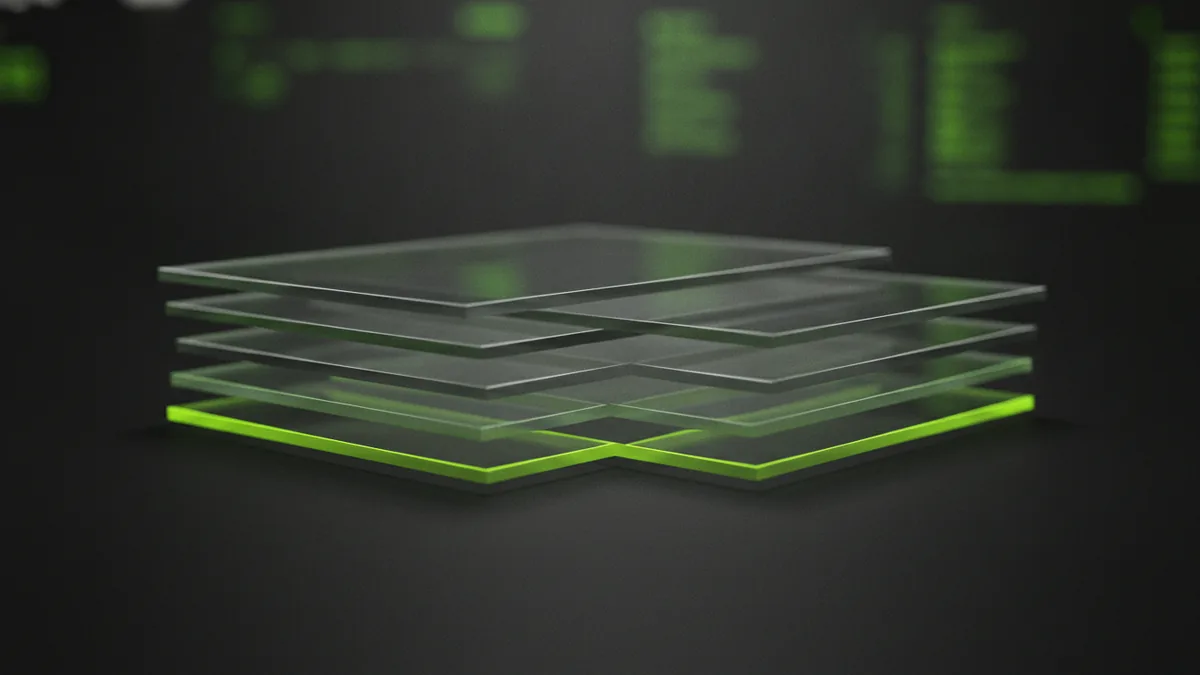
Start in your logo design file. Confirm that every element you want to move exists as its own layer. Examples include icon strokes, fills, letters, and decorative shapes. If your logo is one flattened layer, you will struggle to animate it cleanly.
Next, decide on a safe size. Test the logo at the size you will display on screen. If it looks crisp at that scale, you avoid blurry exports later.
Then create a layer plan for motion. Mark what should move and what should stay still. If you intend a full-logo reveal, you might animate everything together. If you want depth, you will move foreground and background parts at different speeds.
| Preparation step | Why it matters | Quick check |
|---|---|---|
| Transparent background | Lets the logo sit on any page color | Export a test and confirm no white box |
| Separate layers | Enables real motion control | Hide one layer and verify it disappears |
| Consistent naming | Makes revisions faster | Use names like “icon,” “wordmark,” “accent” |
| Vector cleanliness | Prevents jagged edges in motion | Zoom to 400% and look for artifacts |
This is where most teams save time later. Good prep makes how to create a motion logo feel straightforward instead of fragile.
Steps to animate your logo
Below is a practical workflow you can reuse. It is designed for teams who need how to make a motion logo efficiently, without losing quality. Even if you change tools, the steps stay the same.
- Define the goal and duration: Pick one use case. A banner loop might be 2–3 seconds. A hero reveal can be 1–1.5 seconds. Keep it short so it feels intentional.
- Storyboard the motion: Write a one-line description of what happens. For example, “The icon draws in, then the wordmark fades up.” This prevents aimless animation.
- Set up layers and anchors: Place layers on the timeline. Confirm each layer starts in the correct position. If you need a “draw” effect, verify stroke paths or masks exist.
- Animate with simple first passes: Start with opacity and position. Then add rotation or scale if it fits the brand. Avoid adding five effects at once.
- Polish timing and easing: Use consistent easing for related parts. Small delays can add hierarchy. Keep motion smooth by using fewer, larger changes.
- Test on real backgrounds: Preview on a dark page, light page, and gradient. Motion can look different with color contrast.
- Export for each channel: Use MP4 for video placements. Use GIF for email-friendly loops. Always confirm transparency before you ship.
For teams building at scale, build a template project file. Reuse it for each motion graphics logo variant. That alone can cut production time by a lot.
Animation concepts and techniques
There are a few animation patterns that work well for most logos. The key is to choose the one that matches your brand message. If your brand feels bold, you can use fast reveals. If it feels friendly, you can use soft easing and gentler motion.
Here are common techniques used in how to create a motion logo projects. Pick one primary technique, then add a small secondary detail.
- Reveal (fade, wipe, or draw): Shows the logo forming in a way that feels clear.
- Slide or parallax: Adds depth by moving layers at different speeds.
- Scale and bounce: Works for playful brands, but keep it subtle for professionalism.
- Rotation: Use sparingly. It can feel dynamic if the angle change is small.
- Looping motion: Design a motion that returns to the start cleanly for repeats.
Also consider loop design. Many logos need to loop without a visible “reset.” To do this, build a motion curve that ends close to its initial state. Then align the last frame with the first frame so the viewer does not notice the cut.
If you are aiming for how to make supreme motion logo quality, focus on micro-timing. A delay of 80–150 milliseconds between icon and wordmark can feel more premium than a perfectly synced animation. The difference is hierarchy, not complexity.
Best practices and tips for motion logos
Professional motion logos follow a few rules. First, keep motion readable. If the logo is small, avoid motion that moves too far. Large shifts can make the brand feel unstable.
Second, design for performance. Looping animations should be short and efficient. If you export heavy files, you may hurt load times. That means your animation might not play when people want it.
Third, plan your export formats early. Different apps handle transparency and looping differently. MP4 is great for video placements where you control playback. GIF is still common for email loops, but it can limit color and motion smoothness.
Here is a simple export guide you can follow. It keeps your asset workflow predictable.
| Need | Best format | Notes |
|---|---|---|
| Website hero video | MP4 | Good quality, easy to preview and swap |
| Email loop animation | GIF | Keep file size small; test on common clients |
| Overlay on UI elements | Transparent output | Verify no background rectangle appears |
| Social post animation | MP4 or GIF | Choose based on platform requirements |
- Use contrast-aware previews: test on multiple backgrounds before final export.
- Keep one story: if you add effects, make them support the same message.
- Save iteration time: keep a “v1 timing” and “final polish” timeline.
- Document your choices: write down duration and easing values for future edits.
Finally, connect the motion to the brand design system. Your logo design is more than shapes. Your animation techniques should respect the same visual rules, like spacing, weight, and rhythm. That is how how to make a motion logo turns into a repeatable craft.
If you want more help turning a motion logo into a fast, polished digital experience, start with a project plan that covers where the asset will be used and how it will load. You will get better results when motion and web delivery are planned together.
Frequently asked questions
- How to make a motion logo step by step?
- Start by prepping your logo as separate layers on a transparent background. Then storyboard the motion, animate a simple first pass, polish easing, and export in the right format.
- What do I need to animate a logo efficiently?
- You need a transparent background, individual layers for each logo part, and a clear animation goal. Keep the first animation pass simple so you can iterate quickly.
- Which animation tool is best for a motion graphic logo?
- A timeline-based motion graphics tool is usually fastest for logo animation. Choose one that supports transparent exports and reliable MP4 and GIF outputs.
- What animation style works best for most brand logos?
- A reveal pattern like fade or draw often works well because it is readable. Add a small parallax or delay detail only if it supports the brand message.
- Should I export my motion logo as MP4 or GIF?
- Use MP4 for video placements and higher quality playback. Use GIF for email-friendly loops, but test file size and motion smoothness.
- How do I make a motion logo loop without a visible jump?
- Animate back to the start state and match the last frame to the first. Then preview the loop at the final playback speed before exporting.
Related reading
How to Get a Free Business Logo: Tools, Steps, and Downloads
Create a clean, professional free logo using easy tools—then download the right file types.
How to Start and Run a Logo Design Business That Gets Clients
Learn how to start a logo design business, build a client-ready portfolio, and market effectively.
How to Make an Animated Logo for YouTube and Beyond
Learn how to make an animated logo with the right steps, tools, and exports.