How to Create a Logo Grid: Step-by-Step Layout Guide
Learn how to create a logo grid with practical steps, proportions, and spacing rules to keep your brand consistent across sizes and use cases.
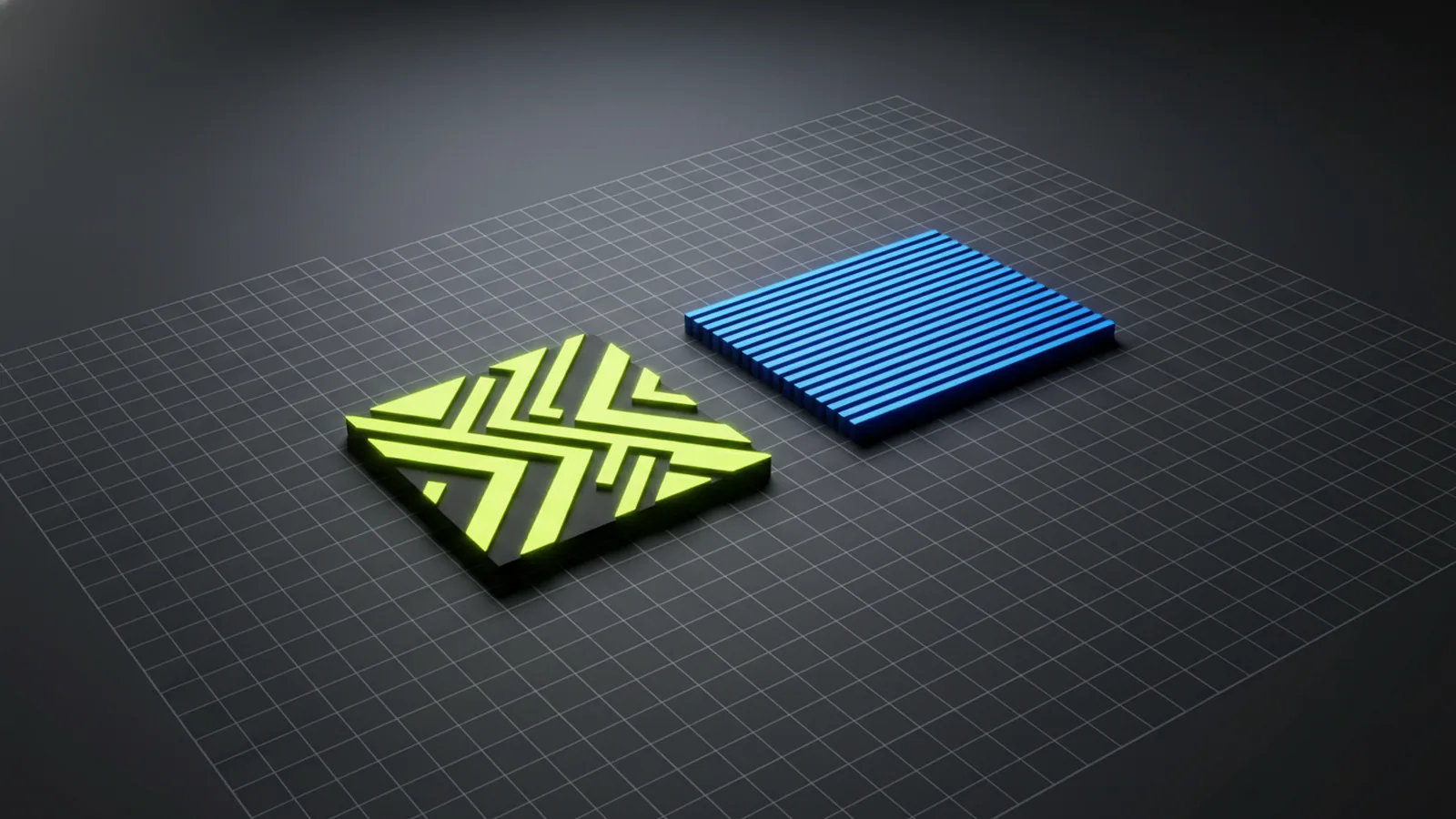
What a logo grid is and why it matters
A logo grid is a structured layout system that uses consistent rows and columns to place logo elements with precise spacing. Instead of relying on “eyeballing” proportions, you define a repeatable reference that you can use during redesigns and exports. This makes it easier to maintain balance between marks, wordmarks, icons, and any supporting geometry.
In practice, a good logo grid helps with two big outcomes: consistency and scalability. Consistency means the logo looks intentional at every size, from favicons to hero headers. Scalability means you can apply the same spacing rules when you adapt the logo for different formats, such as stacked layouts or horizontal lockups.
If you’ve ever seen a logo where letters drift over time, the icon feels too close, or the padding changes across assets, a grid is the fix. It creates a shared “source of truth” you can hand to designers and developers so everyone follows the same visual logic.
Before you start: decide what the grid must control
Not every logo needs the same level of grid structure. Start by identifying which parts of your logo must stay aligned and proportional. Common candidates include stroke thickness relationships, icon-to-text spacing, baseline alignment, and left/right padding inside a lockup.
Ask yourself what will likely change later: new translations, new variants (horizontal/stacked), or different aspect ratios. If you expect to produce multiple versions of the brand, you’ll benefit from a grid that can support all of them without rebuilding from scratch.
Also decide where the “grid origin” is. For example, you might anchor the grid to the left edge of the icon bounding box, to the baseline of typography, or to the centerline of a symmetrical mark. A clearly defined origin prevents confusion later when you or someone else updates the layout.
Common grid targets for different logo types
- Icon + wordmark: control icon-to-text spacing, cap-height/ x-height alignment, and consistent padding.
- Monogram marks: control stroke spacing and relative letter geometry so the mark stays balanced.
- Badge or emblem: control margins between outer border and inner details.
Step-by-step: how to create a logo grid
The core idea is simple: translate your logo’s geometry into a grid you can measure. You’ll define units, draw a baseline reference, then place each element in exact grid positions. Once the layout is on the grid, you can lock the relationships so the logo remains stable when you resize or export.
Even if you use a design tool that supports grids automatically, you still need a method for choosing the unit size and the key reference lines. Below is a practical workflow that works for most vector-based logos.
- Define the logo’s reference box: Choose an overall boundary that represents the main lockup (icon + text, or full badge). This box becomes your measurement frame.
- Pick a grid unit: Use a unit size that can divide your key distances cleanly. A smaller unit gives you finer control; a larger unit is easier to work with. The best unit is the one that avoids awkward fractions for spacing and alignment.
- Establish the origin and main reference lines: Set an origin point (often left edge of the icon or centerline of the mark). Add reference lines for baseline (for typography), midline (for symmetry), and cap/visual height if your logo includes text.
- Map the grid to the icon first: Place the icon’s critical edges onto grid lines. If the icon is geometric, align outer boundaries and internal offsets to consistent grid increments.
- Set spacing rules for the wordmark: Align the text baseline or optical height to your reference line. Then position the text block so its left/right boundaries land on grid points. This ensures spacing doesn’t drift when you create variants.
- Define padding between elements: Measure the gap between icon and text in grid units and record it as a constant. For example, you might set the gap to a specific number of units so every horizontal lockup uses the same relationship.
- Check symmetry and balance: If the logo is centered, verify the mark’s visual center aligns with the grid centerline. If it’s left-weighted, check that the perceived balance stays consistent across different word lengths.
- Lock relationships and create variants: Once the grid works for the base lockup, replicate the rules for stacked versions, alternate alignments, and localized layouts. Update only the parts that should change; keep the grid-based spacing rules fixed.
That workflow answers the practical “how to create a logo grid” question directly: you’re converting the logo into measurable relationships instead of manual positioning. “How to make a logo grid” becomes a repeatable procedure, not a one-time drawing exercise.
A quick example of translating spacing into grid units
Let’s say your logo has an icon and a wordmark. You decide on a reference box width of 40 grid units, and you place the icon so its right edge sits at unit 14. If your icon-to-text gap is 3 units, then the wordmark’s left edge starts at unit 17. When you resize, you preserve the same unit relationship, so the gap stays consistent and the logo remains proportionally correct.
This approach works even when the typography changes slightly, because you’ve defined where the wordmark block must sit relative to the icon. It’s a reliable way to keep your spacing from “creeping” during iterative design.
Grid rules: proportions, spacing, and optical corrections
A grid is not only about geometry; it’s also about making the logo look right to the human eye. Typography often requires optical adjustments even when it’s on a baseline. Letters with different counters and strokes may need small tweaks so they appear evenly spaced and visually aligned.
Use your grid to set the intended relationships, then apply micro-corrections deliberately. The key is to document those corrections as part of your system. If you correct one letter or adjust a stroke once without accounting for it, you’ll struggle to reproduce the same look in future variants.
When you define spacing, avoid absolute pixel thinking. Instead, express spacing in grid units. Then when you export for different sizes, you can scale the vector artwork while maintaining the proportions that the grid ensures.
Practical rules to include in your logo grid spec
- Element edges: define which edges must always land on grid lines (icon outer boundaries, wordmark block boundaries).
- Gaps: store the icon-to-text gap as a fixed grid-unit value used across lockups.
- Baseline alignment: align typography to a baseline reference line in grid units.
- Minimum clear space: if your brand guidelines require padding around the logo, define it as multiples of grid units.
Common mistakes when you create a logo grid (and how to avoid them)
One common mistake is creating a grid that’s too vague to govern alignment. If the grid unit isn’t tied to meaningful spacing decisions, you end up with a grid that looks neat but doesn’t prevent inconsistency. You should be able to point to a specific grid measurement that controls a real part of the logo layout.
Another mistake is applying the grid only to the base lockup and forgetting variants. When designers rebuild stacked or alternate versions without referencing the grid rules, spacing differences appear quickly. Build the rules once, then reuse them - create variants by changing only what must change.
Finally, many logos fail the “optics” test because the grid ignores human perception. Pure geometric centering can look slightly off once typography enters the picture. Plan for optical correction as a controlled step rather than an ad-hoc tweak.
Checklist: what to verify before you finalize the grid
| What to check | Why it matters | How to confirm |
|---|---|---|
| Icon and wordmark edges align to grid | Prevents spacing drift across exports | Confirm boundaries land on the same unit lines |
| Icon-to-text gap is constant | Protects balance in horizontal lockups | Measure the gap in grid units and reuse it |
| Baseline and visual height relationships | Keeps typography consistent | Verify baseline alignment and optical spacing |
| Variant consistency (stacked, alternate) | Avoids “almost the same” layouts | Apply the same unit rules, only swap layout mode |
How to use your logo grid in real projects
Once your logo grid is defined, its real value shows up during production. Designers can create new brand assets - like social headers or product page lockups - without redoing layout logic each time. Developers benefit too: when assets follow the same spatial system, it’s easier to predict how the logo will behave in responsive layouts.
Even for web work, the grid concept helps. While responsive typography and spacing will vary, you can map your grid-based padding and alignment decisions into your UI layout system. That reduces the chance of a logo that looks perfect in one component but misaligns elsewhere.
If you’re collaborating with a web team, provide the grid spec along with the final artwork. Include the grid unit logic, the key reference lines, and the element spacing rules. That documentation helps keep future edits accurate, especially when your logo must support multiple themes, languages, or contexts.
A lightweight handoff format
- Reference box dimensions in grid units (what the grid measures against)
- Origin and reference lines (baseline, centerline, key edges)
- Fixed spacing values (icon-to-text gap, clear space around the logo)
- Variant rules (what changes, what never changes)
Logo grid deliverables you can reuse
If you want your “how to make a logo grid” process to pay off long-term, package it into reusable deliverables. Think of your grid as part of the logo system, not just a drafting aid. The goal is to make the grid portable - so the logic survives handoffs and redesign cycles.
A solid deliverable set includes both the visual master artwork and the specifications that explain how to place elements on the grid. When you update the logo later, you’ll be able to re-run the same rules quickly rather than re-deriving spacing decisions.
For many teams, this also becomes a quality gate. Before publishing new logo assets, reviewers can verify that placements match the grid rules, keeping your brand consistent across platforms.
- Master grid file: the logo built on the grid with reference lines visible.
- Variant masters: horizontal, stacked, and alternate layouts produced from the same rules.
- Spacing spec: a small table of fixed gaps and padding values in grid units.
- Export checklist: a repeatable process for generating assets without breaking proportions.
Frequently asked questions
- How do I create a logo grid for an icon and wordmark?
- Start with a reference box, choose a grid unit that divides key distances cleanly, then align the icon edges to grid lines. Set the wordmark baseline to your baseline reference line and define the icon-to-text gap as a fixed grid-unit value.
- What grid unit size should I use when I make a logo grid?
- Pick a unit that makes your critical measurements land neatly on grid points. Smaller units give finer control, but the best choice is the one that avoids awkward fractions for spacing and alignment.
- Should I use a logo grid for stacked and horizontal logo variants?
- Yes. Create each variant using the same grid rules (origin, reference lines, and fixed gaps), then change only the layout structure that must differ.
- How do I handle optical corrections while keeping the grid consistent?
- Use the grid to set intended relationships, then apply micro-adjustments to typography and strokes with intention. Document those adjustments so you can reproduce them consistently in future variants.
- What are the most common mistakes when creating a logo grid?
- Common issues include choosing an overly vague grid that doesn’t govern real spacing decisions, rebuilding variants without reusing the rules, and ignoring typography’s optical needs.
Related reading

Can You Use a Company Logo Without Permission? Legal Implications
Fair use is narrow. Learn logo risks, legal limits, and safer alternatives.
How to Get a Nike Logo for Cricut (SVG + Illustrator)
Get Nike logo SVGs for Cricut or make one in Illustrator, then cut clean with smart settings.

Logo vs Symbol: Definitions, Similarities, and Design Differences
Logo vs symbol: definitions, similarities, and real branding examples.